Google Keep task management doesn’t need to be complicated. You’ve probably downloaded three task apps this year, set one up on a Sunday, added forty tasks, colour-coded everything, and never opened it again by Wednesday.
Google Keep fails differently. It doesn’t overwhelm you — it under-structures you. It looks so simple that most beginners just dump unsorted notes into it, lose track of what matters, and quit within a week.
This guide fixes that. It walks through how to use Google Keep for task management with a setup you can build in one sitting: a daily list, a weekly list, five labels, and reminders that actually reach you.
It also tells you plainly where Keep breaks, because Google Keep is a note app, not a full project management tool.
The centrepiece is the 3-note system further down. If you only copy one thing from this guide, copy that.
Note: This article may contain affiliate links. If you buy through them, we may earn a small commission at no extra cost to you.
Table of Contents
Why Google Keep Task Management Works for Beginners
Google Keep is a fast note and checklist app. That’s the whole appeal.
It isn’t a productivity suite, and trying to turn it into one is one of the main reasons people eventually abandon it.
For beginners, that simplicity can actually be an advantage.
Three real benefits stand out:
- The core features are free. Google Keep has no separate paid Keep subscription. Standard note-taking, checklists, labels, reminders, sharing, colours, and pinning are available with a Google account. Some newer AI-powered features may require an eligible Google AI plan or supported device.
- It’s already part of the Google ecosystem. Keep works on the web, Android, and iOS, and you can access it from the side panel in apps such as Gmail and Google Docs.
- Capturing something takes seconds. Open Keep, type what you need, and move on. There are no project fields, complex priority systems, or onboarding screens standing between you and the task.
If you are still comparing different approaches to productivity, you may also want to see our guide to the best productivity apps for students.
Where Google Keep Falls Short
Keep is deliberately simple, which means there are limits.
- A reminder applies to the entire note rather than giving every checklist item its own separate due date.
- There are no advanced project dependencies.
- There are no true sub-projects.
- It isn’t designed for detailed long-term project planning.
- Shared notes don’t have a view-only permission level.
- Location-based Keep reminders are no longer supported.
Use Google Keep if: you want one place to capture tasks quickly, you work well from short daily lists, you already use Google apps, and you don’t want to spend time configuring a productivity system.
Skip Google Keep if: you manage several complicated client projects, need individual deadlines for every task, rely heavily on dependencies, or need advanced team permissions.
For those situations, a dedicated task or project management app will usually make more sense.
Setting Up Google Keep in Under Two Minutes
You don’t need a complicated onboarding process.
Here’s the basic setup.
- Open Google Keep. Go to keep.google.com in your browser or install the Google Keep mobile app.
- Sign in with your Google account. There’s no separate Keep account to create.
- Find the Keep side panel. If you regularly use Google Workspace apps such as Gmail or Google Docs, look for the Keep icon in the right-hand sidebar.
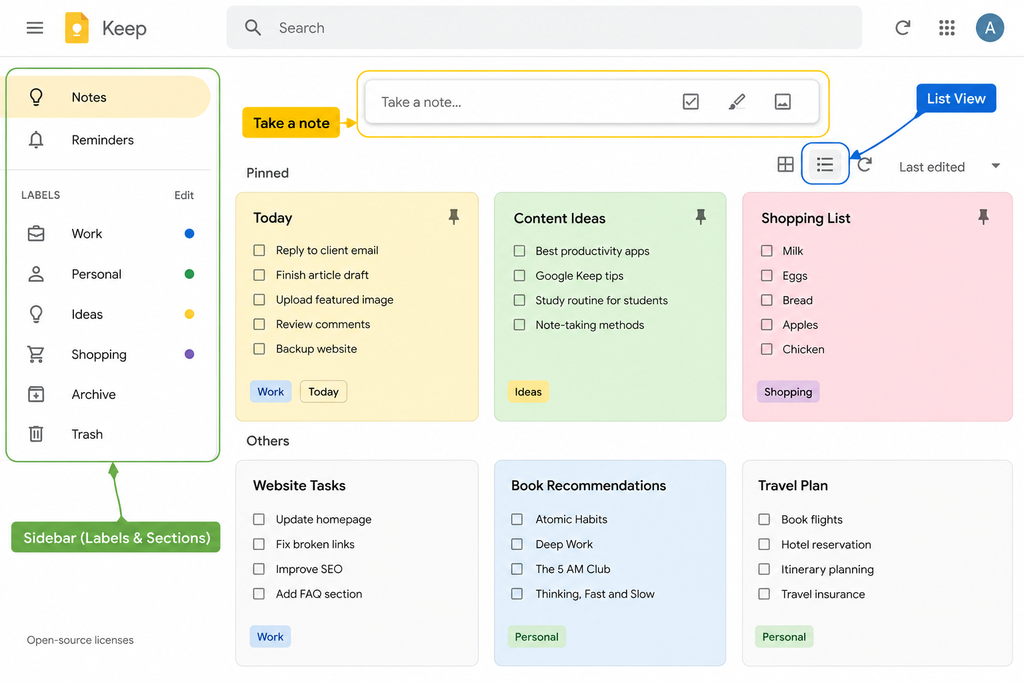
- Learn the main areas. You’ll see the “Take a note” field, your existing notes, the sidebar containing sections such as Notes and Labels, and the controls for changing how notes are displayed.
- Try list view instead of grid view. Grid view works well for short visual notes, but list view is often easier when you’re managing longer checklists.
That’s enough to start.
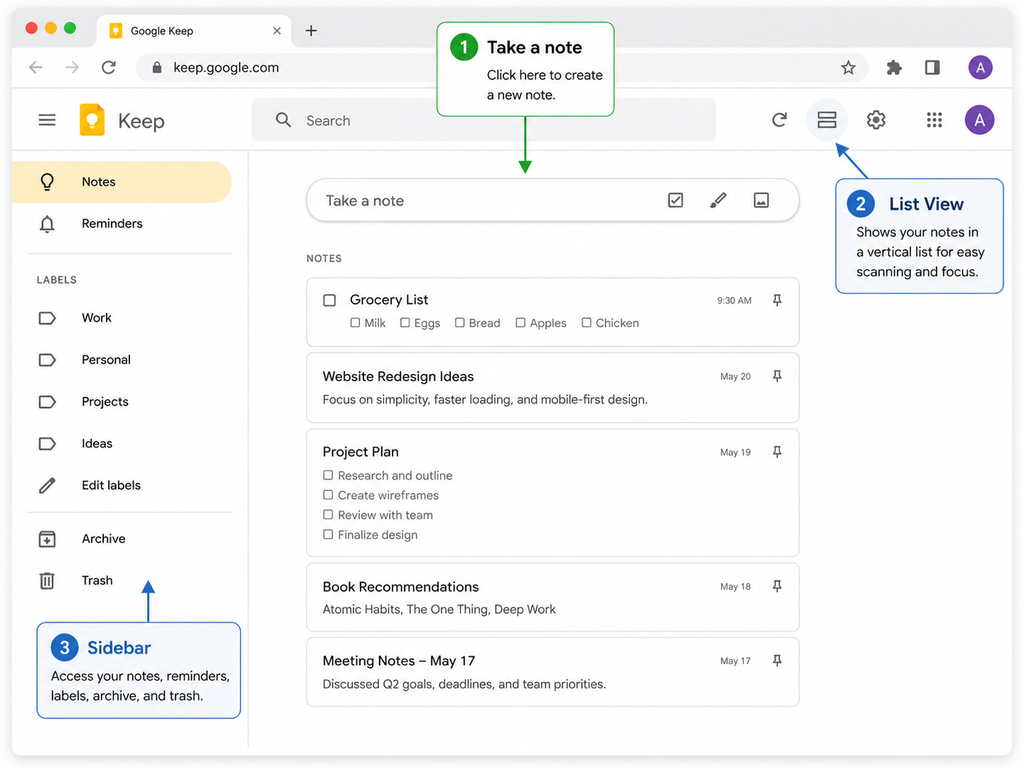
You don’t need to configure twenty settings before creating your first task.
Creating Your First Task List
Turn a Note Into a Checklist
To create a checklist immediately, click the New list checkbox icon near the “Take a note” field.
If you already have a normal note and want to convert it:
- Open the note.
- Click More.
- Select Show checkboxes.
You can reverse the process later by selecting Hide checkboxes.
A checklist gives you something plain text doesn’t: a visible completion state.
Instead of repeatedly editing a block of text, you can simply tick tasks as you finish them.
Add, Complete, and Reorder Tasks
Using a Keep checklist is straightforward.
- Type a task and press Enter to create the next item.
- Tick the checkbox when the task is complete.
- Drag items up or down to change their order.
- Use the note’s additional options to uncheck completed items or remove checked items when cleaning up a reusable list.
If new checklist items appear in a position you don’t like, check Keep’s settings for the option controlling whether new items are added to the top or bottom.
That small adjustment can make recurring lists much easier to manage.
Use Indented Sub-Tasks for Bigger Jobs
Google Keep supports basic indentation inside checklists.
That means you can create a parent task and place a few smaller steps underneath it.
For example:
- Publish blog post
- Final proofread
- Add featured image
- Set meta description
- Schedule publication
- Share on social media
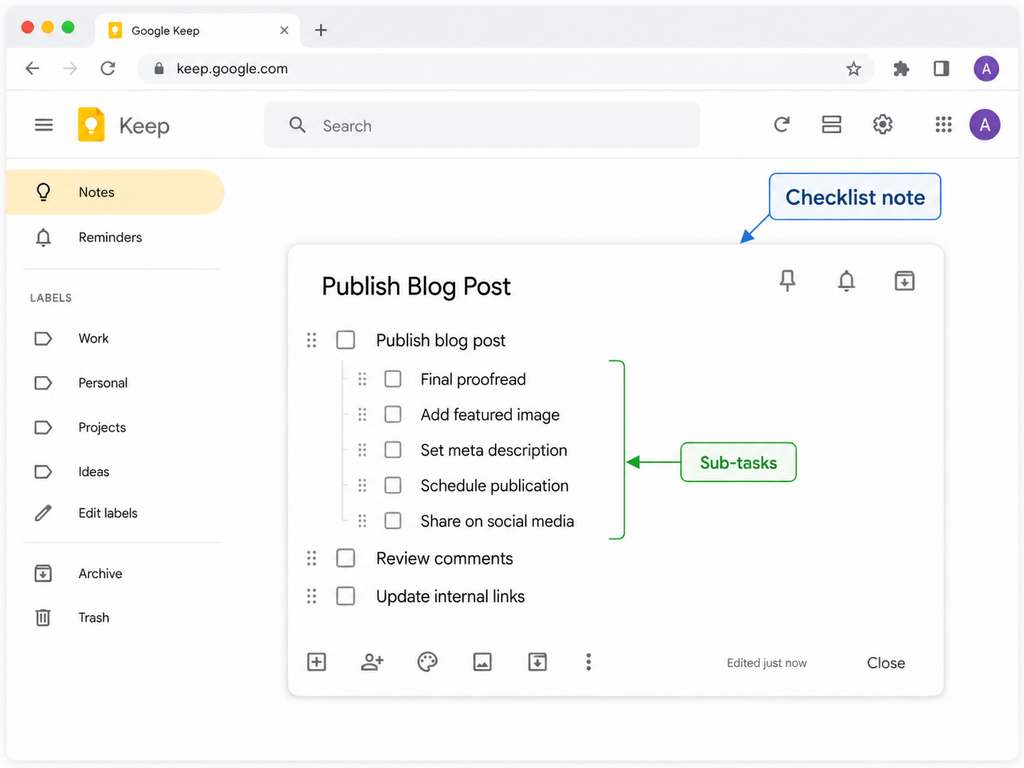
This works well for small jobs.
It doesn’t turn Keep into a project management system, though.
You still can’t give every sub-task its own advanced project dependency or build a complex workflow around it.
Once a project needs that level of control, move the project elsewhere instead of forcing Keep to do something it wasn’t designed for.
Organizing Tasks with Labels, Colours, and Pinning
Google Keep becomes much more useful once you introduce a little structure.
The key word is little.
You don’t need fifteen folders, twelve colours, and thirty labels.
Set Up Labels
Labels are Keep’s basic filing system.
You can add labels from inside an existing note or manage them through the labels section in the sidebar.
A simple starter set might be:
Today · Client Work · Content · Admin · Someday
You don’t have to use those exact names.
The important thing is keeping the system small enough that you don’t have to think for ten seconds every time you save something.
A useful rule for beginners is:
Stay under six labels until you have a clear reason to add another one.
Over-labelling creates a productivity system that requires more maintenance than the work itself.
Colour-Code and Pin What Matters
Colours work best when they communicate something instantly.
For example:
- Red — urgent or deadline today
- Yellow — waiting on someone else
- Grey — reference material rather than an action
You don’t need to assign a colour to every note.
Use colours only when seeing one from across the page actually tells you something useful.
Then pin the two or three notes you use most frequently.
Pinned notes remain easy to reach even as new notes are created underneath them.
A helpful distinction is:
Labels are for retrieval. Colours are for recognition.
You filter using labels.
You recognise colours without needing to read the entire note.
Archive vs Delete
When you finish with a note, you usually have two choices.
Archive removes the note from your main workspace while keeping it available through search and the Archive section.
Delete sends it to Trash.
Deleted Keep notes remain in Trash temporarily before being permanently removed, so don’t use Delete as your normal clean-up method.
For task management, archive should usually be your default.
Finished project?
Archive it.
Old checklist you might need later?
Archive it.
Random test note with no value?
Delete it.
Keeping completed work out of your main board makes current work much easier to see.
Setting Google Keep Reminders That Actually Work
This is one area where older Google Keep tutorials can easily confuse beginners.
Google began moving Keep reminders into Google Tasks during 2025.
Today, when you create a reminder from Google Keep, that reminder is connected to Google’s broader Tasks and Calendar system.
The Keep note itself remains a note.
The reminder is what connects it to Tasks.
How to Set a Reminder
- Open a Keep note.
- Click the reminder icon.
- Choose a date and time.
- Add a repeating schedule if the task needs one.
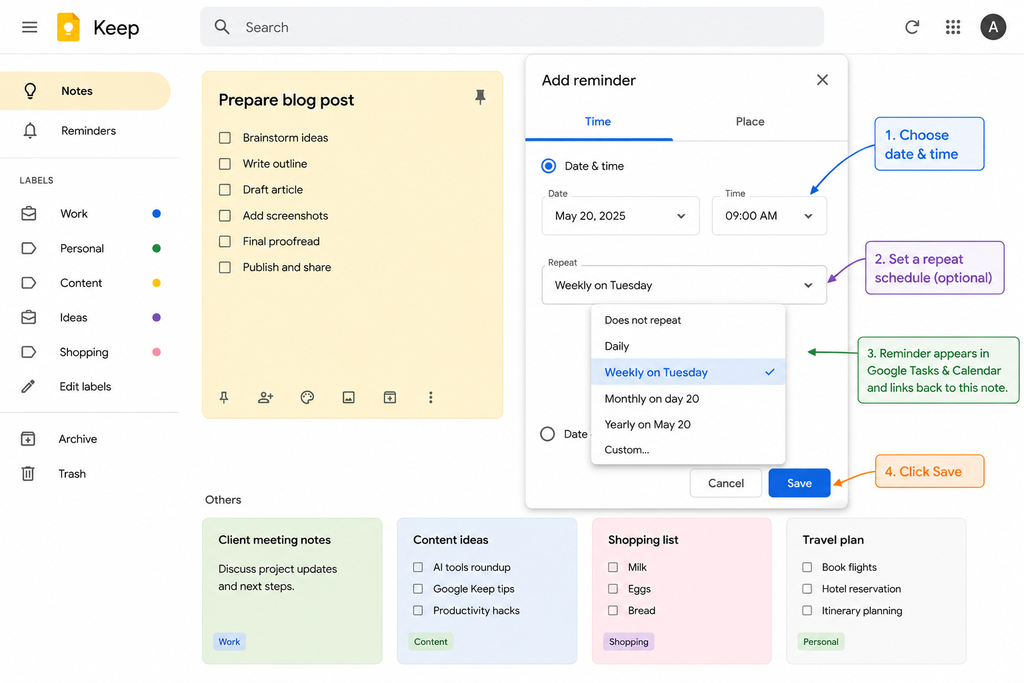
After you create the reminder, it can appear across Google’s task and calendar tools while still linking back to the original Keep note.
That makes Keep much more useful than older guides sometimes suggest.
Keep Notes and Google Tasks Are Not the Same Thing
This distinction matters.
Your entire Keep note does not automatically become a Google Task.
Instead, the reminder attached to the note connects the two systems.
Think of it like this:
Keep = where the information lives.
Tasks = when something needs your attention.
That’s a surprisingly useful combination for lightweight task management.
Location Reminders Are Gone
If you’ve used Google Keep for years, you might remember reminders that triggered when you reached a particular place.
That feature is no longer supported in the current reminder system.
If you see an old tutorial telling you to choose a location reminder and the option doesn’t exist on your account, you haven’t missed a hidden setting.
The feature is no longer available.
Reminders Not Firing? Check This First
One of the easiest mistakes is troubleshooting Keep when the notification is actually being handled elsewhere.
If your reminders appear correctly but your phone never alerts you:
- Make sure Google Tasks or Google Calendar is installed.
- Allow notifications for the app that is delivering your reminders.
- Check your phone’s battery optimisation settings.
- Make sure notifications haven’t been disabled at the operating-system level.
- Confirm that the reminder actually contains a date and time rather than just a date.
Menu names vary across Android versions, iPhones, and manufacturers, so searching your phone’s settings for Google Tasks or Google Calendar is often faster than following an outdated tutorial.
Sharing Task Lists with Clients and Collaborators
Google Keep also supports simple collaboration.
To share a note:
- Open the note.
- Choose the Collaborator option.
- Add the person’s email address.
- Save the changes.
Both people can then work with the same note.
If your collaborator checks an item, you see that change too.
That makes Keep useful for things like:
- Shared shopping lists
- Simple household lists
- Client revision checklists
- Small team checklists
- Content planning with an assistant
For a more structured editorial workflow, however, a dedicated calendar may be easier to manage. You can build one using our guide on how to create a free content calendar.
Understand the Permission Limitation
Before sharing Keep notes professionally, understand one important limitation:
Google Keep doesn’t provide a traditional view-only collaboration role for shared notes.
A collaborator is there to collaborate.
If you need someone to read information without being able to modify the working document, use a tool designed for that permission model instead.
And avoid storing sensitive information such as passwords or confidential client credentials in shared Keep notes.
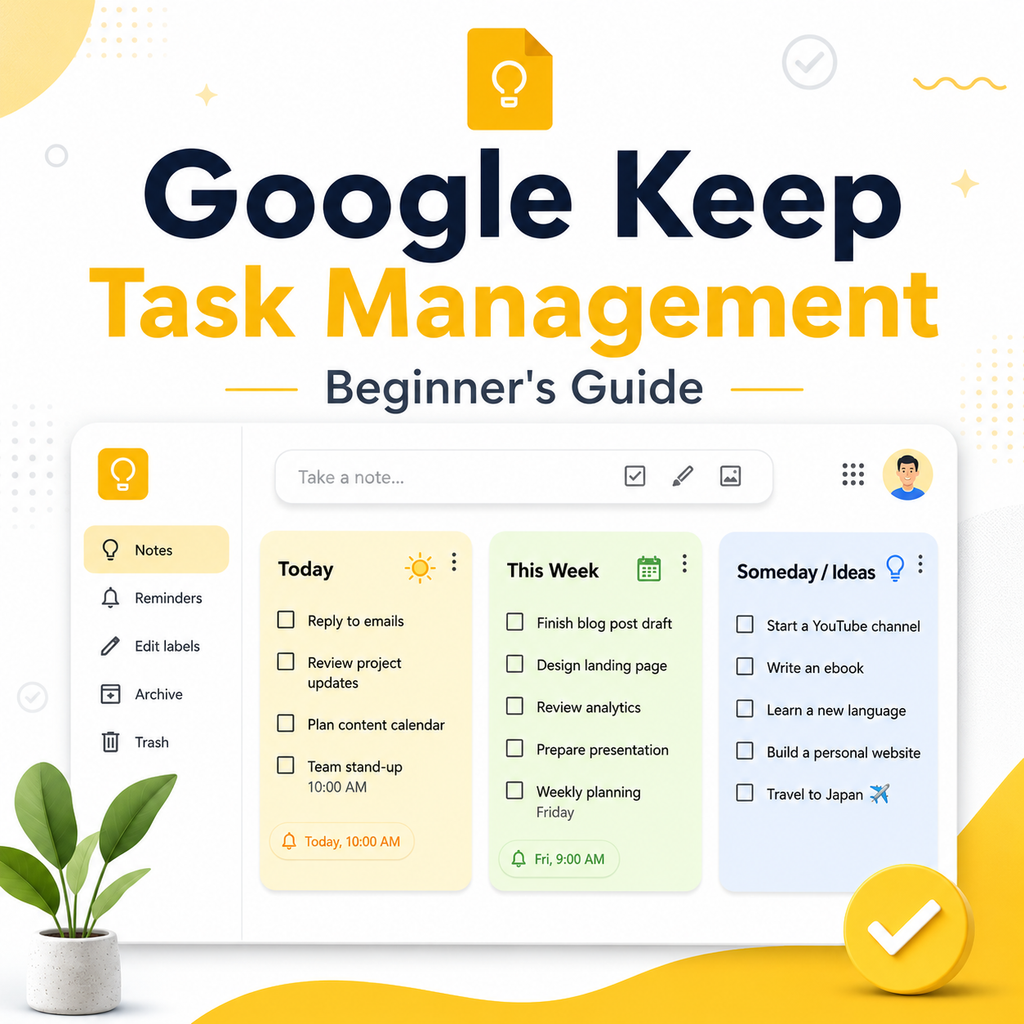
The 3-Note Google Keep System You Can Copy Today
Everything so far has explained Keep’s features.
Now let’s turn those features into a system you can actually use.
You need only three main notes.
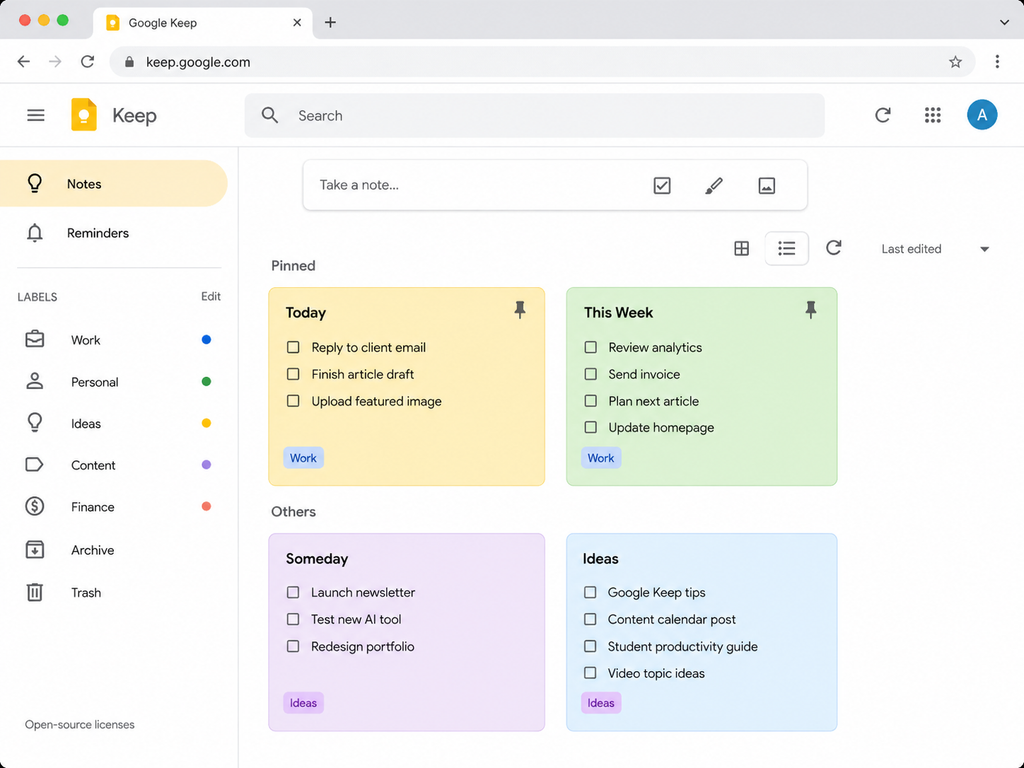
Note 1 — Today
Create a checklist called:
Today
Pin it.
Try to keep it to roughly seven items or fewer.
The exact number isn’t magic. The point is forcing yourself to decide what can realistically happen today.
If your Today note has 34 tasks, it isn’t a daily plan.
It’s another inbox.
Each morning, rebuild it based on what genuinely deserves attention.
Note 2 — This Week
Create another pinned checklist called:
This Week
This becomes the holding area for things you’ve committed to doing soon but aren’t doing today.
Examples:
- Finish draft
- Call supplier
- Update portfolio
- Review analytics
- Send client invoice
- Prepare presentation
When Today starts getting empty, pull something from This Week.
This prevents tasks from sitting on your daily list for five consecutive days while you repeatedly ignore them.
Note 3 — Someday / Ideas
Create a third note called:
Someday / Ideas
This one doesn’t need to be pinned.
Use it for things that matter enough to save but don’t deserve space in your active workflow.
For example:
- Course idea
- Blog article topic
- Software to test
- New business idea
- Person you might contact
- Skill you’d like to learn
Don’t review it every hour.
Check it during your weekly review.
The Two Routines That Make the System Work
The notes alone won’t make you organised.
The routines will.
Daily — about two minutes
Open Today.
Remove or clear completed items.
Pull a few relevant tasks from This Week.
Stop when the list represents a realistic day.
Weekly — about ten minutes
Review This Week.
Archive completed project notes.
Move unfinished priorities forward.
Review Someday / Ideas.
Delete things you no longer care about.
That’s the whole system:
Three notes. A few labels. Two routines.
It works because you can rebuild it quickly even after missing several days.
A productivity system that takes an hour to maintain will eventually become another task.
A system you can recover in five minutes has a much better chance of surviving real life.
Connecting Google Keep to the Rest of Google Workspace
Keep becomes more useful when you stop treating it as an isolated app.
Its real advantage is how easily it fits beside other Google tools.
Google Docs
If you’re working on a document, Keep can act as a place for outlines, research notes, or temporary ideas.
You can move information from Keep into Google Docs when a short note turns into something larger.
This is especially useful for writers and students who collect rough ideas first and organise them later.
Gmail
Keep can also work as a lightweight capture tool while you’re dealing with email.
Instead of interrupting what you’re doing to build a complicated task, save the thought and process it later.
This is particularly useful for those:
“I need to remember to deal with this later”
moments.
Google Calendar and Google Tasks
Because Keep reminders now connect with Google Tasks, dated reminders can appear within the broader Google productivity ecosystem.
That means you can capture something quickly in Keep and still have the deadline surface somewhere designed around time.
Remember:
The note stays in Keep.
The reminder connects it to Tasks and Calendar.
Google Drive
Keep is useful for remembering what needs to happen, but it isn’t where your files should live.
If your tasks constantly involve searching through messy folders, fixing the file system itself can save more time than adding another productivity app.
Our beginner guide on how to organize files in Google Drive shows a simple structure you can use alongside Keep.
Voice Capture
Depending on your device, region, and available Google features, voice assistants may also help you capture notes hands-free.
Because voice features change across devices and Google’s assistant products, test the workflow on your own phone before making it an essential part of your system.
Beginner Mistakes That Break a Google Keep Task System
Google Keep is simple, but it’s still possible to turn it into a mess.
Here are the most common mistakes.
1. Treating Keep as One Giant Inbox
Two hundred unsorted notes aren’t a productivity system.
They’re a search problem.
Fix: use a small number of labels, archive old material, and keep your main task workflow centred around Today and This Week.
2. Creating One Note for Every Tiny Task
One task per note sounds organised until you have fifty cards covering the screen.
Fix: group related tasks inside checklist notes.
Use one Today list, one weekly list, and separate project notes only when they add real value.
3. Creating Too Many Labels
A complicated label taxonomy feels productive while you’re building it.
Then you stop using it.
Fix: start with five or fewer.
Add a new label only when you repeatedly need to filter for something that your existing labels can’t handle.
4. Trusting Yourself to Remember Deadlines
If a task genuinely needs to happen at a specific time, don’t rely on repeatedly opening Keep and noticing it.
Fix: add a reminder.
Then make sure Google Tasks or Calendar can actually notify you.
5. Never Archiving Anything
Completed work creates visual noise.
Eventually, the notes that matter disappear between notes that stopped mattering three months ago.
Fix: add a ten-minute archive session to your weekly review.
6. Using Keep for Projects It Can’t Handle
This is the biggest mistake.
Keep isn’t a replacement for every project management platform.
If you need:
- Complex dependencies
- Multiple project stages
- Detailed team permissions
- Advanced workload planning
- Time tracking
- Formal project reporting
move that project somewhere else.
You can still keep Google Keep as your fast capture tool.
Google Keep vs Other Free Task Apps
Google Keep isn’t the only beginner-friendly task app.
The right choice depends on how much structure you actually need.
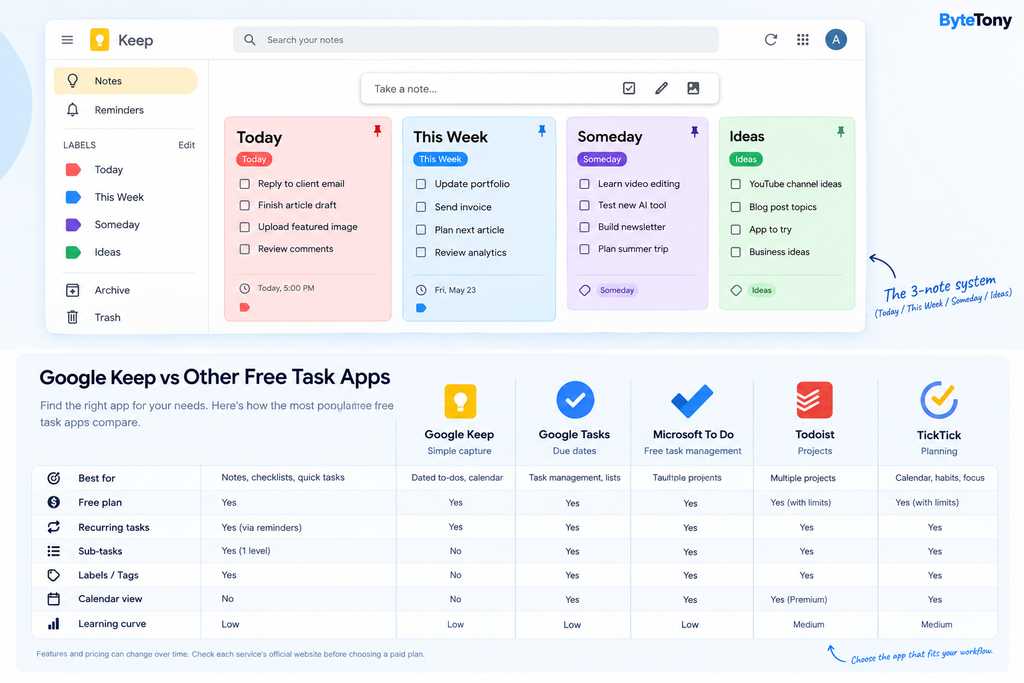
| App | Best for | Free option | Recurring tasks | Learning curve |
|---|---|---|---|---|
| Google Keep | Fast capture, notes, and simple checklists | Yes | Yes, through repeating reminders | Low |
| Google Tasks | Dated to-dos connected to Google Calendar | Yes | Yes | Low |
| Microsoft To Do | Due dates, recurring tasks, and lists without paying | Yes | Yes | Low |
| Todoist | Managing multiple projects with more structure | Yes, with paid upgrades available | Yes | Medium |
| TickTick | Calendar-based planning, habits, and focus features | Yes, with Premium available | Yes | Medium |
Features and pricing can change over time. Check each service’s official website before choosing a paid plan.
Google Keep vs Google Tasks
Choose Keep when your task needs context.
For example:
- A checklist
- Notes
- Ideas
- A rough plan
- Reference information
Choose Google Tasks when the most important thing is:
When does this need to be done?
They’re increasingly complementary rather than competing apps.
Google Keep vs Microsoft To Do
Microsoft To Do makes more sense when individual tasks regularly need their own:
- Due dates
- Reminders
- Recurrence
- Smaller steps
Keep is faster and less structured.
To Do gives you more traditional task-management behaviour.
Google Keep vs Todoist
Todoist becomes more attractive when your work starts turning into multiple active projects.
It gives you much more structure without becoming as heavy as full project-management software.
The trade-off is obvious:
More capability means more system to maintain.
Google Keep vs TickTick
TickTick is worth considering if you want task management mixed with features such as calendar planning, habits, and focus tools.
For some people, having everything inside one app is useful.
For others, those additional features simply create more things to configure.
When Should You Move Beyond Google Keep?
You don’t need to upgrade your productivity system just because another app has more features.
Move beyond Keep when you can identify a specific limitation that is repeatedly costing you time.
Three common signs are:
You Need Better Due-Date Management
If dozens of tasks need independent deadlines, Keep becomes awkward.
You Need Project Structure
Once work needs projects, sub-projects, dependencies, or multiple workflow stages, a dedicated task manager is easier to maintain.
You Manage Several Concurrent Projects
Keep handles a handful of lightweight projects surprisingly well.
But once you’re juggling multiple clients, deadlines, collaborators, and priorities simultaneously, you will probably appreciate the structure of a dedicated task or project-management app.
Don’t migrate because a tool looks impressive.
Migrate when Keep is creating a specific problem.
My Recommendation
Best for Absolute Beginners: Google Keep
If you’ve repeatedly abandoned productivity apps because setting them up became a project of its own, start with Google Keep.
Its simplicity is the advantage.
Create the three notes from this guide and use them for a few weeks before changing anything.
Best Free Option for More Traditional Task Management: Microsoft To Do
If you already know you need individual due dates, reminders, recurring tasks, and more structured lists, Microsoft To Do is a strong free alternative.
It’s especially logical if you already spend much of your day inside Microsoft’s ecosystem.
Best Overall for Growing Workloads: Todoist or TickTick
When Keep stops being enough, both Todoist and TickTick offer a natural step up.
Choose Todoist if you value project structure and fast task capture.
Choose TickTick if calendar planning and additional productivity features are more important to you.
But don’t pay simply because you’re worried that Keep is “too basic.”
Start simple.
Upgrade when you can name the exact feature you’re missing.
Frequently Asked Questions
Is Google Keep Completely Free?
Google Keep’s core note-taking and task-management features are free with a Google account, and there is no separate paid Google Keep subscription required for normal features such as notes, checklists, labels, colours, sharing, and reminders.
Some newer AI-powered functionality may require an eligible Google AI plan or supported device.
Does Google Keep Work Offline?
On mobile, Google Keep can be used without an active internet connection, with changes syncing after you reconnect.
Desktop offline support is more limited, so don’t assume your browser setup will work offline simply because the mobile app does.
If offline desktop access is critical to your workflow, test it before relying on Keep.
Can I Export or Back Up Google Keep Notes?
Yes.
Google Keep data can be exported using Google Takeout.
Your export provides an archive of your Keep information that you can keep as a backup.
It’s useful to think of Takeout as an archive rather than a simple one-click migration tool for restoring everything into Keep later.
What’s the Difference Between Google Keep and Google Tasks?
The simplest distinction is:
Google Keep is primarily for notes and checklists.
Google Tasks is primarily for dated to-dos.
Keep is better when you’re capturing an idea, a list, some context, or a rough plan.
Tasks is better when something has a deadline and needs to appear within your calendar-based workflow.
The important modern connection is that Keep reminders are linked with Google Tasks.
That means the two apps no longer operate as completely separate systems.
Is There a Google Keep Desktop App?
There is no traditional native Google Keep desktop application comparable to the Android or iOS apps.
On a computer, the standard option is to use Google Keep through your browser at keep.google.com.
You can also use browser features to create an app-like shortcut or separate window if you prefer that experience.
Conclusion
Three notes, a few labels, and reminders that actually reach you.
That’s enough to build a useful Google Keep task-management system.
Keep’s advantage isn’t that it’s the most powerful productivity tool.
It isn’t.
Its advantage is that you can open it, type something, and get back to work before your productivity system becomes another form of procrastination.
Start with:
Today
This Week
Someday / Ideas
Then create one habit:
Review Today each morning and review the whole system once a week.
If Keep eventually becomes too limited, that’s fine.
Moving to a more advanced tool after you’ve identified your real needs is much better than starting with fifty features you never use.
Before you close this page, do one thing:
Open Google Keep.
Create a note called Today.
Pin it.
Add the three things that matter most right now.
That’s enough to start.
Enjoyed this guide? Support ByteTony and help us create more simple, beginner-friendly tech guides.
☕ Support ByteTony