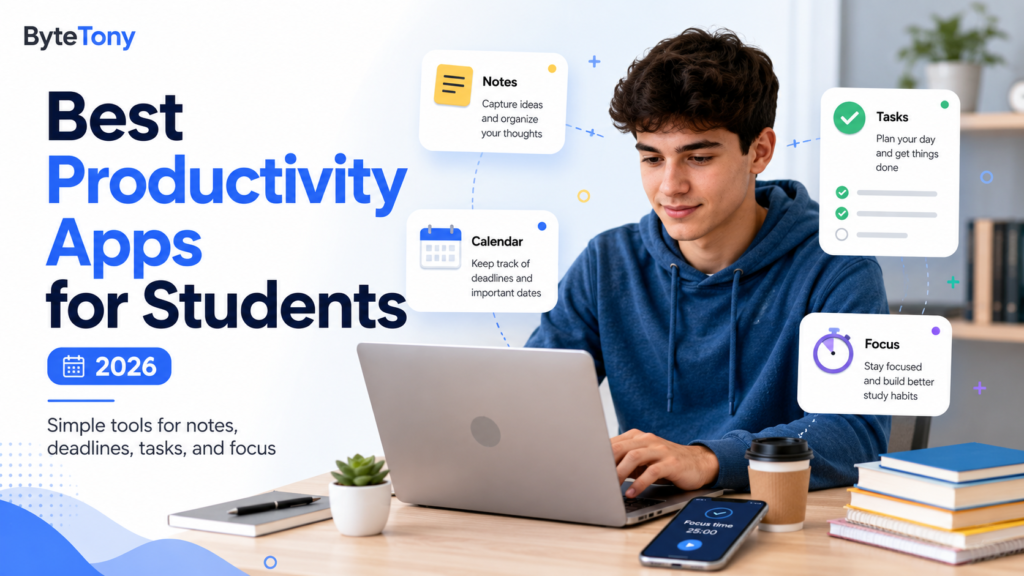
Looking for simple productivity apps for students that don’t take hours to set up? This guide covers seven beginner-friendly apps for managing classes, assignments, notes, focus time, and exam preparation. Each has a useful free option and works on phones and computers, either through an app, browser, or extension.
We left Notion out on purpose: it’s powerful, but building a custom system isn’t always the quickest way to get organized. Start with the comparison below and choose only what you need.
Note: This article may contain affiliate links. If you buy through them, we may earn a small commission at no extra cost to you.
| App | Best for | Free option? (October 2026) | Works on |
|---|---|---|---|
| Google Calendar | Classes, deadlines | Yes | Web, Android, iOS |
| Todoist | Assignments, to-dos | Yes (5 projects) | Web, Windows, Mac, Android, iOS |
| Google Keep | Quick notes, checklists | Yes | Web, Android, iOS |
| Microsoft OneNote | Organized class notes | Yes | Windows, Mac, Web, Android, iOS |
| Forest | Distraction-free studying | Yes (core features) | Android, iOS, Chrome/Firefox extensions |
| Quizlet | Flashcards, exam review | Yes (limited study modes) | Web, Android, iOS |
| Grammarly | Essays, emails | Yes (grammar, spelling) | Browser, Windows, Mac, Android, iOS |
Features and pricing may change. Check each app’s official website before subscribing.
Our Picks: 7 Simple Productivity Apps for Students
1. Google Calendar: For Your Class Schedule and Deadlines
Map your semester using recurring class events, then add assignment deadlines and exams as they come up.
Quick start: Create an event for your first class, set it to repeat weekly, and choose an end date matching your semester. Add a notification before class.
Limitation: Calendar is excellent for scheduling but less suitable for managing detailed task lists. Pair it with a simple to-do app.
2. Todoist: For Assignments and To-Dos
Todoist’s Smart Quick Add recognizes natural-language dates. Type “Essay draft Friday 5pm,” and it can automatically schedule the task.
Quick start: Create one project called “Semester” and add a section for each course. This keeps everything organized without using multiple project slots.
Limitation: The free Beginner plan allows 5 personal projects and 3 filter views. Pro increases the project limit to 300. Basic task reminders are free, while custom reminders require Pro.
See the official Todoist pricing page for current plan details.
3. Google Keep: For Quick Notes and Checklists
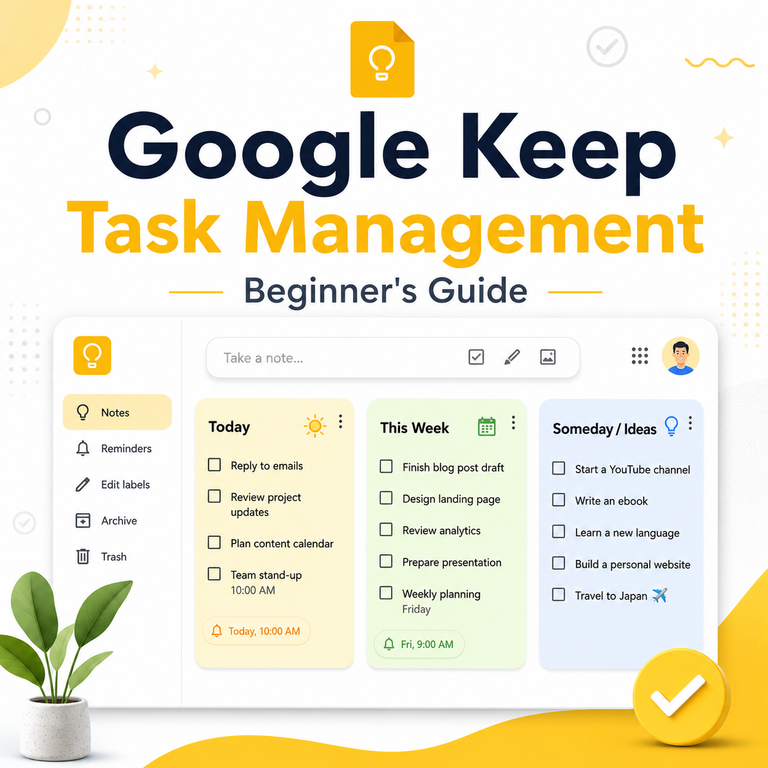
Google Keep works like digital sticky notes for ideas, checklists, voice notes, and photos of classroom whiteboards.
Quick start: Create a note for each subject and organize them using colors or labels.
Limitation: Keep isn’t designed for long, structured lecture notes. On Windows and Mac, you’ll normally use its web version.
Important: Google Keep reminders are now saved through Google Tasks. For reminder notifications on your phone, use Google Tasks or Google Calendar rather than relying on Keep itself.
Not sure which app should manage your assignments? Read our Google Keep vs Google Tasks comparison to understand when each works best.
4. Microsoft OneNote: For Organized Class Notes
OneNote works like a digital binder. You can create notebooks, sections, and pages for different subjects and lectures.
Quick start: Create one notebook for your semester, a section for each course, and a page for every lecture.
OneNote is available for free, and you can sync notebooks through OneDrive using a Microsoft account. Free cloud storage has limits.
Limitation: Its interface has more features than Keep. Start with notebooks, sections, and pages, and ignore advanced formatting until you need it.
5. Forest: For Staying Focused While Studying
Forest turns focus sessions into a game. A virtual tree grows while you concentrate, and distractions can cause it to wither. Deep Focus mode can also block distracting apps.
Quick start: Start a 25-minute focus session while studying your hardest subject.
Forest’s free tier includes the focus timer, tree planting, and Deep Focus mode. Occasional ads may appear outside active sessions.
Limitation: Creating a custom allowlist for essential apps, such as a calculator or dictionary, requires Forest Plus. Subscription prices vary by platform and region.
6. Quizlet: For Memorizing and Exam Review
Quizlet helps you study vocabulary, definitions, and key concepts using digital flashcards. You can create your own sets or explore sets made by others.
Quick start: Create one flashcard set for your next exam and review it for a few minutes each day.
Limitation: Basic flashcards are free, but Learn and Test have restrictions. Free users can try a limited Learn session and take one practice test per flashcard set. Teachers can provide eligible students with additional free access through class sets.
7. Grammarly: For Cleaner Essays and Emails
Grammarly checks spelling, grammar, and writing tone across browsers, desktop applications, and supported writing platforms.
The free plan includes grammar and spelling suggestions, tone detection, and 100 AI prompts per month. Full-sentence rewriting and advanced tone adjustments require Pro.
Quick start: Install the browser extension and use it to review your next assignment before submission.
If your assignment has a word limit, use ByteTony’s free Word Counter to check words, characters, and reading time directly in your browser.
Limitation: Grammarly can miss context or suggest unnecessary changes. Review its suggestions yourself, and check your school’s AI-use policy before using generative features.
My Recommendation
If you install only two apps, start with Google Calendar and Google Keep.
Both are free, work across phones and browsers, and require only a Google account. Use Calendar for classes and deadlines, and Keep for notes and simple checklists.
If managing assignments becomes difficult, add Todoist. Its free plan already includes natural-language task entry and basic reminders, so you don’t need to pay to get started.
Choose Forest if distractions are your biggest problem, Quizlet for exam revision, or Grammarly when writing assignments need extra attention.
Conclusion
The best simple productivity apps for students are the ones you’ll actually use consistently.
You don’t need seven apps or a complicated dashboard. Start with Google Calendar, add your recurring classes and upcoming deadlines, and choose one more app for your biggest study challenge.
Build the habit first. Add more tools only when you genuinely need them.
Enjoyed this guide? Support ByteTony and help us create more simple, beginner-friendly tech guides.
☕ Support ByteTony