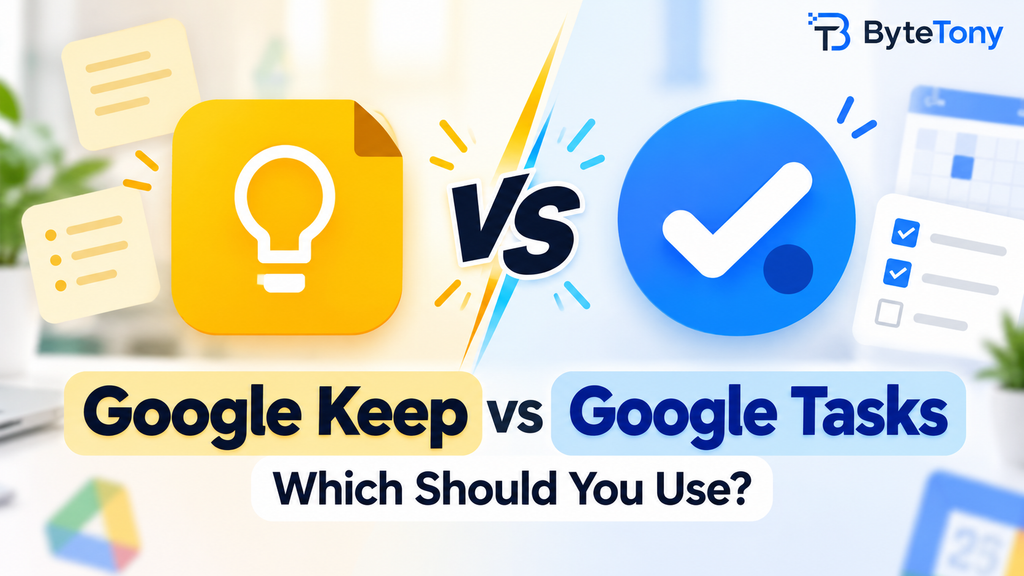
Google Keep vs Google Tasks comes down to one simple question: are you capturing something or acting on it? Google Keep is better for notes, ideas, and lists, while Google Tasks is designed for actionable to-dos with optional dates, deadlines, repeats, and subtasks.
Both are free with a Google account, so the choice is mainly about workflow, not price. Keep reminders are also now saved to Google Tasks, which means older comparisons between the two apps may no longer tell the full story.
Note: This article may contain affiliate links. If you buy through them, we may earn a small commission at no extra cost to you.
Table of Contents
Google Keep vs Google Tasks at a Glance
Here’s how the two apps compare on the features that matter most.
| Criterion | Google Keep | Google Tasks |
|---|---|---|
| Main purpose | Capturing notes, ideas, and lists | Managing actionable to-dos |
| Content types | Text, checklists, images, drawings, audio | Title, details, dates, deadlines, subtasks |
| Organization | Labels, colors, pins | Separate task lists |
| Dates and repeats | Reminders saved through Google Tasks | Dates, deadlines, repeats, subtasks |
| Calendar and Gmail | Reminders appear through Tasks and Calendar | Dated tasks appear in Calendar; available in Google’s side panel |
| Sharing | Collaborators can edit shared notes | Personal task lists can’t be shared directly |
| Main limitation | No standalone task-management workflow | Limited note-taking features |
| Price | Free | Free |
Verified: October 2026
Pricing and features can change over time, so check Google’s official pages for the latest information.
In practice, meeting notes, ideas, and research belong in Keep, while a task such as “send the revised brief Friday” belongs in Tasks.
How Google Keep Reminders Work Now
Google began moving Keep reminders to Google Tasks in 2025. New reminders created in Keep are now saved as tasks and can be viewed or managed through Keep, Google Tasks, and Google Calendar.
According to Google’s official Tasks Help documentation, this means:
- Keep reminders appear in Google Tasks and Google Calendar.
- Tasks created from Keep include a “From Keep” link that takes you back to the original note.
- The note itself remains in Keep.
- Google Keep no longer sends reminder notifications directly on mobile. Google Tasks or Google Calendar handles those notifications.
- Location-based Keep reminders are no longer available.
You can still create a timed reminder from a Keep note. The difference is that Google Tasks now manages the task side of that reminder.
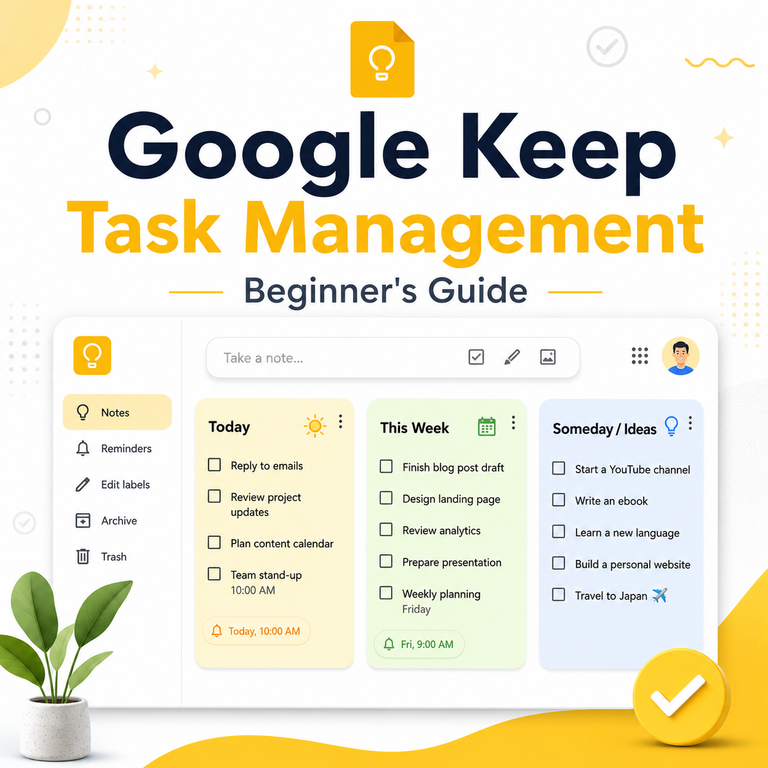
If you want to use Keep more effectively for organizing notes and actions, see our Google Keep task management guide.
Which One Should You Use?
Choose Google Keep if you mainly capture ideas, drafts, research snippets, images, voice notes, checklists, or shared notes. It supports richer content than Tasks and lets other people collaborate on individual notes.
If you frequently paste rough text or notes into Keep, you can also use the free ByteTony Text Cleaner to remove extra spaces, blank lines, tabs, and unnecessary formatting before saving your text.
Choose Google Tasks if you need to manage actions and deadlines. It works particularly well if you already use Gmail and Google Calendar because tasks can include dates, times, deadlines, repeats, and subtasks.
For example, a freelancer could keep client meeting notes and ideas in Keep while using Tasks for deadlines, follow-ups, and recurring work.
Should You Use Google Keep and Google Tasks Together?
For many users, using both is more practical than choosing only one.
Use Keep to capture information quickly. When something in a note becomes an action, add a reminder. That reminder is saved to Google Tasks, where you can manage it alongside your other tasks and calendar events.
This creates a simple workflow:
Keep = information and ideas
Tasks = actions and deadlines
You do not need to move all your notes into a task manager or use Keep as a full to-do system. Each app works better when used for its intended purpose.
Conclusion
When comparing Google Keep vs Google Tasks, Keep is better for capturing and organizing information, while Tasks is better for managing actions and deadlines.
If you mainly write notes, save ideas, or create flexible lists, start with Keep. If you need due dates, recurring tasks, subtasks, and Calendar integration, use Tasks.
For most people who already use Google’s productivity apps, the simplest approach is to use both: capture your thoughts in Keep and manage what needs to get done in Tasks.
Enjoyed this guide? Support ByteTony and help us create more simple, beginner-friendly tech guides.
☕ Support ByteTony