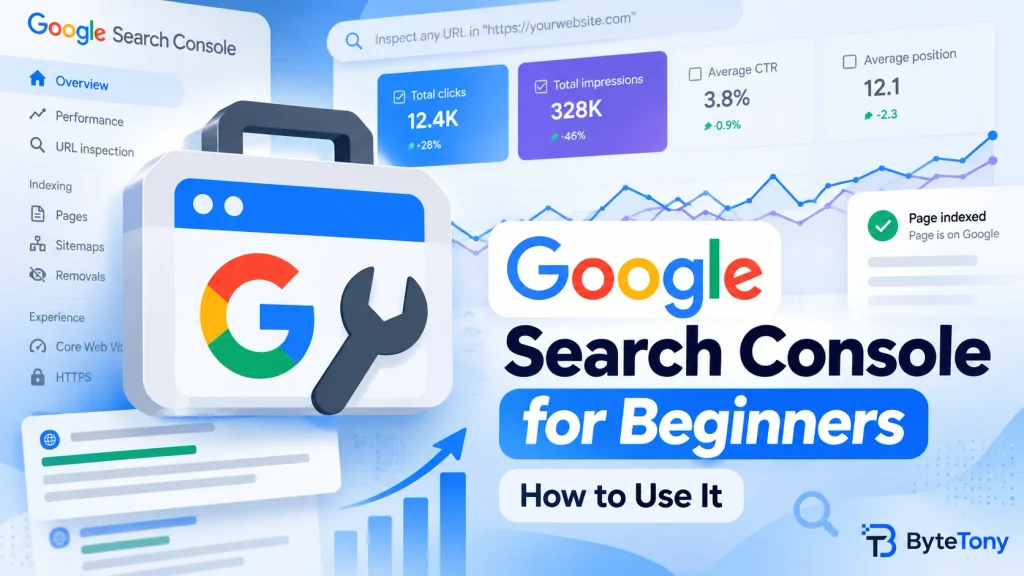
Google Search Console is a free Google tool that shows how your site performs in Google Search. It tells you which searches show your pages, which ones bring clicks, and which pages aren’t indexed. This guide to Google Search Console for beginners walks you through four steps, from setup to the reports that matter most. All you need is a Google account and access to your site or its DNS settings.
Note: This article may contain affiliate links. If you buy through them, we may earn a small commission at no extra cost to you.
Table of Contents
Step 1: Add and Verify Your Website
Open the property selector, choose + Add property, and select a website property. Then pick one of two types:
- Domain: covers all subdomains and both HTTP and HTTPS. You can only verify it with a DNS record, usually a TXT record.
- URL-prefix: covers one exact address prefix. It offers more verification options, including an HTML tag, HTML file, Google Analytics, Google Tag Manager, or DNS.
Choose Domain if you can edit your DNS settings. Otherwise, URL-prefix may be easier.
On WordPress: paste the HTML tag into your SEO plugin’s verification field. You can also use Site Kit, Google’s official WordPress plugin, which can help connect your site to Search Console.
Two warnings:
- DNS records can be slow. Manually added records can take two or three days to start working. If verification fails, wait a day or two and try again.
- Keep the verification in place. Leave the tag, file, or DNS record after verification. Search Console checks ownership periodically, and removing the verification method can eventually remove your access.
Google confirms that manually added DNS verification records can take up to two or three days to become available.
Step 2: Submit Your Sitemap
A sitemap tells Google which pages you want it to know about. It doesn’t guarantee that Google will crawl or index them.
Common WordPress sitemap URLs include:
/wp-sitemap.xmlfor WordPress core/sitemap_index.xmlfor plugins such as Rank Math and Yoast
Open the sitemap URL in your browser first to confirm it loads. Then:
- Open the Sitemaps report.
- Paste the sitemap URL into Add a new sitemap and click Submit.
- Check that the status shows Success.
Two other statuses are worth knowing. Has errors means Google read the sitemap but found problems. Couldn’t fetch means Google couldn’t retrieve it.
A sitemap is especially useful when you publish many pages because Google recommends it for requesting crawling of multiple URLs.
Step 3: Google Search Console for Beginners — Understand the Performance Report
The Performance report shows how people find your site in Google. It uses four main metrics:
- Clicks: how many times people clicked through to your site from Google results.
- Impressions: how many times your site appeared in search results.
- CTR: clicks divided by impressions.
- Average position: the average position of your highest-ranking result.
Two tabs matter most at first:
- Queries shows the searches that displayed your site.
- Pages shows which of your URLs appeared.
The default view covers the last three months. You can change the period with the date filter at the top.
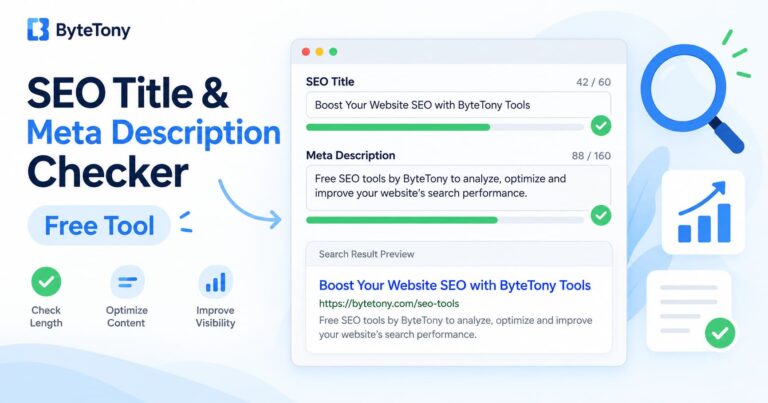
Example: if a query has high impressions, a reasonably strong average position, and low CTR, improving the page title or search snippet may be worth testing. You can use ByteTony’s SEO Title & Meta Description Checker before publishing your changes.
If you want more tools for keyword research, optimization, and site analysis, see our guide to the best free SEO tools for bloggers.
Two newer Search Console features are also worth knowing:
- AI-powered configuration lets some users configure the Performance report by describing the data they want to see in plain language. It is still experimental and is currently available only to a small percentage of Search Console users.
- The Generative AI performance report shows impressions from Google’s generative AI search features, including AI Overviews and AI Mode. Google expanded these insights worldwide in August 2026, although the report may not appear if a site doesn’t have enough qualifying impressions.
Step 4: Find and Fix Indexing Problems
The Page indexing report appears as Pages in the sidebar. It shows which pages are indexed and which aren’t. It also includes a Why pages aren’t indexed table.
Not every entry is a problem. These are often fine:
- redirects
- duplicate pages
- pages with a noindex tag
- pages you’ve deliberately blocked from crawling with robots.txt
- 404s for pages you removed
Remember that robots.txt controls crawling and isn’t, by itself, a guaranteed way to keep a URL out of Google’s index.
Focus mainly on pages you actually want to appear in Google.
Beginners often worry about two statuses:
- Crawled – currently not indexed: Google crawled the page but didn’t index it. It may still be indexed later.
- Discovered – currently not indexed: Google knows the URL exists but hasn’t crawled it yet.
For important pages in either status, make sure other pages on your site link to them and that the content offers enough value to be worth indexing.
Check a single page with URL Inspection. Paste the page’s full URL into the search bar at the top. Search Console shows what Google knows about that URL. Click Test live URL to check the current version of the page.
Google’s official URL Inspection documentation explains how to inspect pages, test live URLs, and request indexing.
Use Request Indexing for important new or updated posts. Keep in mind:
- Indexing often takes a day or so but can take longer.
- There’s a daily limit.
- Requesting indexing doesn’t guarantee that the page will be indexed.
For many new or updated pages, submitting a sitemap is usually more practical. Google notes that indexing can sometimes take up to a week or two even after a request.
FAQ
How long until data appears?
Google starts collecting data after you add the property, but it can take a few days for useful data to build up. A new site may show little data at first.
Is Search Console the same as Google Analytics?
No. Search Console focuses on how your site performs in Google Search before and around the click. Analytics focuses mainly on what visitors do after they reach your site.
How often should I check it?
A simple routine is to check Performance weekly and review Pages, Core Web Vitals, and Manual Actions monthly. Search Console may also email you when it detects important issues.
Conclusion
Setup is mostly a one-time job. The real value of Google Search Console comes from checking the Performance and Pages reports regularly.
For a first step, find one query with high impressions and a reasonable position but low CTR. Review the page title and search snippet, make one useful improvement, and monitor the result over time.
Enjoyed this guide? Support ByteTony and help us create more simple, beginner-friendly tech guides.
☕ Support ByteTony