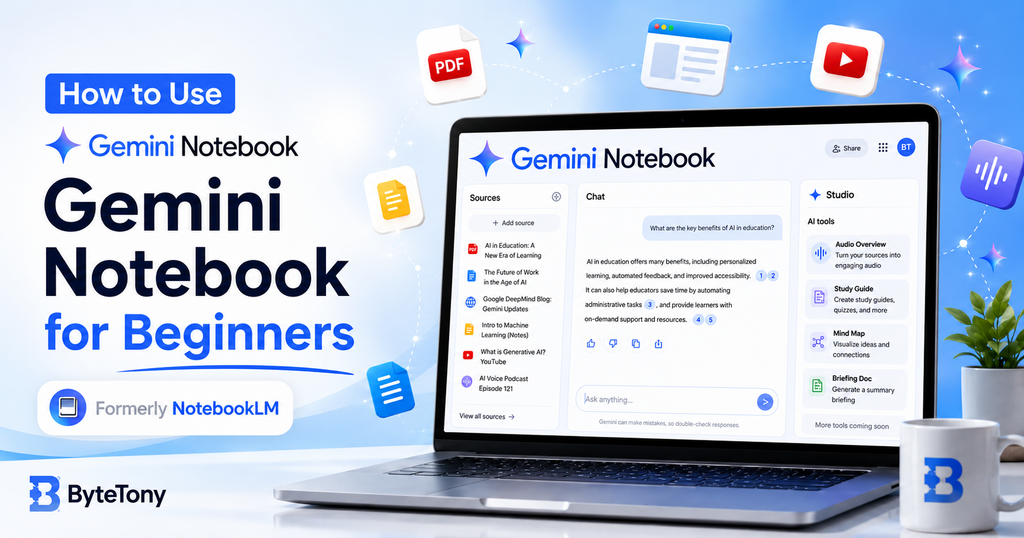
If you bookmarked a NotebookLM tutorial a few months ago and came back to find a different name, don’t worry. Google renamed NotebookLM to Gemini Notebook in July 2026. It is still the same standalone research and learning tool, and your existing notebooks remain available.
This beginner’s guide explains how to use Gemini Notebook from scratch: what it does, how to create your first notebook, how to add sources and ask useful questions, which Studio features are worth trying, and what you actually get on the free plan.
The biggest reason Gemini Notebook stands out is simple: it is built around the sources you give it. Instead of treating your files as an occasional attachment, your documents become the foundation of the notebook, and answers can include citations that take you back to the relevant source passage.
Note: This article may contain affiliate links. If you buy through them, we may earn a small commission at no extra cost to you.
Table of Contents
What Is Gemini Notebook?
Gemini Notebook is Google’s AI-powered research and learning workspace, formerly known as NotebookLM.
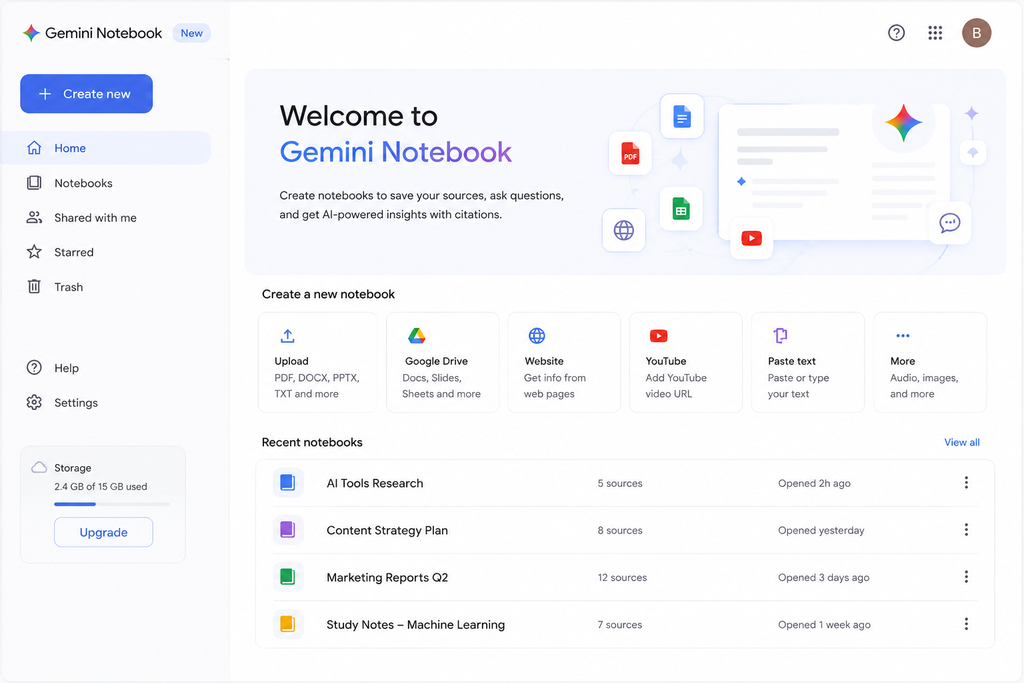
Google officially renamed NotebookLM to Gemini Notebook on July 16, 2026. It remains a standalone product rather than simply becoming another section of the regular Gemini chatbot.
The basic idea is straightforward:
- Create a notebook for a project or topic.
- Add documents, websites, videos, notes, or other sources.
- Ask questions about those sources.
- Check the citations behind the answers.
- Turn the material into summaries, study aids, audio discussions, reports, and other outputs.
That source-focused design makes it especially useful when accuracy matters.
For example, imagine uploading a long client brief and asking:
“What deadlines did the client specify?”
Instead of relying only on a general AI response, Gemini Notebook can answer using the uploaded brief and point you back to the relevant parts of that source.
Gemini Notebook vs. a General AI Chatbot
Gemini Notebook is not the only AI tool that can work with documents. General-purpose assistants can also analyze uploaded files.
The difference is mainly in the workflow.
Gemini Notebook is designed from the start around source-grounded research. Your notebook contains a collection of selected sources, and you can repeatedly query, organize, summarize, and generate materials from that collection.
A general chatbot is often better when you want broader brainstorming, writing help, coding assistance, or a conversation that is not tied to a defined research library.
If you’re trying to decide which general AI assistant suits you better, our ChatGPT vs. Claude for Beginners comparison explains another useful distinction between popular AI tools.
Gemini Notebook vs. Notebooks in Gemini vs. Gems
These names can be confusing, so here is the simple version.
| Tool | What It Is | Best For |
|---|---|---|
| Gemini Notebook | A dedicated research workspace based on sources you add | Research, studying, document analysis, source-backed answers |
| Notebooks in Gemini | Access to your notebooks from within the Gemini experience | Quickly asking questions about notebook material while already using Gemini |
| Gems | Custom Gemini assistants configured with reusable instructions | Repetitive workflows, specialized assistants, and saved prompting styles |
For most beginners reading this guide, Gemini Notebook itself is the place to start.
What You Need Before You Start
You do not need much.
A Google Account
A standard Google account is enough to start using the free version.
You do not need to enter a credit card just to create your first notebook.
Something to Use as a Source
Gemini Notebook supports many source types, including:
- PDF files
- Microsoft Word documents
- TXT and Markdown files
- CSV files
- PowerPoint presentations
- Google Docs
- Google Slides
- Google Sheets
- Web page URLs
- Public YouTube videos
- Audio files
- Images
- ePub files
- Eligible Google Play Books
- Pasted text
- Gemini chats
Each source can contain up to 500,000 words, and uploaded files can be up to 200MB. Free users can currently include up to 50 sources in one notebook.
You do not need to fill that limit. In practice, a small group of high-quality sources is usually much more useful than dozens of barely relevant ones.
If your research files are scattered across folders before you even begin, it may help to organize them first. Our beginner guide on how to organize files in Google Drive shows a simple system for keeping project files manageable.
A Browser or the Mobile App
Gemini Notebook is available on the web and on mobile.
The mobile app handles many common tasks, but some features or controls may be more limited than on desktop. If you cannot find an option described in this guide, check the web version before assuming it has been removed.
One Privacy Point to Know Before Uploading Files
Gemini Notebook is a cloud-based service. Your uploaded material is processed on Google’s systems rather than entirely on your computer.
Google says that for consumer accounts, data is not used to train Gemini Notebook unless you provide feedback. If you submit feedback, Google may review the related interaction and context.
Google provides different protections for eligible Workspace and Workspace for Education users, including policies around human review and model training.
The practical rule is simple:
Do not upload sensitive client, medical, legal, confidential, or workplace documents just because an AI tool technically accepts them.
If a file is covered by an NDA, employer policy, privacy requirement, or other agreement, check those requirements first.
How to Use Gemini Notebook: Step-by-Step
Step 1: Create Your First Notebook
Open Gemini Notebook in your browser or mobile app and sign in with your Google account.
Choose Create new or New notebook.
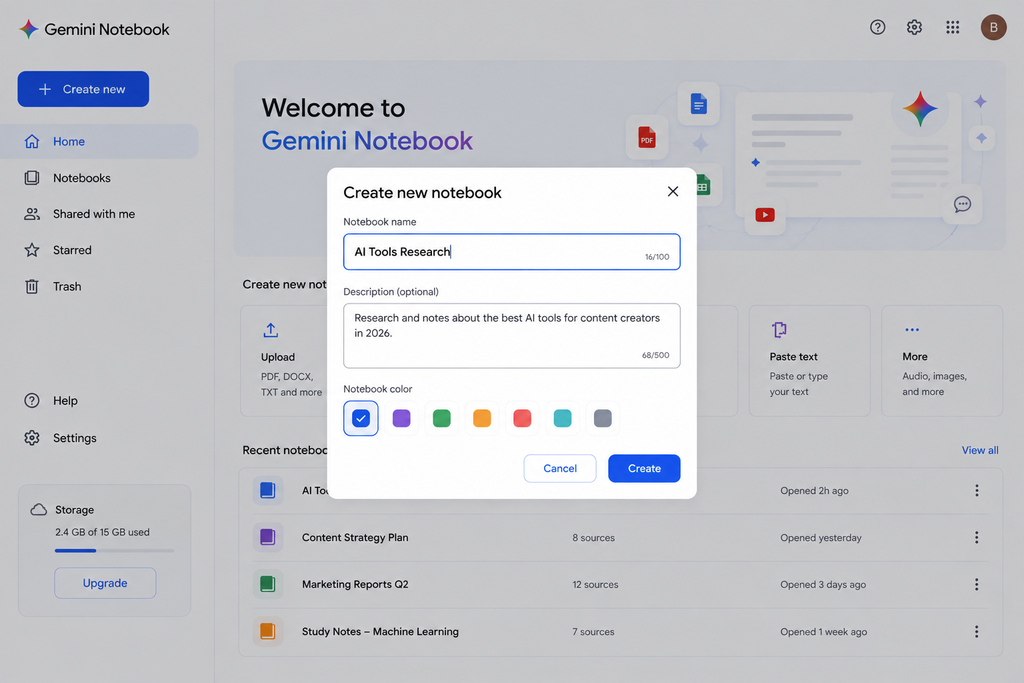
Give the notebook a specific name based on what you are actually working on.
Good:
Website Redesign — Client Research
Less useful:
Work
Specific notebook names become increasingly important once you have several projects.
Use One Notebook Per Project
Avoid creating one enormous notebook for everything you read.
A better approach is usually:
one notebook = one project, course, research question, article, or clearly defined topic.
That makes your source selection easier and reduces the chance that unrelated material influences your answers.
Step 2: Add Your Sources
Open the Sources panel and choose Add sources.
There are several ways to bring information into a notebook.
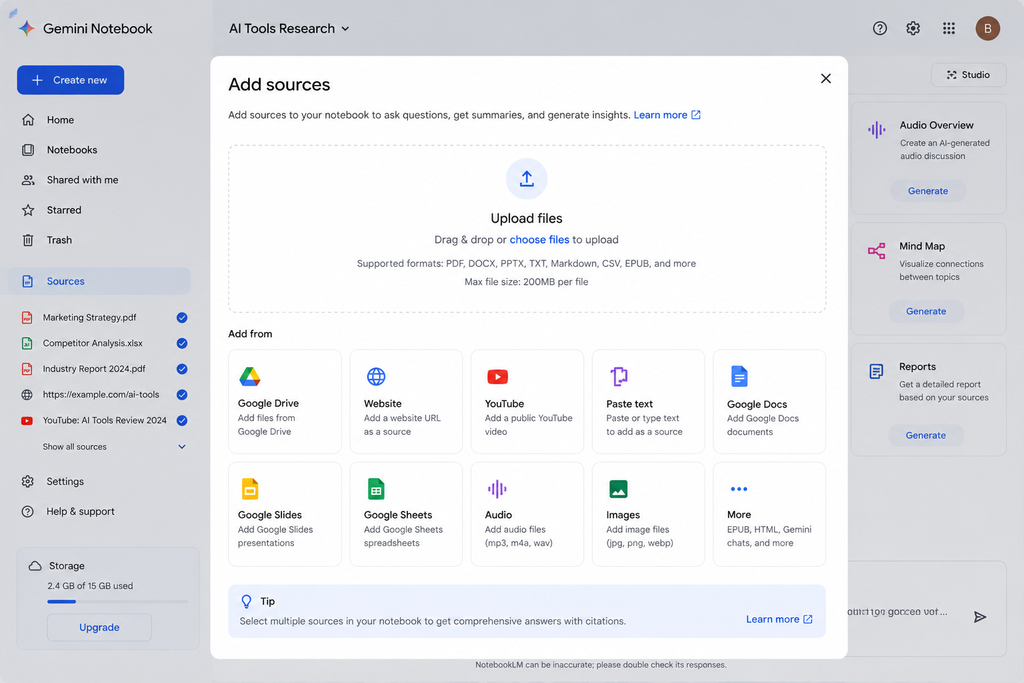
Upload Files From Your Computer
For a beginner, this is probably the simplest method.
You can drag and drop supported files such as PDFs, DOCX documents, presentations, spreadsheets, or text files.
For example, if you are researching a new article, you might upload:
- an industry report
- your own notes
- a research PDF
- a relevant spreadsheet
Add Files From Google Drive
Google Drive is especially useful when your project already lives inside Google’s ecosystem.
Depending on the source type, Drive-based material can be synchronized so that changes to the original document can be reflected in the notebook.
This makes it useful for living documents that are still being updated.
Add a Website
You can paste a supported web URL and use the page as a source.
Remember that Gemini Notebook primarily imports the page’s supported content. It should not be treated as a complete copy of everything visually present on a website.
Paywalled pages can also cause problems.
Add a YouTube Video
You can add public YouTube videos when a usable transcript or captions are available.
Gemini Notebook works with the video’s text content rather than understanding every visual element shown on screen.
That makes YouTube sources useful for lectures, interviews, tutorials, and podcasts where the spoken content contains most of the useful information.
Paste Text Directly
You can also create a source by pasting text.
This is useful for things such as:
- meeting notes
- email content
- interview notes
- research snippets
- short documents you do not need to upload as files
Give pasted sources descriptive titles so you can recognize them later.
Start With Fewer, Better Sources
Uploading 40 articles does not automatically create better research than uploading five excellent ones.
Every source you add becomes material Gemini Notebook may use when answering you.
Think of your notebook as a small research library: quality matters more than volume.
Once you have five or more sources, Gemini Notebook can also help organize them with labels and categories.
Step 3: Ask Questions in Chat
Once your sources are loaded, the central chat area becomes the main workspace.
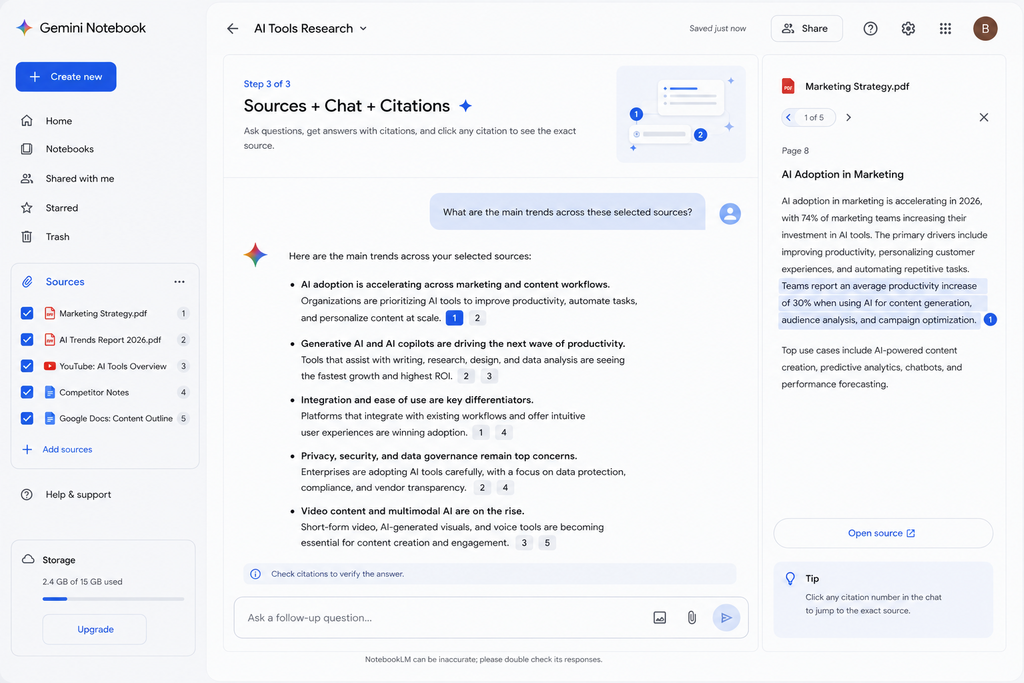
Before asking a question, look at the checkboxes beside your sources.
You can choose exactly which sources Gemini Notebook should use.
This is one of its most useful features.
Imagine your notebook contains:
- a client’s project brief
- three competitor websites
- an industry report
- your own notes
If you want to know what the client specifically requested, select only the client brief.
If you want to compare competitors, select the competitor sources.
This gives you much more control than asking every question against everything in the notebook.
Check the Citations
When Gemini Notebook provides citations in an answer, click them.
A citation can take you back to the relevant part of the source so you can check whether the AI interpreted it correctly.
Do this regularly.
Source grounding reduces the amount of manual searching you have to do, but it does not mean every AI-generated interpretation should automatically be accepted as correct.
Three Useful Starter Prompts
For bloggers:
“Across the selected sources, identify the main topics they have in common. Then list important points that appear in only one or two sources. Cite the relevant sources.”
For freelancers:
“List every deliverable, deadline, revision requirement, and approval step mentioned in this document. Flag anything that appears unclear or undefined.”
For students:
“Identify the five most important concepts in these sources. Explain each in simple language and cite the relevant material.”
The best prompts tell Gemini Notebook both what you want and which evidence matters.
Step 4: Use Studio to Turn Research Into Something Useful
The Studio panel is where Gemini Notebook becomes more than a question-and-answer tool.
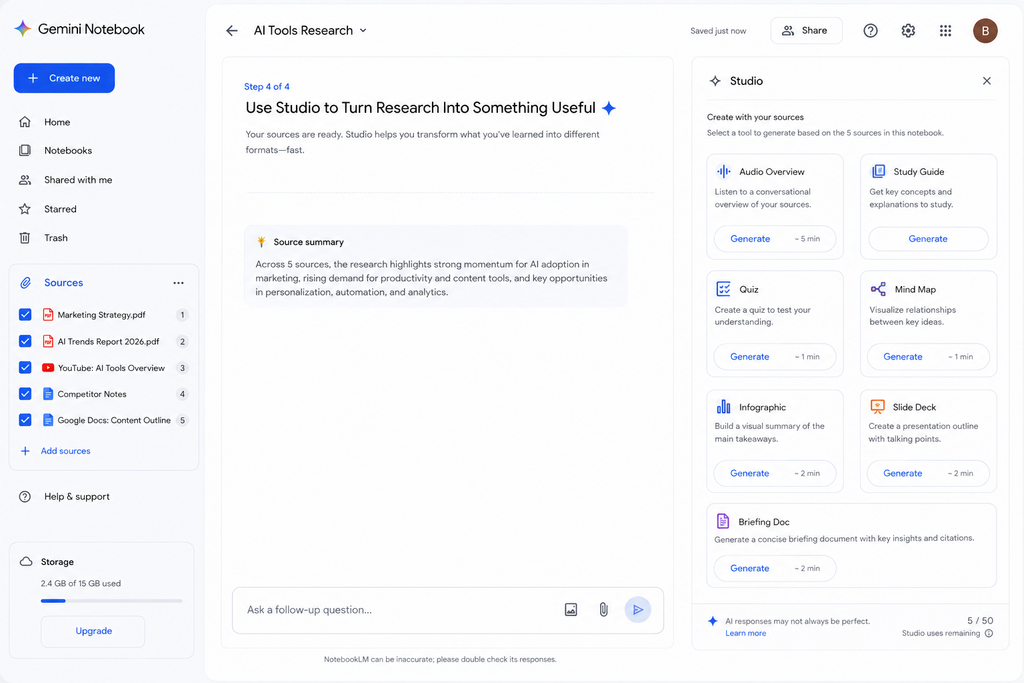
Depending on your account and current feature availability, Studio can generate outputs such as:
- Reports
- Study guides
- Flashcards
- Quizzes
- Mind maps
- Infographics
- Data tables
- Slide decks
- Audio Overviews
- Video Overviews
Do not generate every available format just because the buttons are there.
Choose the output that solves your next problem.
For Students
A good workflow is:
Sources → Study Guide → Quiz → Review weak areas
For example, upload lecture notes and assigned reading, generate a study guide, then take a quiz.
When you answer something incorrectly, return to the chat and ask for an explanation based only on your selected sources.
That is much more useful than repeatedly rereading an entire chapter.
If you are building a broader study workflow, you may also want to compare Gemini Notebook with the tools in our guide to the best productivity apps for students.
For Bloggers and Content Creators
Gemini Notebook can help you organize research before writing.
Instead of keeping twelve browser tabs open, add a smaller number of trustworthy sources and ask questions such as:
“Which subtopics appear across most of these sources?”
Then:
“Which useful questions are discussed by only one source?”
And finally:
“Based only on these sources, what important beginner questions remain unanswered?”
The goal should not be to automatically copy a competitor’s structure. Use the research to understand the subject and identify opportunities to make your article more useful.
For other ways AI can help during your content workflow, see our guide to the best AI tools for content creators.
Step 5: Create an Audio Overview
Audio Overviews are one of Gemini Notebook’s most distinctive features.
They turn your source material into an AI-generated spoken discussion.
Instead of reading a long report again, for example, you could listen to an overview while commuting or doing another task.
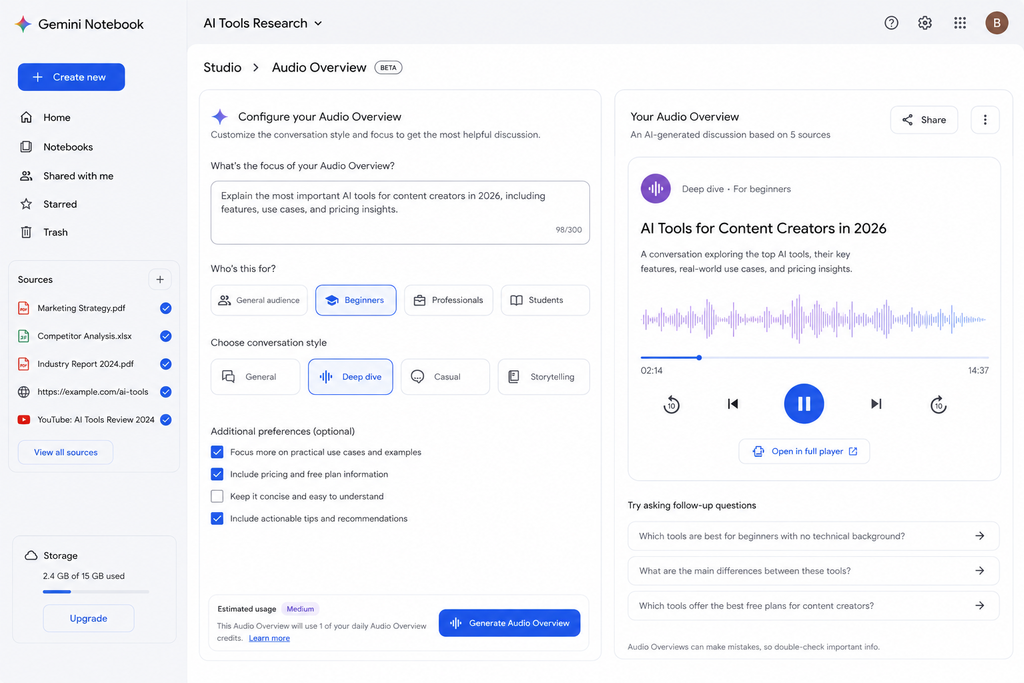
Customize Before Generating
Do not automatically accept the default output.
When customization is available, tell Gemini Notebook:
- who the audio is for
- which topic matters most
- what level of knowledge to assume
- what should receive less attention
For example:
“Explain this material for someone completely new to digital marketing. Focus mainly on the pricing and customer acquisition sections.”
That will usually produce a more relevant result than simply pressing Generate.
You can also share supported Audio Overviews, and some experiences include interactive features that let you explore the material further.
Step 6: Save Useful Notes
A strong AI answer is not very useful if you cannot find it again.
When Gemini Notebook gives you something worth keeping, save it as a note when that option is available.
You can also create your own notes.
Think of this area as the bridge between:
what your sources say → what the AI extracts → what you decide matters.
If you want a broader workspace for managing notes, projects, databases, and AI-assisted content, you can also read our guide on how to use Notion AI for beginners.
Gemini Notebook and Notion serve different purposes. Gemini Notebook is especially useful for research grounded in a defined source library, while Notion is designed more broadly around organizing information and work.
Step 7: Share Your Notebook Carefully
Gemini Notebook includes sharing options, although the exact controls available can depend on your account and plan.
Before sharing anything, consider two questions:
Does the other person need to view this notebook, or edit it?
and:
Are you allowed to share every source contained inside it?
The second question is particularly important for client documents, paid reports, company files, and educational material.
Sharing the notebook does not give collaborators a magical increase in your source limits. Limits still depend on account and plan rules.
Features Worth Trying After You Learn the Basics
Once you are comfortable creating sources, asking questions, and checking citations, there are a few more advanced features worth exploring.
Deep Research
Gemini Notebook can help discover information rather than requiring you to manually bring in every source.
Deep Research is designed for larger research tasks where the system searches more broadly, analyzes material, and produces a more detailed research result that can then become part of your notebook.
This is useful when you are beginning a topic from scratch.
However, automatically finding more sources does not eliminate the need to evaluate their quality.
More information is not automatically better information.
Video Overviews and Slide Decks
If you need a visual explanation rather than a written report, Studio can generate formats such as Video Overviews and slide decks.
These can be useful for:
- studying
- teaching
- presenting research
- summarizing large projects
- preparing internal briefings
AI-generated presentations should still be reviewed carefully before you show them to clients, teachers, coworkers, or an audience.
Secure Cloud Computer
Google has also introduced a secure cloud computer capability that allows Gemini Notebook to write and execute code for certain data-analysis tasks.
For example, instead of merely describing a spreadsheet, the system can potentially run calculations against the data.
Availability depends on the account, subscription, and rollout.
This is a more advanced feature, and beginners should treat generated calculations the same way they treat generated prose: inspect the method and verify important conclusions.
Gemini Notebook Free vs. Paid
For most beginners, the free version is enough to learn the product properly.
At the time of writing, free users can have up to:
- 100 notebooks
- 50 sources per notebook
- 50 chats per day
- 3 Audio Overviews per day
Individual sources can contain up to 500,000 words, with uploaded files limited to 200MB.
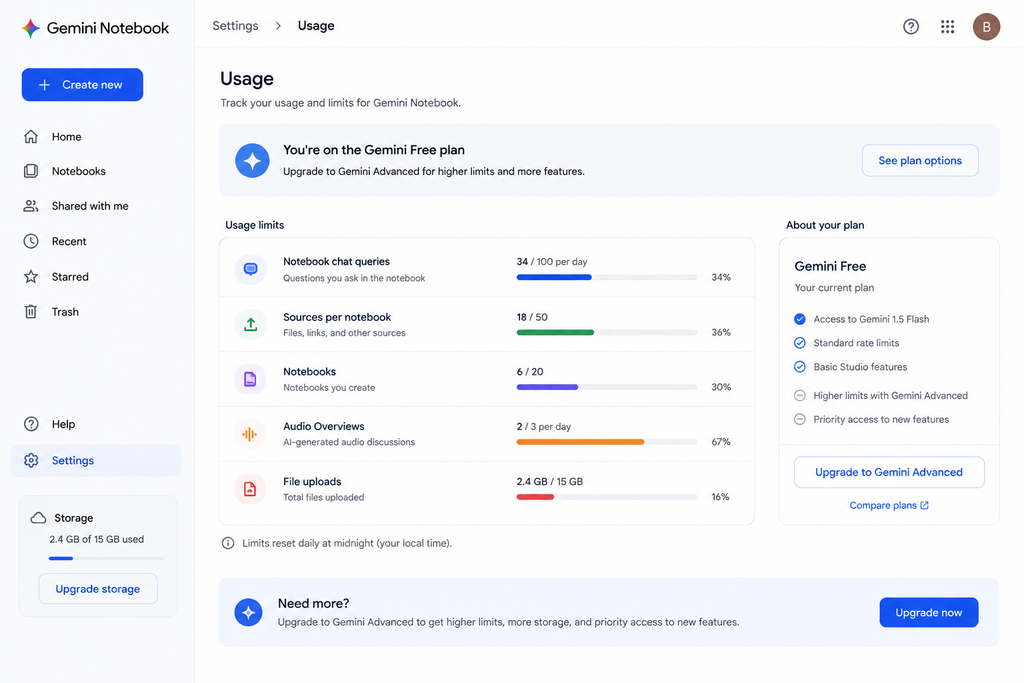
Google also publishes higher limits for paid Google AI plans.
| Feature | Free | AI Plus | AI Pro |
|---|---|---|---|
| Notebooks | 100 | 200 | 500 |
| Sources per notebook | 50 | 100 | 300 |
| Chats per day | 50 | 200 | 500 |
| Audio Overviews per day | 3 | 6 | 20 |
Higher Ultra tiers provide larger allowances.
These limits are subject to change, so check Google’s current plan information before subscribing based on one specific number.
Compute-Based Usage Limits
Google changed how Gemini Notebook usage works on September 2, 2026.
Alongside feature-specific limits, the service now uses a compute-based allowance.
How quickly you consume that allowance depends on factors such as:
- the complexity of the prompt
- the models and features involved
- the length of the conversation
- the number and type of sources
- how demanding the generated output is
A short question about one document is therefore not equivalent to generating a complex presentation or video.
Google says usage can refresh every five hours until you reach the applicable weekly limit.
You can check your current allowance under:
Settings → Usage
Studio can also show an indication of how much AI usage an output is expected to consume.
If you temporarily run out of usage, a Generate later option is available for supported web workflows so a demanding output can be queued for later processing.
How Much Do the Paid Plans Cost?
For US accounts, Google’s published pricing at the time of writing includes:
- Google AI Plus — $9.99/month
- Google AI Pro — $19.99/month
Google AI Ultra options cost more and can vary by tier.
Prices, storage bundles, promotions, availability, and plan benefits can change by country and over time, so check Google One before subscribing.
More importantly, remember that you are not buying Gemini Notebook as a completely separate subscription.
Paid Notebook benefits come through broader Google AI plans, which can include other Gemini features and Google services.
Evaluate the whole package rather than paying only because you want to increase one notebook limit.
4 Practical Ways to Use Gemini Notebook
1. Research a Blog Post
Create one notebook for the article and add a small collection of strong sources.
Then ask:
- What do all of these sources agree on?
- Where do they disagree?
- Which important beginner questions appear repeatedly?
- Which useful subtopics are barely covered?
- Which claims need better evidence?
This is much more manageable than repeatedly switching between browser tabs.
It can also help separate actual research from the writing stage.
2. Study a Course or Textbook
Add your lecture slides, assigned reading, notes, and other permitted study material.
Generate a study guide.
Then create a quiz.
Instead of using the score simply to judge yourself, use every mistake as a signal:
What don’t I understand yet?
Ask Gemini Notebook to explain that concept using your sources, then open the citation and compare the explanation with the original material.
That creates a simple loop:
test → find weakness → explain → verify → repeat
3. Analyze a Long Client Document
Suppose a client gives you:
- a project brief
- an old scope of work
- meeting notes
- an email containing revisions
Put the relevant material in one notebook.
Then ask:
“List the deliverables, deadlines, approval steps, exclusions, and unresolved questions across these sources.”
You now have a starting point for your next meeting.
But still open the citations before treating the output as a contractual fact.
AI can help you find information faster. It should not replace your responsibility to check what an agreement actually says.
4. Turn Existing Content Into Audio
If you already publish articles, you can add several related pieces to one notebook and create an Audio Overview around a specific theme.
For example, instead of generating a generic conversation, tell Gemini Notebook:
“Create this for beginners. Focus on the three most practical lessons and avoid spending much time on background history.”
That can give you a useful starting point for an audio version of your content.
The generated audio is still a draft rather than a finished podcast.
If you want to polish it, Descript is one option because it lets you edit spoken audio through its transcript.
You can also read our full Descript review for YouTube beginners before deciding whether it fits your workflow.
5 Beginner Mistakes to Avoid
1. Creating One Giant Notebook
Do not put unrelated projects into one notebook simply because space is available.
Separate notebooks make source selection and future organization much easier.
2. Uploading Sources You Have Not Evaluated
Gemini Notebook can cite a source accurately while the source itself is wrong.
A citation proves where a claim came from.
It does not prove that the original source is trustworthy.
3. Never Opening Citations
Clickable citations are one of the main reasons to use a source-grounded research tool.
If an answer matters, check it.
This is especially important for:
- statistics
- prices
- dates
- medical information
- legal claims
- client requirements
- quotes
- research conclusions
4. Generating Everything in Studio
You do not need a podcast, presentation, infographic, study guide, mind map, and quiz from every notebook.
Each generation uses time and may consume part of your usage allowance.
Generate what solves an actual problem.
5. Treating AI Output as the Final Product
Gemini Notebook can make research faster.
It cannot decide what matters to your audience as reliably as you can, and it does not eliminate proofreading, judgment, source evaluation, or fact-checking.
Use it to reduce repetitive work, not to remove yourself from the process.
My Recommendation
For most beginners, start with the free version of Gemini Notebook and stay there until you encounter a real limitation.
The free plan already gives you enough capacity to learn the complete workflow:
add sources → ask questions → check citations → generate useful outputs → save your findings.
Do not upgrade simply because a paid plan exists.
Upgrade when you can identify the specific limitation causing the problem.
Stay on Free If:
- 50 sources per notebook is enough
- you rarely reach your usage limits
- you are mainly learning or doing personal research
- you do not need paid sharing or professional features
Consider AI Plus If:
You like the product but regularly need higher limits without jumping to a much more expensive plan.
Consider AI Pro If:
You use Gemini Notebook frequently for professional research, content production, studying, or client work and the increased limits meaningfully save you time.
For most people reading a beginner’s guide, though, free is the right place to start.
Frequently Asked Questions
Is Gemini Notebook the Same as NotebookLM?
Yes. Google renamed NotebookLM to Gemini Notebook in July 2026.
It remains a standalone research product, and existing users did not need to manually migrate their notebooks simply because the product name changed.
Is Gemini Notebook Free?
Yes.
There is a usable free tier with notebooks, sources, chat, citations, and several Studio features.
Paid Google AI plans increase usage limits and provide additional benefits.
How Many Sources Can I Add?
Free users can currently add up to 50 sources per notebook.
Paid plans increase that limit.
Each source can contain up to 500,000 words, and uploaded files can be up to 200MB.
Can Gemini Notebook Read YouTube Videos?
It can use supported public YouTube videos as sources when suitable captions or transcripts are available.
The main thing to understand is that Gemini Notebook works with the textual content rather than treating every visual detail in the video as a source.
Can I Use Gemini Notebook on My Phone?
Yes.
A mobile app is available, although some features may be more limited than the web version.
For your first serious notebook, desktop is usually easier because you can see the Sources, Chat, and Studio areas more comfortably.
Does Gemini Notebook Replace ChatGPT or Claude?
Not really.
They overlap, but their strengths are different.
Gemini Notebook is particularly strong when you have a defined group of sources and want to research, summarize, study, or generate materials from them.
General assistants such as ChatGPT and Claude are often better suited to broader conversations and workflows that are not centered on a persistent notebook of sources.
You may end up using both types of tools rather than choosing only one.
Is Gemini Notebook Safe for Private Documents?
Your files are processed through Google’s cloud service, so you should consider your account type and the rules governing the document before uploading it.
Do not upload confidential information simply because the service supports the file format.
For work, client, educational, medical, or otherwise sensitive documents, check the relevant privacy requirements and agreements first.
Conclusion
Gemini Notebook is easiest to understand when you stop thinking of it as another chatbot.
Think of it as an AI workspace built around a collection of sources.
You bring in the material.
You choose which sources matter.
You ask questions.
Gemini Notebook helps you analyze them.
Then you check the citations before trusting anything important.
For your first session, keep it simple:
Create one notebook for a real project, add five useful sources, ask three specific questions, and open at least one citation.
You do not need to master every Studio feature or upgrade your plan on day one.
If that basic workflow saves you time, you have already found the part of Gemini Notebook that matters most.
Enjoyed this guide? Support ByteTony and help us create more simple, beginner-friendly tech guides.
☕ Support ByteTony