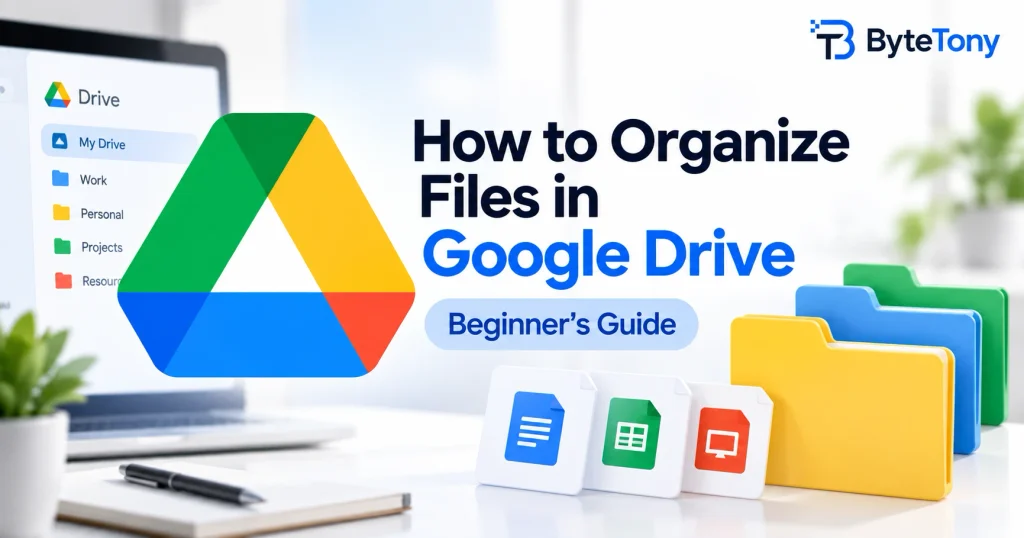
If you want to organize files in Google Drive, you don’t need a complicated system. A few simple folders, consistent file names, and regular cleanup can make your files much easier to find and prevent unnecessary duplicates.
This guide shows you how to organize your Drive in five practical steps: plan your folders, move your files, use a naming format, add shortcuts, stars, and colors, then keep everything tidy with a quick weekly cleanup.
Note: This article may contain affiliate links. If you buy through them, we may earn a small commission at no extra cost to you.
Table of Contents
Step 1 – Plan a Simple Folder Structure
Start with 3–5 top-level folders based on how you work, such as by client, project, work, or personal files. Keep the structure about 2–3 levels deep so files don’t get buried.
For example:
- Clients
- Client Name
- Invoices
- Deliverables
- Client Name
Start simple and adjust the structure as your needs change.
Step 2 – Create Folders and Move Your Files
Create a folder: On the left, click New → Folder, enter a name, then click Create.
Move a file: Right-click the file and choose Organize → Move. Select or create a folder, then click Move. You can also drag and drop files into folders.
Move several files at once: Select the files you want to move, then drag them into a folder or right-click and choose Organize → Move.
Where to start: Switch to list view, sort by last modified, and organize your most recent work first.
You need permission to move a file from its current location to the destination. If you don’t have the required permission, Google Drive may create a shortcut in the destination instead.
For the latest menu options and instructions, you can also check Google’s official guide to organizing files in Drive.
Step 3 – Use a Consistent File Naming Format
Choose one naming pattern and use it consistently. For example:
YYYY-MM-DD_Client_Topic_v2 → 2026-09-15_Acme_Proposal_v2
Putting the year first helps files sort naturally by date. Avoid vague names like “final,” “final2,” or “new,” because they won’t tell you much later.
You don’t need to rename everything at once. Rename older files gradually as you move them into their new folders.
Step 4 – Use Shortcuts, Stars, and Folder Colors
Shortcuts: A shortcut lets you access the same file or folder from another location without creating a duplicate. Right-click the item, choose Organize → Add shortcut, select a location, and click Add shortcut.
You can also use shortcuts for items in Shared with me. Creating a shortcut doesn’t change the original item’s permissions.
Stars: Right-click an important file or folder and choose Organize → Add to starred. You can then find your starred items together from the Starred section.
Folder colors: Right-click a folder, choose Organize, and select a color under Folder color. Folder colors are visible only in your version of Drive. Using just 3–4 colors can help keep their meaning clear.
Step 5 – Organize Files in Google Drive and Keep Them Tidy
Once your basic structure is ready, a little maintenance prevents the clutter from coming back.
- Use search filters: Narrow your results by file type, people, date modified, and other criteria.
- Find large files: Open Storage, then sort by Storage used to find files taking up the most space.
- Empty the trash when needed: Files remain in the trash for 30 days before they’re permanently deleted and continue to use storage until then. After deleting many files, your storage total may take some time to update.
- Build a weekly habit: Spend about 10 minutes each week moving loose files into the right folders.
If large image files are taking up unnecessary space before you upload them, you can reduce their size with the ByteTony Image Compressor.
And if the clutter starts before files even reach Google Drive, this guide on how to organize your Downloads folder can help you keep your computer files organized too.
FAQ
Does moving a file into a shared folder change who can access it?
It can. Files inherit access from the folder they’re stored in, so moving a file may change who can access it. Permissions shared directly on the file may remain. Check the destination folder’s sharing settings before moving important files.
Can I organize Google Drive on my phone?
Yes. The Google Drive mobile app lets you create folders, move files, change folder colors, and organize your files from a phone or tablet.
Conclusion
Learning how to organize files in Google Drive doesn’t require a complex system. A shallow folder structure, consistent file names, useful shortcuts, and a short weekly cleanup are usually enough.
Start with your most recent files today, then organize older files gradually as you come across them.
Enjoyed this guide? Support ByteTony and help us create more simple, beginner-friendly tech guides.
☕ Support ByteTony