Descript review for YouTube beginners: Descript lets you edit video by editing its auto-generated transcript, much like editing a text document. This review covers how Descript works, what it costs, and who it suits if you make talking-head, tutorial, screen-recording, or voiceover videos.
In short, Descript is excellent for speech-driven videos but less suitable for effects-heavy editing.
Note: This article may contain affiliate links. If you buy through them, we may earn a small commission at no extra cost to you.
Table of Contents
How Descript Works for YouTube Videos
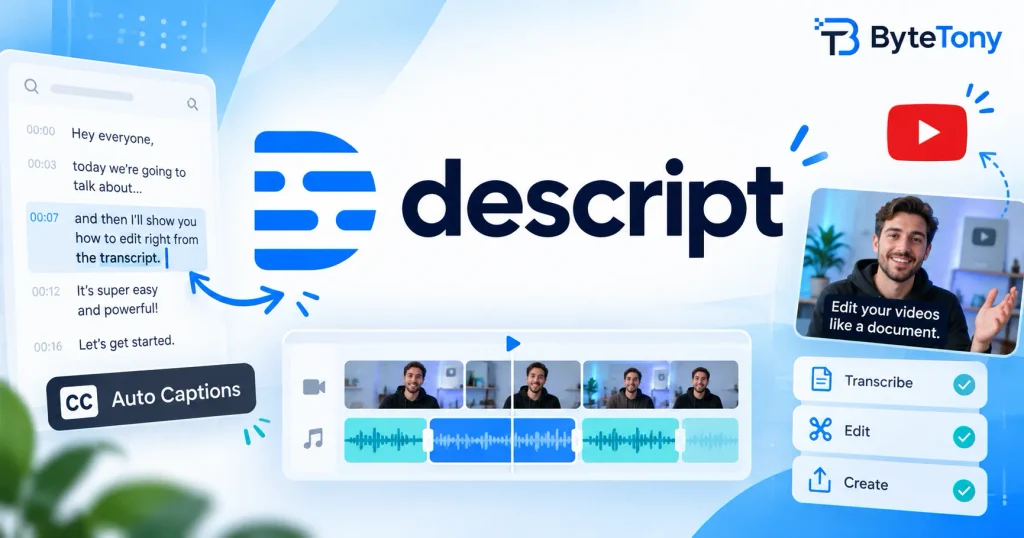
You record or import footage, and Descript transcribes it automatically. When you delete words from the transcript, that part of the video is removed. If you flub a sentence, you can highlight it in the transcript and delete it instead of hunting for it on a timeline.
In practice, you edit the script rather than relying mainly on a traditional timeline. A timeline is still available when you need more precise adjustments.
When you’re done, you can export the video or publish it directly to YouTube. Direct publishing works only from Descript’s web version, only the channel owner can publish, and brand or shared-access channels aren’t supported. YouTube Shorts also need to be downloaded and uploaded manually.
(Verified: September 2026)
Features That Matter Most for Beginner YouTubers
- Remove Filler Words: Finds and removes words such as “um” and “uh.” Shorten Word Gaps can also reduce long pauses.
- Studio Sound: AI audio cleanup that can improve recordings made with basic microphones or in less-than-ideal rooms.
- Captions: Dynamic captions are available on all plans, with templates that also work well for short-form videos.
- Underlord: Descript’s AI co-editor. It can help create clips from longer videos and draft content such as titles, descriptions, and chapters.
- Screen recording: Included on all plans, making it useful for tutorial and software-demo channels.
Many AI features, including Studio Sound and Underlord tools, use AI credits. The Free plan provides only limited AI usage.
(Verified: September 2026)
Pros and Cons
Pros
- Fast editing for speech-heavy videos through the transcript.
- Beginner-friendly if traditional timelines feel complicated.
- Studio Sound can reduce the need for separate audio-cleanup software.
- Built-in dynamic captions on every plan.
- Screen recording is included.
Cons
- Usage limits apply to media hours and AI credits.
- Not designed primarily for cinematic, gaming, or motion-graphics editing.
- Transcription quality depends on clear audio and may require corrections when there is background noise or overlapping speech.
- Large projects and high-resolution footage can demand more from your hardware and internet connection.
Descript Pricing: Which Plan Fits a Beginner?
| Plan | Price | Best for |
|---|---|---|
| Free | $0 | Testing Descript: 60 media minutes/month, 100 one-time AI credits, and up to 720p video export |
| Hobbyist | $16/mo billed annually, or $24 monthly | Solo creators using up to 10 media hours/month, with 400 AI credits/month and 1080p watermark-free export |
| Creator | $24/mo billed annually, or $35 monthly | Creators needing 30 media hours/month, 800 AI credits/month, 4K export, and access to top-ups |
(Verified: September 2026)
Pricing and plan limits can change, so check the official Descript pricing page before subscribing.
The subscription price isn’t the only limit to consider because Descript meters usage in two main ways:
- Media hours count media you upload or record. If you record two hours and turn it into a 15-minute video, the original two hours still count toward your allowance.
- AI credits are used by features such as Underlord, Studio Sound, Eye Contact, Green Screen, and other AI tools.
Two limits are easy to miss. The Free plan’s 100 AI credits are a one-time allowance rather than a monthly refill. Media-hour and AI-credit top-ups are available starting with the Creator plan.
For most beginners, a sensible order is:
- Test the Free plan on one real video. No credit card is required.
- Move to Hobbyist if 1080p and about 10 hours of uploaded or recorded media each month are enough.
- Choose Creator if you need more media hours, 4K export, or the ability to buy additional usage.
Who Should Use Descript (and Who Should Skip It)
Descript is a good fit for talking-head creators, tutorial and screen-recording channels, faceless voiceover channels, and podcasters who repurpose episodes for YouTube.
It makes the most sense when spoken content is the main part of the video and you want to spend less time making cuts manually.
If you’re exploring other creator software too, see ByteTony’s guide to the best AI tools for content creators.
Descript is less suitable if you make gaming videos, fast-paced vlog montages, or effects-heavy edits. The Free plan is also better suited to testing or occasional use than regular YouTube production because of its media limits, one-time AI credits, 720p export limit, and lack of watermark-free video export.
For free alternatives, consider DaVinci Resolve or CapCut, although some CapCut templates and effects require Pro.
FAQ
Does Descript work on Windows, Mac, and in a browser?
Yes. Descript has desktop apps for Windows and macOS, plus a web version.
Direct publishing to YouTube is available through the web version. If you plan to rely on the browser editor, using an up-to-date supported browser and a capable computer will provide a better experience with larger projects.
Is Descript better than CapCut for YouTube beginners?
It depends on the type of videos you make.
For speech-driven videos, Descript has an advantage because of transcript-based editing, filler-word removal, and Studio Sound.
CapCut is usually a better fit for fast, visual, trend-style videos that rely more heavily on effects, transitions, and short-form editing.
Descript Review for YouTube Beginners: Final Verdict
Descript is worth considering if your videos are mainly built around people talking, tutorials, screen recordings, podcasts, or voiceovers. Editing through the transcript can make cutting spoken content much easier for beginners who don’t want to learn a complicated timeline-based editor.
It is less compelling if visual effects and detailed timeline editing are the main focus of your videos.
The easiest way to decide is to edit one real video before paying. You can try Descript free and see whether transcript-based editing fits your workflow.
Enjoyed this guide? Support ByteTony and help us create more simple, beginner-friendly tech guides.
☕ Support ByteTony