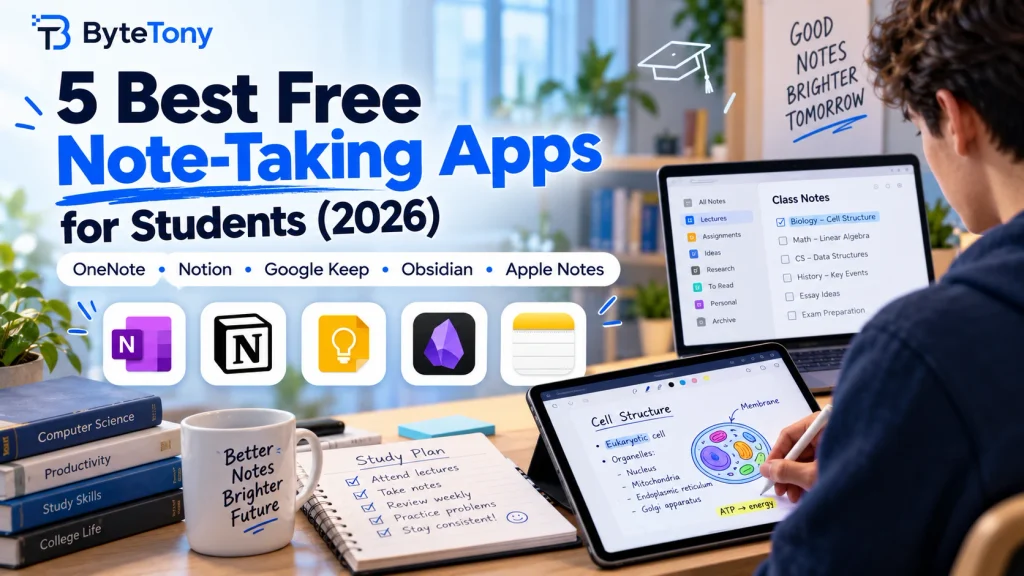
Looking for the best free note-taking apps for students? Every app on this list can carry you through a full semester for $0, with no trials or restrictive note caps. The right choice depends on whether you handwrite, type, organize coursework, or just need somewhere to capture ideas quickly.
If you also want apps for managing assignments, schedules, and study sessions, see our guide to the best productivity apps for students.
Note: This article may contain affiliate links. If you buy through them, we may earn a small commission at no extra cost to you.
Last checked: October 2026. Pricing, plan limits, and student eligibility can change, so check the official websites before signing up.
Table of Contents
1. Microsoft OneNote
Best for: students who mix typed and handwritten notes.
OneNote organizes notes into notebooks, sections, and pages, so it works like a digital binder with one notebook for each course. The supported versions of OneNote are free to download and use, and the app works on Windows, Mac, iPhone, iPad, Android, and the web.
The catch: cloud-connected notebooks use OneDrive, and a free Microsoft account includes 5 GB of cloud storage shared with other Microsoft files and services. If your school provides Microsoft 365, you may have additional storage through your education account.
2. Notion
Best for: university students who want notes, assignment trackers, and course planning in one workspace.
Notion’s free Education Plan for individual students provides a one-member workspace with unlimited file uploads and 30-day page history. Students must verify their status with an eligible college or university email and re-verify each year.
Your education email must be the primary email on your Notion account, and your institution must be an accredited college or university recognized by the World Higher Education Database. You can check the current eligibility requirements on Notion’s official Education Plan page.
The catch: the individual Education Plan is limited to one workspace member, and full Notion AI access isn’t included. Notion also takes more time to learn than a traditional notes app. If you can no longer verify your student status, your workspace moves to the Free plan while your content is kept.
3. Google Keep
Best for: quick capture, including checklists, reminders, voice notes, and photos of whiteboards.
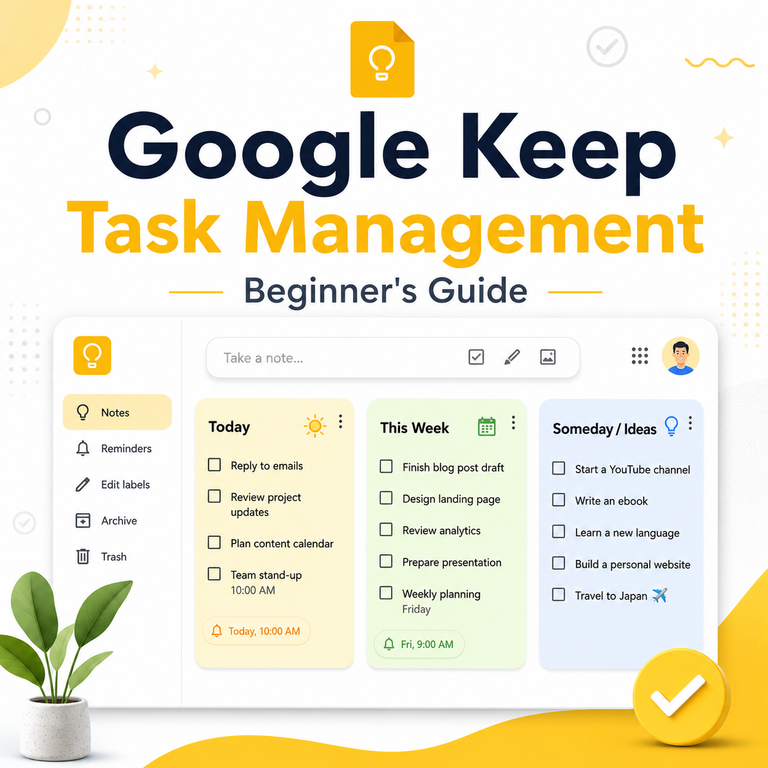
Google Keep is fast and simple. Notes can contain text, checklists, images, drawings, and voice recordings, making it useful when you need to save something quickly between classes.
The catch: organization is limited compared with full note-taking apps. Keep uses labels, colors, and pinned notes rather than traditional folders or notebooks, and you can create up to 50 labels. It’s better as a companion to a main notebook app than as a home for detailed lecture notes.
4. Obsidian
Best for: students who want to link ideas across courses and keep notes as files they own.
Obsidian is free without limits for personal note-taking and doesn’t require an account. Notes are stored locally as files inside a folder called a vault, so you can access them offline and keep control of your data.
The catch: built-in cross-device syncing isn’t included for free. Obsidian Sync starts at $4/month when billed annually or $5/month when billed monthly, and eligible students receive a 40% discount. Free alternatives such as iCloud, OneDrive, or Google Drive can work in some setups, but compatibility varies by platform.
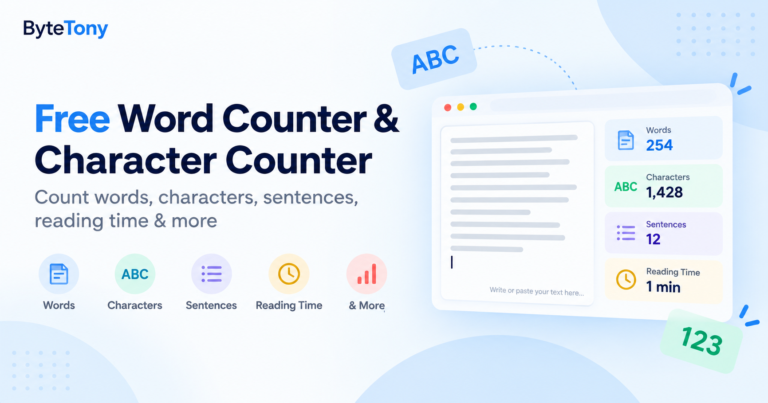
If you regularly write essays or assignments from your notes, ByteTony’s free Word Counter can also help you check word and character counts directly in your browser.
5. Apple Notes
Best for: iPad and Apple Pencil users.
Apple Notes is included with iPhone, iPad, and Mac. It supports typed notes, handwriting, drawings, document scanning, checklists, and syncing through iCloud.
The catch: Apple Notes works best inside the Apple ecosystem. Windows users can access their iCloud notes through a browser, but there is no full native Apple Notes app for Windows. Notes also share your available iCloud storage with other iCloud data.
Best Free Note-Taking Apps for Students: My Recommendation
| App | Best for | Handwriting | Platforms | Main free-plan catch |
|---|---|---|---|---|
| OneNote | Typed + handwritten notes | Yes | Windows, Mac, iOS, Android, web | Uses available OneDrive storage |
| Notion | Course planning | No | Windows, Mac, iOS, Android, web | Education Plan requires eligible university status |
| Google Keep | Quick capture | Drawing notes | Android, iOS, web | Labels instead of folders or notebooks |
| Obsidian | Linked notes you own | No in core app | Windows, Mac, Linux, iOS, Android | Built-in sync costs extra |
| Apple Notes | iPad + Apple Pencil | Yes | Apple devices; web access on Windows | Best inside the Apple ecosystem |
- Best overall and for beginners: OneNote. It runs on most major platforms and handles both typing and stylus notes.
- Best for university planning: Notion. Eligible students get useful Education Plan benefits for organizing courses and assignments.
- Best for owning your notes long-term: Obsidian. Your notes are local files, and the core app is free without note limits.
FAQ
Is Evernote still free for students?
Evernote still has a Free plan, but it is currently limited to 50 notes, one notebook, and one connected device. That makes it less practical for a full semester than the apps on this list.
Can high school students get Notion’s free Education Plan?
No. Notion’s Education Plan for individual students is intended for eligible accredited colleges and universities. High school students can still use Notion’s regular Free plan.
Conclusion
The best free note-taking apps for students depend on how you study. Choose OneNote or Apple Notes if handwriting matters, Notion if you want to organize coursework, Google Keep for quick capture, or Obsidian if you want local notes that you control.
Try one app with a single course for a week before moving all your notes. The best option is the one that fits naturally into your study routine without adding unnecessary complexity.
Enjoyed this guide? Support ByteTony and help us create more simple, beginner-friendly tech guides.
☕ Support ByteTony