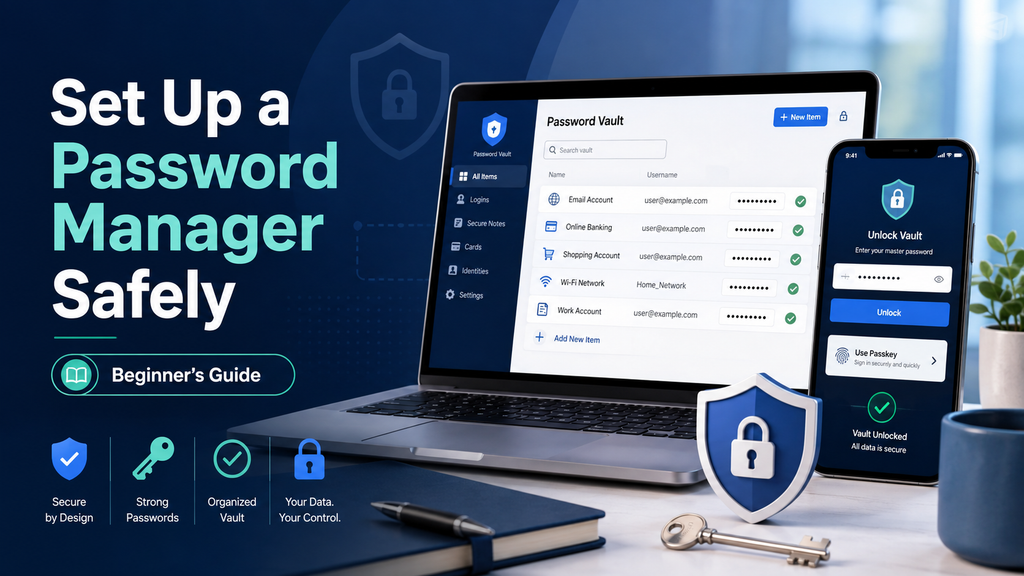
Learning how to set up a password manager safely is one of the easiest ways to stop reusing passwords and protect your online accounts.
Most people don’t start using a password manager because something dramatic happened.
They start because they’re tired of resetting forgotten passwords, reusing the same few combinations, or wondering whether the password they saved three years ago is still the right one.
If that sounds familiar, this guide is for you.
We’ll go through how to set up your first password manager safely, step by step, with no security background required. Bitwarden is the main example because its free plan works across unlimited devices and doesn’t put basic password management behind a trial.
The important part isn’t just choosing a password manager. It’s setting it up in the right order.
Import every password you own before protecting the vault properly, and you’ve concentrated your entire digital life in one place before securing the door.
So we’ll create the account, lock it down, install it on trusted devices, move the important accounts first, and only then bring everything else across.
At the end, we’ll also compare the main alternatives in case Bitwarden isn’t the best fit for you.
Note: This article may contain affiliate links. If you buy through them, we may earn a small commission at no extra cost to you.
Table of Contents
Why Your Current Password Setup Isn’t Enough
Most people who don’t use a dedicated password manager keep their passwords in one of three places:
- Their browser
- A notes app or spreadsheet
- Their memory, with the same passwords reused across several accounts
These options aren’t equally bad.
Modern browsers have become much better at storing passwords securely, and built-in managers from Google and Apple are perfectly reasonable for many people.
The bigger problem is usually reuse, organisation, portability, and consistency across devices.
Here’s a more realistic comparison:
| Feature | Browser Password Manager | Notes App or Spreadsheet | Dedicated Password Manager |
|---|---|---|---|
| Encrypted storage | Generally yes, depending on the browser, account and device security | Not necessarily | Yes, with an encrypted vault |
| Generates strong passwords | Usually | No | Yes |
| Works across platforms | Depends heavily on your browser/ecosystem | Only through manual syncing | Designed for multiple browsers and devices |
| Autofill | Yes | No | Yes |
| Passkey support | Increasingly common | No | Common in major managers |
| Breach or weak-password alerts | Available in some browsers | No | Common |
| Secure sharing | Available in some ecosystems | No safe built-in method | Common in many managers |
| Easy organisation | Basic | Manual | Designed specifically for credentials |
| Moving to another service | Often requires an export file | Already manual | Import/export tools are built in |
The notes or spreadsheet approach is the biggest concern.
An ordinary spreadsheet containing every login you own can become extremely valuable to anyone who gets access to the device, synced folder, email attachment, or cloud account containing it.
Password reuse is even more dangerous.
If the same password protects your email, shopping account and another website, one breach can give an attacker a working password for several unrelated services.
A password manager solves that by letting every account have a long, unique password without requiring you to memorise any of them.
You only need to protect one extremely important credential: your master password.
Choosing a Password Manager as a Beginner
You don’t need the password manager with the longest feature list.
You need one you’ll actually keep using.
For a beginner, that usually means:
- Apps for every device you use
- Reliable browser autofill
- A good free plan or predictable price
- Easy importing
- Two-factor authentication
- Straightforward recovery options
- No artificial device limit that becomes annoying after setup
Here are five popular options.
Comparison Table: Five Password Managers at a Glance
| Feature | Bitwarden | Proton Pass | 1Password | NordPass | Dashlane |
|---|---|---|---|---|---|
| Free plan? | Yes | Yes | No — 14-day trial | Yes | No |
| Main free-plan limit | Advanced features such as the built-in TOTP authenticator, file attachments, security reports and emergency access require Premium | Up to 3 built-in 2FA items and 10 hide-my-email aliases | No permanent free tier | Only one active session on one device at a time | Free plan discontinued |
| Unlimited passwords on free plan? | Yes | Yes | — | Yes | — |
| Multiple devices on free plan? | Yes | Yes | — | Apps can be installed on multiple devices, but only one active session is allowed | — |
| Paid entry price | Premium: $1.65/month billed annually at $19.80 | Pricing varies; check the current official pricing page | Standard Individual pricing is $3.99/month billed annually, with promotional offers sometimes available | Promotional and term-dependent | Check current official pricing |
| Best for | Most beginners | Privacy-focused users and Proton customers | People who want polished apps and family management | Existing Nord Security users | Users who specifically want Dashlane’s paid security bundle |
Prices and plan details checked in August 2026. Pricing and promotions can change, so confirm current pricing before subscribing.
A couple of those limitations deserve more explanation.
NordPass Free can be installed on multiple devices, but it allows only one active session at a time. If you regularly switch between your laptop and phone, that restriction can become frustrating quickly.
Dashlane no longer has a permanent free plan. Dashlane discontinued it in September 2025, so older comparison articles that still describe Dashlane Free as a current option are outdated.
A Quick Word on Each
Bitwarden
Bitwarden is an open-source password manager with browser extensions, desktop apps, mobile apps and a web app.
Its free tier includes unlimited passwords and unlimited devices, which is the main reason it’s such a good starting point.
It also supports passkeys, password generation, autofill and multiple forms of two-step login.
Importantly, protecting your Bitwarden account with an authenticator app is free.
FIDO2/WebAuthn security keys — including compatible hardware keys such as modern YubiKeys — can also be used on the free plan. Duo and the older YubiKey OTP method require Premium.
Pros: Excellent free tier, unlimited devices, open source, strong cross-platform support.
Cons: The built-in TOTP authenticator for storing other websites’ six-digit codes, file attachments, emergency access and advanced security reports require Premium.
Proton Pass
Proton Pass comes from Proton, the Swiss company behind Proton Mail, Proton Drive and Proton VPN.
The free plan is unusually generous: unlimited logins, unlimited devices, browser/mobile/desktop apps, passkeys, password generation and easy importing.
It also includes up to three built-in 2FA items and 10 hide-my-email aliases.
Pros: Strong free tier, unlimited devices, useful privacy features, and limited built-in 2FA storage even without paying.
Cons: The free 2FA and alias limits can arrive quickly if you use those features heavily. More advanced sharing, aliases, monitoring and emergency features require a paid plan.
1Password
1Password doesn’t offer a permanent free tier, but it does provide a 14-day trial.
Its biggest strength is polish.
The apps are easy to understand, sharing is well designed, and its family tools make it particularly attractive when you’re trying to get less technical relatives to use a password manager consistently.
Pros: Polished apps, excellent usability, strong family features, broad platform support.
Cons: No permanent free plan. If your goal is simply to stop reusing passwords without adding another subscription, Bitwarden or Proton Pass makes more sense.
NordPass
NordPass is part of the same company group behind NordVPN.
Its free tier provides unlimited password storage, but the one-active-session limitation makes it less convenient if you regularly move between several devices.
Pros: Clean interface, unlimited password storage, familiar choice for existing Nord users.
Cons: Only one active device session on the free plan, and promotional subscription pricing can make the long-term cost less obvious than the introductory price.
If NordPass looks like a good fit for you, you can check the latest NordPass plans and offers here.
Dashlane
Dashlane is now a paid-only option for new personal users.
Its Premium offering combines password management with features such as dark web monitoring, phishing protection and a VPN.
Pros: Polished interface and a broader security bundle.
Cons: No permanent free plan, which makes it difficult to recommend as a beginner’s first option when capable free alternatives exist.
Two Honourable Mentions
KeePassXC
KeePassXC is free, open source and designed for people who want to keep their password database under their own control.
There’s no required cloud account.
That gives you more control, but it also gives you more responsibility. Syncing the database safely between devices and managing backups becomes your job.
It’s excellent for technical users, but not my first recommendation for someone who has never used a password manager before.
Apple Passwords and Google Password Manager
Don’t dismiss the manager already built into your phone or browser.
Apple Passwords and Google Password Manager are significantly better than reusing passwords or storing them in notes.
If you live entirely inside one ecosystem, they may be all you need.
A dedicated password manager becomes more attractive when you regularly mix platforms — for example, Windows plus iPhone, or Firefox plus Android — or when you want more advanced sharing and organisation features.
How to Set Up a Password Manager Safely
This walkthrough uses Bitwarden, but the sequence applies to almost any password manager.
Menu names may change between app versions, so don’t worry if a button is worded slightly differently when you follow along.
The order matters more than the exact menu path.
Step 1: Create the Account and a Strong Master Password
Create your Bitwarden account through the official website or app.
Depending on the service, you may also need to choose a data region during signup. Bitwarden, for example, offers separate US and EU regions.
Now comes the most important password you’ll create: your master password.
This password protects access to everything else in your vault.
A good approach is a long passphrase made from several genuinely random words.
For example, the structure could look like:
word-word-word-word-word
Don’t copy an example from an article, book, password generator screenshot, or social media post.
Generate your own.
A good master password should be:
- Long
- Unique
- Used nowhere else
- Memorable enough that you can type it accurately
- Unrelated to obvious personal information
Avoid names, birthdays, favourite teams, addresses, song lyrics and familiar quotations.
Length matters more than decorating a short password with predictable substitutions such as replacing a with @.
And never reuse your master password for your email account or any other website.
What About a Password Hint?
If the service lets you create a password hint, be extremely conservative.
A hint should help you without revealing useful information to someone trying to guess the password.
Don’t include:
- Any of the actual words
- The number of words
- A theme connecting the words
- Personal details used in the password
- Instructions that effectively reconstruct it
If you don’t need a hint, leaving it blank can be safer.
Should You Write the Master Password Down?
For a brand-new user, writing the master password on paper can be a reasonable safety net.
Keep the paper somewhere physically secure — for example, with important household documents or in a safe — rather than leaving it next to the computer.
Once you’re confident you know the password, you can decide whether keeping that physical backup still makes sense for you.
The critical rule is that the master password must never be stored casually in an unprotected note, email draft or spreadsheet.
Step 2: Protect the Vault With Two-Factor Authentication
Do this before importing your password collection.
A password manager protected only by a master password is much better than password reuse, but adding a second factor gives the account another layer of protection.
In Bitwarden, open:
Settings → Security → Two-step login
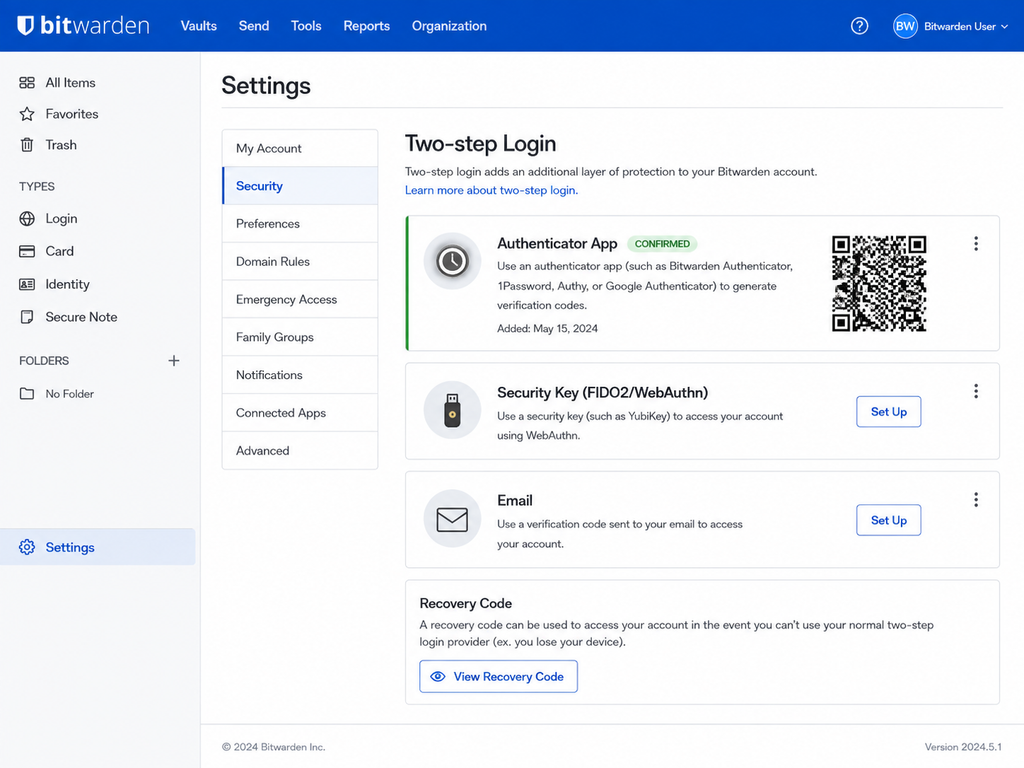
The exact wording may change, but you’re looking for the account’s two-factor authentication settings.
For most beginners, an authenticator app is the simplest choice.
Bitwarden allows authenticator-app two-step login for free.
FIDO2/WebAuthn security keys are also available on the free plan if you already own a compatible hardware security key.
Email verification is available too, although a separate authenticator app or hardware key generally creates better separation from the email account you’re trying to protect.
To set up an authenticator app:
- Choose the authenticator option.
- Scan the displayed QR code using your authenticator app.
- Enter the generated six-digit code to confirm the setup.
- Test the login before moving on.
Then save your recovery code.
This matters.
If you lose access to your authenticator or security key, the recovery code can help you regain access to the account’s two-step-login layer.
Store it somewhere independent from the vault.
Good options include:
- A printed copy in a safe
- A handwritten copy stored with important documents
- Another properly protected offline location
Don’t save the only copy inside the password vault it is supposed to help you recover.
And remember: your two-factor recovery code is not a replacement for your master password.
Step 3: Install the Password Manager on Your Trusted Devices
A password manager only becomes convenient when it’s available where you actually log in.
Start with your normal personal devices.
A sensible order is:
- Install the browser extension on your main personal computer.
- Install the mobile app.
- Enable the password manager as an autofill provider in your phone’s operating-system settings.
- Enable biometric unlock on your personal phone if you’re comfortable using it.
- Test autofill on a low-risk account before moving important passwords.
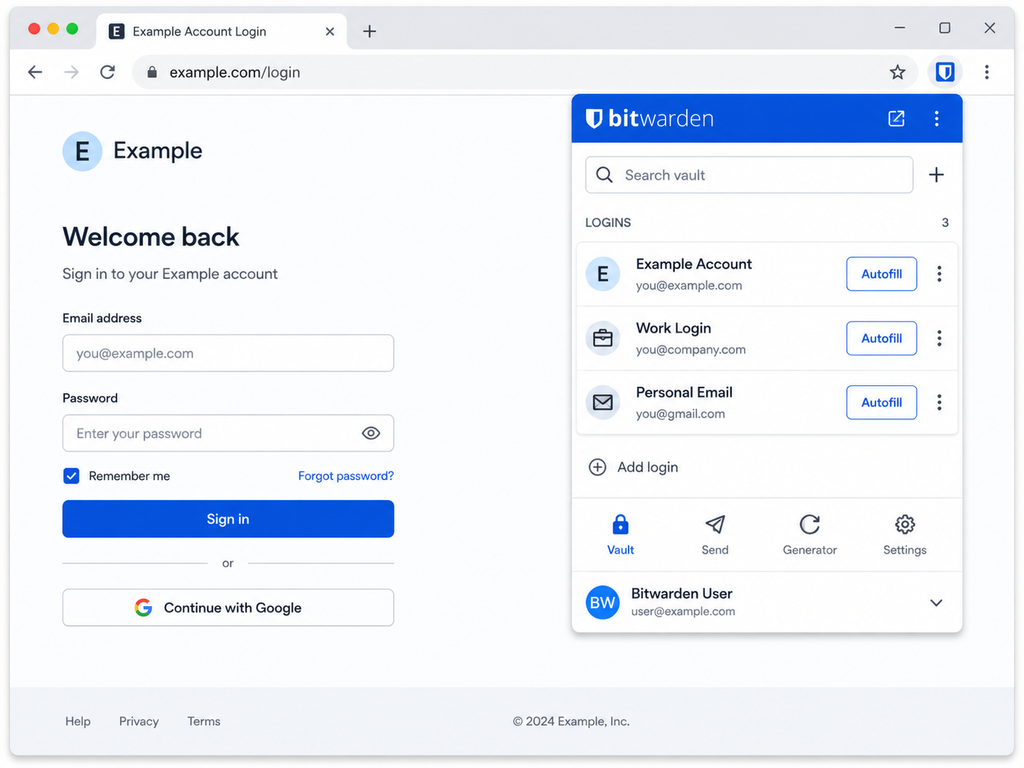
On iOS and Android, simply installing the app isn’t always enough. You usually need to select it as an autofill or password provider in the phone’s settings.
That’s a common reason beginners install a password manager and then wonder why nothing happens when they reach a login page.
What About Work, Public or Shared Computers?
Avoid signing into your complete password vault on computers you don’t trust.
That includes:
- Public computers
- Hotel or library computers
- Shared household machines you don’t control
- Work computers subject to employer monitoring or management
- Any device you suspect may contain malware
Logging out afterwards doesn’t protect you from software that could record what happened while you were logged in.
Whenever possible, access sensitive accounts from a trusted personal device instead.
Step 4: Move Your Most Important Accounts First
Don’t begin by importing 400 passwords.
Start with the handful of accounts that would cause the most damage if someone took them over.
For most people, that’s something like:
- Primary email
- Bank or major financial account
- Mobile carrier account
- Primary social account
- An account containing saved payment information
Your email comes first for a reason.
For many websites, access to your inbox is effectively access to the account because password-reset links are delivered by email.
Add these important accounts manually.
That gives you a chance to understand how vault entries work before dumping hundreds of records into the system.
A typical entry contains:
- Account name
- Username or email
- Password
- Website address
- Optional notes
Once you’ve added a few accounts and successfully used autofill, you’re ready for the larger import.
Importing From Chrome, Firefox or a Spreadsheet
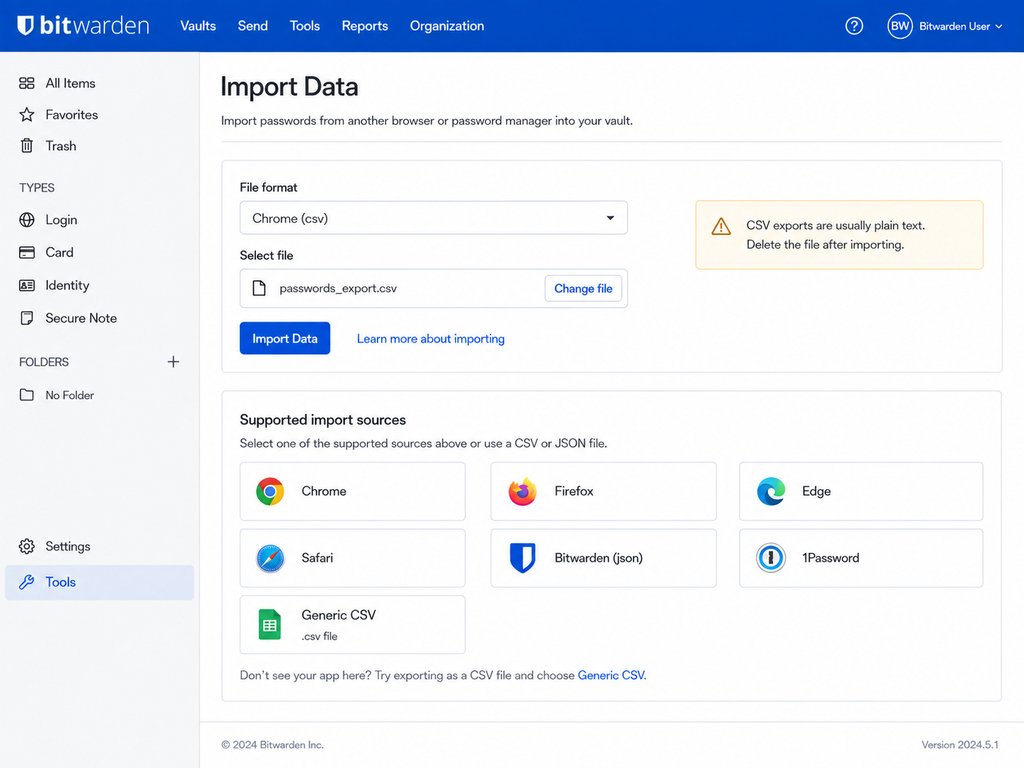
Most browsers and password managers can export credentials to a .csv file.
That makes migration easy — but the file deserves special attention.
A normal CSV password export is usually plain text.
Anyone who opens it may be able to read every exported username and password.
So:
- Export only when you’re ready to import.
- Import the file immediately into the new password manager.
- Confirm that the passwords arrived correctly.
- Delete the export from your computer.
- Empty the relevant trash or recycle location.
- Check that the file wasn’t automatically copied into a cloud-sync folder.
Browsers commonly place exports in Downloads. If yours has become difficult to manage, this is also a good time to organise your Downloads folder so sensitive exports don’t disappear among hundreds of forgotten files.
Do not upload an unencrypted password CSV to Google Drive, Dropbox, OneDrive, or send it to yourself by email just to move it between computers.
If you already use Drive for ordinary documents and want to clean up the rest of your storage safely, see our guide on how to organise files in Google Drive. Just keep plain-text password exports out of your normal cloud filing system.
Step 5: Replace Weak and Reused Passwords Gradually
You do not need to change every password on the first night.
Trying to clean up ten years of accounts in one sitting is an excellent way to make password managers feel exhausting.
Instead, prioritise.
Start with:
- Your primary email
- Financial accounts
- Accounts that reused the same password
- Accounts involved in known breaches
- Shopping accounts with saved cards
- Social-media accounts
- Everything else
Have I Been Pwned is a useful free service for checking whether an email address has appeared in known data breaches.
If you discover that an account was involved in a breach, change that password — particularly if the password was reused elsewhere.
Then adopt a simple habit:
Every time you sign in to an old account, replace its old password with a generated one.
Do five this week.
Do another five next week.
Before long, the reused-password problem disappears without turning the migration into a weekend project.
What Should a Generated Password Look Like?
For websites that accept them, let your password manager create a long random password.
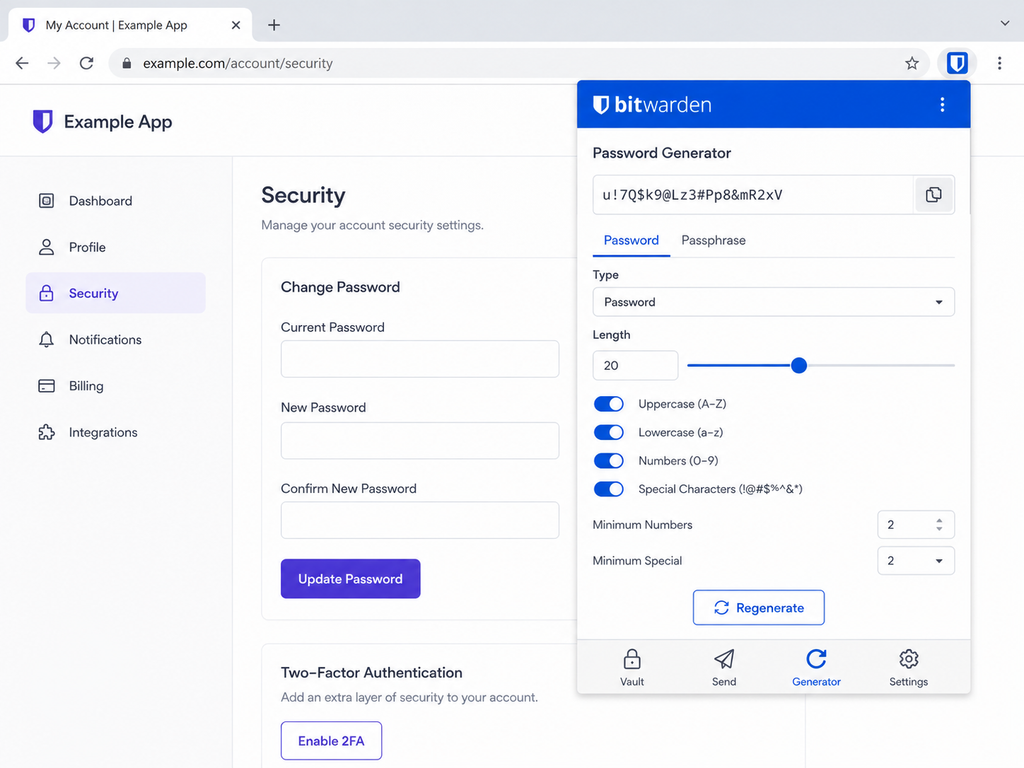
You don’t need to memorise it.
The manager does that part.
If a badly designed website imposes restrictions, use the longest random password the site accepts rather than falling back to something memorable.
And don’t create patterns such as:
MyPassword-Amazon
MyPassword-Netflix
MyPassword-Bank
They’re unique technically, but still predictable once one of them is exposed.
Step 6: Remove the Old Password Copies
Getting your passwords into the vault is only half the migration.
The old copies may still exist in several places.
Look for passwords stored in:
- Browser password managers
- Notes apps
- Spreadsheets
- Text files
- Email drafts
- Screenshots
- Messaging apps
- Paper stuck near the computer
- Old password-export CSV files
- Cloud-sync folders
Once you’ve confirmed that the new password manager contains what you need, clean up those old copies deliberately.
Browser-Saved Passwords
If you’re moving fully to a dedicated password manager, consider disabling the browser’s own password-saving prompts so you don’t accidentally maintain two separate collections.
In Chrome, Firefox, Safari and Edge, search the browser settings for terms such as:
- Passwords
- Autofill
- Password manager
- Save passwords
Menu paths change regularly, so searching settings is often more reliable than following an old screenshot.
Before deleting browser-stored passwords, verify that the corresponding entries exist and work in your new vault.
Notes and Spreadsheets
Delete old password lists only after checking the migration.
Then also check:
- Trash or recently deleted folders
- Cloud sync
- Old backups you can easily access
- Email attachments
- Download folders
You don’t need to panic about every historical backup ever created.
The goal is to stop maintaining easily accessible plain-text copies of your current passwords.
Step 7: Learn to Trust Autofill — Without Clicking Blindly
Autofill isn’t just about convenience.
Used correctly, it can also help protect against phishing because a password manager knows which website an entry belongs to.
Suppose your login is saved for:
example.com
and you land on a convincing imitation using a different domain.
A password manager may refuse to offer the saved login because the website doesn’t match.
That hesitation is useful.
Don’t respond by immediately copying the password manually.
Instead, stop and check the address.
Before entering an important password, especially for email, banking or a password manager itself:
- Check the domain
- Be suspicious of links from unexpected emails or messages
- Don’t bypass autofill warnings without understanding why
- Open important services from a trusted bookmark or by typing the address yourself when uncertain
A password manager makes good security habits easier, but it can’t make every decision for you.
My Recommendation
Best for Most Beginners: Bitwarden
Bitwarden is still my first recommendation for someone setting up a password manager for the first time.
The free plan includes:
- Unlimited passwords
- Unlimited devices
- Browser, desktop and mobile apps
- Autofill
- Password generation
- Passkey management
- Two-step login
- Support for free FIDO2/WebAuthn security keys
You can use the essentials indefinitely without paying.
If you later want features such as the integrated TOTP authenticator, file attachments, emergency access or advanced vault-health reports, Premium currently costs $1.65 per month when billed annually at $19.80.
That’s an upgrade, not a requirement for basic password management.
Best Free Alternative: Proton Pass
Proton Pass is the closest alternative if you want a capable permanent free tier.
It offers unlimited entries and unlimited devices, and its free plan also includes up to three built-in 2FA items and 10 hide-my-email aliases.
I’d lean toward Proton Pass if you’re already a Proton Mail user or strongly prefer keeping several privacy tools in the same ecosystem.
I’d lean toward Bitwarden if you want a straightforward, mature password manager with a particularly strong free plan and broad community support.
Best Paid Experience: 1Password
If you’re happy to pay and usability is your priority, 1Password is an excellent choice.
It’s particularly attractive for households where the password manager needs to be easy enough that every family member will actually use it.
There’s no permanent free tier, but a 14-day trial gives you time to test it before subscribing.
What I’d Skip as a First Choice
I wouldn’t start a beginner with NordPass Free if they regularly use both a laptop and phone because the one-active-session limitation undermines one of the main advantages of a password manager.
Dashlane is also harder to recommend as a first option now that its permanent free plan has been discontinued.
Neither is necessarily a bad product.
They simply make less sense as the default starting point when Bitwarden and Proton Pass have strong free options.
FAQ
What if I Forget My Bitwarden Master Password?
For a normal individual Bitwarden account, the company cannot simply send you your forgotten master password.
That’s a consequence of its zero-knowledge design.
Your two-factor recovery code doesn’t replace the master password either.
If you’ve forgotten the password, first check whether another trusted device is still logged in.
If a Bitwarden app can still be unlocked using a PIN or biometrics, Bitwarden recommends using that access to manually copy important vault data so it can be moved to a new account if necessary.
Don’t assume that being able to unlock the app with biometrics means you’ll be able to change a forgotten master password or perform every sensitive account action. Some operations require the master password or another verification method.
Emergency Access may provide another recovery path if you configured it in advance, but that’s a Premium feature.
The simplest prevention is to create a memorable, unique master passphrase and keep a secure physical backup while you’re getting used to it.
Isn’t Putting Every Password in One Place Dangerous?
It concentrates valuable information, yes.
But the alternative for most people isn’t dozens of perfectly memorised random passwords.
It’s reused passwords, predictable variations, browser exports, spreadsheets and forgotten accounts.
A reputable password manager protects the vault with strong encryption and makes it realistic to use a different random password for every service.
That dramatically reduces the damage caused when one website is breached.
The key is to protect the password-manager account itself with a strong unique master password and two-factor authentication.
Should I Store 2FA Codes in the Same Password Manager?
There are two reasonable approaches.
Storing a site’s password and its TOTP code in the same password manager is extremely convenient and is still much better than not using two-factor authentication at all.
Keeping TOTP codes in a separate authenticator app creates more separation if your password vault is compromised.
For most beginners, either approach can be reasonable.
The more important priority is enabling 2FA on critical accounts instead of avoiding it because the setup feels too complicated.
For your password manager itself, however, use an authentication factor that isn’t stored only inside the vault you’re trying to unlock.
Can I Just Use My Browser’s Password Manager?
Yes, especially if you stay inside one ecosystem.
Google Password Manager, Apple Passwords and browser-based alternatives are much better than reusing passwords or writing them in a spreadsheet.
A dedicated password manager becomes more useful when you:
- Use several browsers
- Switch between operating systems
- Want more advanced organisation
- Need secure sharing
- Want a service independent from your browser vendor
- Manage a large number of accounts
If the built-in manager already gets you using unique passwords consistently, that’s a meaningful security improvement.
Final Thoughts
The hardest part of switching to a password manager isn’t learning the software.
It’s the first setup.
You need to:
- Create a strong master password.
- Enable two-factor authentication.
- Save the recovery information safely.
- Install the manager on your trusted devices.
- Move your most important accounts first.
- Import the remaining passwords.
- Remove the unprotected old copies.
- Gradually replace weak and reused passwords.
Do it in that order and the transition is much safer.
You don’t need to fix every password tonight.
You don’t need the most expensive plan.
And you don’t need to become a security expert.
You need one trustworthy vault, one strong master password, two-factor authentication, and a habit of letting the manager generate unique passwords from now on.
For most beginners, Bitwarden is the lowest-friction place to start: no device limit, no trial clock for the basic features, and no need to pay until you actually want the extras.
Set up the account and secure it first.
Move the critical accounts next.
Then clean up the rest gradually.
A few weeks from now, clicking “Forgot password?” should become something you do far less often.
Enjoyed this guide? Support ByteTony and help us create more simple, beginner-friendly tech guides.
☕ Support ByteTony