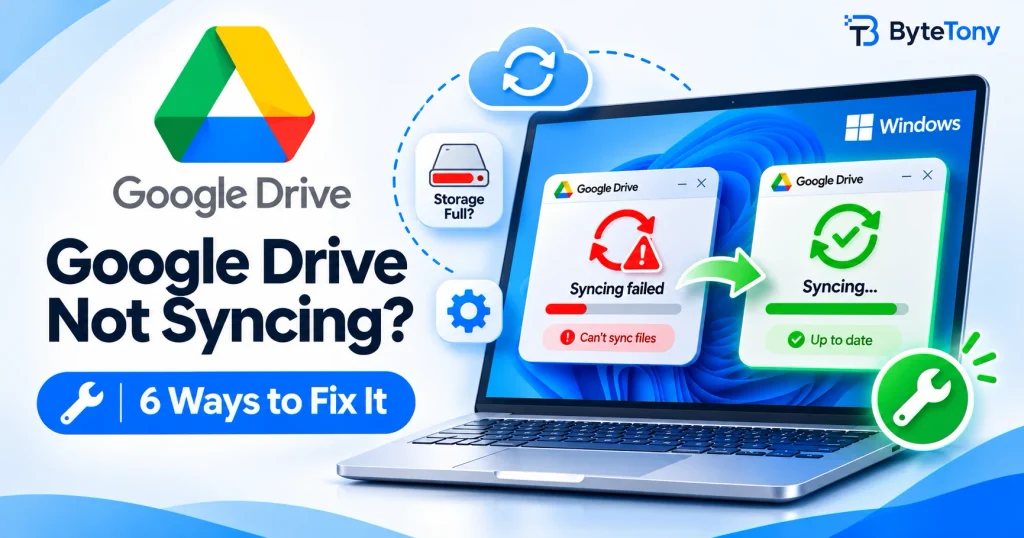
Google Drive not syncing on PC? The problem is usually caused by a paused sync, full storage, file permissions, or incorrect settings in Drive for desktop, Google’s Windows sync app. Try these six fixes in order, starting with the quickest, and stop once syncing works again.
Note: This article may contain affiliate links. If you buy through them, we may earn a small commission at no extra cost to you.
Table of Contents
1. Google Drive not syncing on PC? Check the Status and Restart
Click the Drive icon in the Windows system tray. If it’s hidden, click the “Show hidden icons” arrow. Check the Sync status tile and any error notifications.
- Paused sync: Click Settings (gear) → Resume syncing.
- Wrong account: Check the profile picture to confirm you’re signed into the correct Google Account.
- Connection: Make sure your internet connection is stable.
- Restart: Click Settings → Quit, then reopen Drive from the Start menu. If necessary, restart your PC.
If nothing syncs, check the Google Workspace Status Dashboard for a possible Drive outage.
2. Make Sure You Have Enough Storage Space
Personal Google Accounts generally include 15 GB of free storage shared across Gmail, Google Drive, and Google Photos. When your Google storage is full, Drive can’t upload new files or save changes that require additional cloud storage.
Check your usage in the Google One storage manager. Remember that the space displayed inside Drive for desktop may refer to your PC’s storage rather than your Google cloud quota.
To free up space, empty the Drive trash and Gmail trash and spam folders. These items continue using storage until permanently deleted. After a large cleanup, Google’s storage figures may take 48–72 hours to update.
For more detailed instructions, see our guide on how to free up Google Drive storage.
If large images are consuming unnecessary space, you can reduce their file sizes before uploading them with ByteTony’s free Image Compressor. Existing cloud files must be replaced to recover storage.
If Drive displays a low disk space error, free up space on the PC drive identified in the message, then restart the app.
3. Fix Individual Files That Won’t Sync
If most files sync normally but a few remain stuck, check these possible causes:
- File open in another app: Close programs such as Excel that may be locking the file.
- File permissions: Right-click the file or folder → Properties → Security. Confirm you have read/write permissions. For shared Drive files, make sure you have edit access.
- Unsupported characters: Windows doesn’t allow
\ / : * ? " < > |in file names. Rename any problematic files. - Path too long: Some Windows applications have trouble with paths longer than 260 characters. Shorten folder names or move files closer to the top-level folder.
- Upload limits: Very large transfers may hit Google’s upload limits. Drive normally retries automatically. If necessary, wait a day and restart the app.
If complicated folder structures are causing problems, our guide on how to organize files in Google Drive can help simplify them.
4. Check Your Sync Settings
Open Drive for desktop → Settings → Preferences → Folders from Drive → My Drive syncing options.
You’ll find two options:
- Stream files: Files primarily stay in the cloud and download when needed. They appear in a virtual drive, usually G: on Windows. Not having a complete offline copy is normal.
- Mirror files: Keeps a full copy of My Drive on your computer and in the cloud, requiring enough local disk space.
For folders stored on your PC, check Folders from your computer in Preferences. Confirm the folder is listed and configured to sync with Google Drive.
These folders appear under Computers on the Drive website rather than My Drive.
Also check bandwidth settings:
Settings → Preferences → Advanced Settings → Download rate / Upload rate.
Remove restrictive limits or increase them if transfers are unusually slow.
You can find additional details in Google’s official Drive for desktop settings guide.
5. Check Your Firewall, Antivirus, or VPN
Network restrictions and security software can interfere with Google Drive syncing.
- VPN: Temporarily disconnect your VPN on a trusted network and check whether syncing resumes.
- Firewall: Make sure Drive for desktop is allowed to connect. Its executable,
GoogleDriveFS.exe, is normally located underC:\Program Files\Google\Drive File Stream\<version>\. - Antivirus: If Drive repeatedly crashes with the error “Drive for desktop encountered a problem and has stopped,” Google recommends excluding the trusted Drive application from virus scans. Don’t disable your antivirus protection entirely.
- Proxy settings: Under Preferences → Advanced Settings, try Direct connection instead of Auto-detect if your network doesn’t require a proxy.
On a work or school network, contact your administrator before changing security or proxy settings.
6. Disconnect Your Account or Reinstall Drive for Desktop
If Google Drive not syncing on PC remains a problem after the previous fixes, try reconnecting your account or reinstalling the application.
First, protect your unsynced files.
- Check the Sync status tile for unfinished uploads and save copies of important unsynced changes outside Google Drive.
- Inspect
C:\Users\<username>\AppData\Local\Google\DriveFS\lost_and_found\and copy any files there to a safe location. Each account may have its own numbered subfolder. - Remember that disconnecting a streaming account removes its offline files. Files in Lost & Found can also be lost.
To disconnect your account:
- Open Settings → Preferences → Advanced Settings.
- Find your account and click Disconnect account.
- Confirm, then sign back in.
If syncing still fails, uninstall Drive for desktop through Windows Settings → Apps and install the latest version from the official Google Drive download page.
Important: Don’t manually delete the DriveFS configuration or cache folder. It may contain changes that haven’t reached the cloud. Keep system cleaner applications such as CCleaner from modifying it.
Conclusion
Start with the first three fixes: checking sync status, freeing up storage, and examining individual files. These resolve many common Google Drive syncing problems without reinstalling anything.
If syncing still fails, open Drive for desktop → Settings → Send feedback and select Include diagnostic logs. Describe the exact error message so Google can investigate. You can also consult the Google Drive Help Community for additional assistance.
Enjoyed this guide? Support ByteTony and help us create more simple, beginner-friendly tech guides.
☕ Support ByteTony