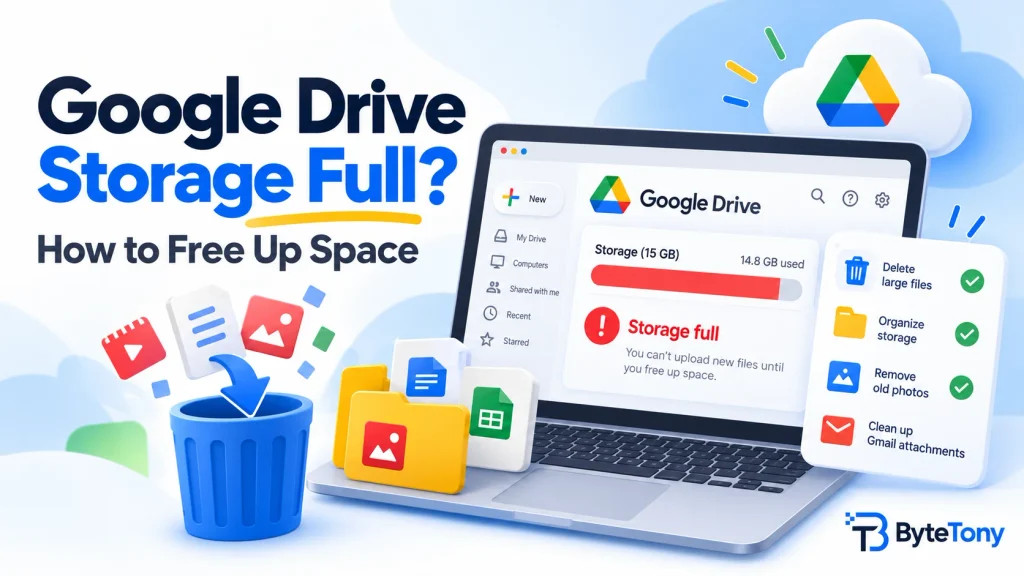
Google Drive storage full? Your Drive files might not be the only reason. Every Google Account includes up to 15 GB of free storage shared across Google Drive, Gmail, and Google Photos. Android WhatsApp backups also use this space. Once you reach the limit, you can’t upload or create files in Drive, send or receive emails in Gmail, or back up photos and videos to Google Photos. Here’s how to free up space safely.
Note: This article may contain affiliate links. If you buy through them, we may earn a small commission at no extra cost to you.
Table of Contents
Google Drive Storage Full? Check What’s Using Your Space
Open Google One storage to see how much space Drive, Gmail, and Photos each use. Start with the service using the most storage. Large videos, photos, and backups are common causes.
For more details, see Google’s official storage management guide.
Delete Large Files in Google Drive
Open Drive’s Storage view, which lists files from largest to smallest. Look for videos, ZIP files, old backups, and duplicates.
Files shared with you don’t use your storage unless you make copies. However, files you add to someone else’s shared folder can still count toward your storage.
Download anything important before deleting it. To keep large images, reduce their file sizes with ByteTony’s free Image Compressor, then replace the larger versions in Drive.
To prevent future clutter, read our guide on how to organize files in Google Drive.
Clear Large Gmail Attachments
In Gmail’s search bar, type has:attachment larger:10M to find emails with large attachments. Delete messages you no longer need.
Check your Spam and Trash folders too. Messages in both folders count toward your storage until permanently deleted.
Reduce Google Photos Storage
- Delete unnecessary videos, blurry photos, and duplicates first. Be careful: deleting photos from Google Photos may also remove them from devices with backup enabled.
- Set backup quality to Storage saver for future uploads. Photos larger than 16 MP are resized to 16 MP, but new uploads still count toward your storage.
- To shrink existing backups, open Google Photos on a computer and go to Settings > Manage storage > Recover storage. Choose Convert existing photos & videos to Storage saver.
Important: Recover storage can’t be undone, can only be used once a day, and doesn’t change the quality of future uploads. Some files may not be eligible for compression.
Empty the Trash in Drive, Gmail, and Photos
Deleted items continue using storage until permanently removed. Google Drive and Gmail normally clear their trash after 30 days. Google Photos also keeps deleted items in the trash for 30 days.
To recover space sooner, empty the trash in each service.
Warning: Permanently deleted files and photos cannot be restored through the trash. Save anything important before emptying it.
Still Full? Check Hidden Data or Upgrade
Storage totals may take up to 48–72 hours to update after deleting many files.
If your account still shows as full, check old device backups and hidden app data:
- In Google Drive, open Settings > Manage apps.
- If an app shows hidden data you no longer need, select Options > Delete hidden app data.
If cleanup isn’t enough, consider upgrading through Google One. Its paid plans include additional storage, with pricing varying by country. Check the current plans before subscribing.
FAQ
Will deleting files from Google Drive delete them from my computer?
It can. If you use Google Drive for desktop, deletions may sync between Drive and your computer. Save a separate copy first. Mirrored files use local disk space, while streamed files generally use less.
Do WhatsApp backups count toward Google storage?
Yes, WhatsApp backups on Android count toward Google Account storage. Deleting a backup is permanent and may prevent you from restoring chats if you change phones or reinstall WhatsApp before creating another backup.
Conclusion
If your Google Drive storage full warning keeps appearing, start by checking your storage breakdown, deleting unnecessary large files, and emptying the trash. Review your backups and hidden app data if needed.
A quick cleanup every few months can help prevent storage problems without paying for more space.
Enjoyed this guide? Support ByteTony and help us create more simple, beginner-friendly tech guides.
☕ Support ByteTony