
Want to learn how to make a PowerPoint with Gamma AI for free? Gamma turns a prompt or your notes into a slide deck, with each slide called a “card.” This guide shows you how to create a presentation using Gamma’s free plan and export it as an editable PowerPoint (.pptx) file.
Note: This article may contain affiliate links. If you buy through them, we may earn a small commission at no extra cost to you.
Table of Contents
Step 1: Sign Up for a Free Gamma Account
Sign up at Gamma using Google or email. The free plan includes:
- Credits: 400 AI credits at signup. They don’t refresh, but you can earn 200 per qualifying referral or upgrade to a paid plan.
- Cards: Up to 10 per prompt. You can add more manually afterward.
- Export: PowerPoint (PPTX) and PDF, among other formats.
- Badge: Free-plan PDF and PPTX exports include a “Made with Gamma” badge. Removing it requires Plus or higher.
Plan details may change. Check Gamma’s official pricing page for current limits.
Manual editing is free: you can change text, move content, and choose themes, fonts, or colors without using credits. AI actions—including generating slides, editing with Agent, trying new AI layouts, and creating AI images—consume credits.
Since free credits don’t refresh, plan your presentation before generating it.
Step 2: How to Make a PowerPoint with Gamma AI from a Prompt
On your dashboard, click Use classic generator, then select Generate. This gives you direct control over the card count, outline, and image settings.
You can also choose Paste to work from existing notes or Import to use a file.
Gamma’s main prompt bar opens its newer AI Agent instead. In Plan mode, the Agent asks questions and shows a plan before creating the presentation. Both methods work, but this guide uses the classic generator for more direct control.
Select Presentation, choose 10 cards or fewer, and set your language. Then write a prompt describing the topic, audience, slide count, and tone:
Create an 8-slide presentation on password security for small-business staff. Use a practical, friendly tone, with one clear idea per slide.
A specific prompt produces a more useful first draft than simply writing “Make a presentation about cybersecurity.”
If your notes need polishing first, you can use Rytr to draft or rewrite the text before adding it to Gamma.
Step 3: Edit the Outline and Choose a Theme
Gamma displays an editable outline before generating your slides. Review the structure, rename or reorder cards, and remove unnecessary sections.
Making these changes before generation helps avoid spending credits on major revisions later.
Also adjust:
- Amount of text per card: Choose less text to reduce crowding and potential export issues.
- Image source: Select stock or web images instead of generating AI images when you want to conserve credits.
Choose a theme that fits your presentation, then click Generate.
Step 4: Customize Your PowerPoint Slides
Once your presentation is generated, you can edit text directly, replace images, rearrange content, and adjust the design manually without spending additional AI credits.
Keep one main idea per slide. Avoid long paragraphs that make slides difficult to read.
For custom visuals, explore our guides on creating AI images for free or using the Canva AI Image Generator.
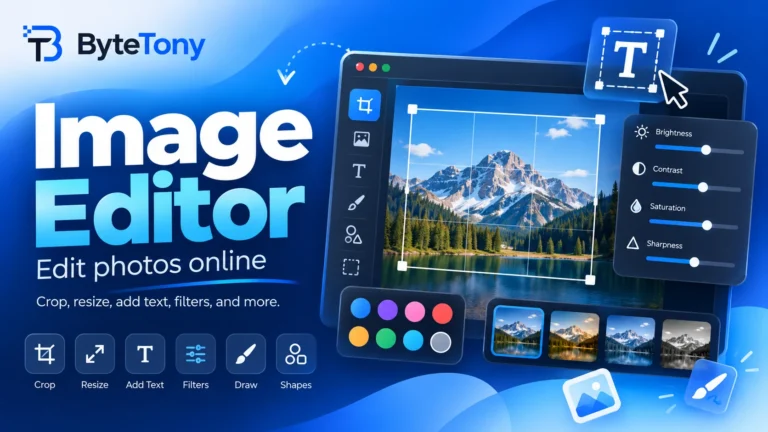
Before uploading images, you can crop and adjust them with the free ByteTony Image Editor or change their dimensions using the Image Resizer.
For a standard widescreen presentation, open the ⋯ menu → Page Setup, choose 16:9, and enable Scale Content to Fit if needed.
This helps content fit within slide boundaries, but it can make text smaller. If a slide becomes difficult to read, shorten the content or split it into two slides.
Before exporting, preview your presentation in Present Mode to check spacing, readability, and image placement.
Step 5: Export Your Gamma Presentation to PowerPoint (PPTX)
Click Share in the top-right corner → Export, or open the ⋯ menu → Export.
Choose PowerPoint (PPTX) as the file format.
In the export dropdown, select All cards to download the complete presentation. Otherwise, Gamma may export only the current card.
Gamma downloads the file when it’s ready and also sends an email copy.
Open the PPTX in PowerPoint and check:
- Fonts: Gamma normally embeds theme fonts, but some formatting may still differ. If necessary, use the Install fonts option in the export menu.
- Text and layout: Check for overflow, unexpected spacing, or content that appears too small.
- Visual elements: Most standard text and tables remain editable, but some complex graphics may export as static images.
Gradient text and certain design effects may also look different after export.
If the layout shifts, shorten crowded slides, use standard fonts, or adjust the content scaling.
The “Made with Gamma” badge depends on your subscription at the time of export. Upgrading later removes it from future exports, not files you’ve already downloaded.
If you also need a PDF handout, Gamma can export directly to PDF. You can then use PDF2Go to compress or edit the PDF before sharing it.
FAQ
Can I import an existing PowerPoint into Gamma?
Yes. On the Gamma dashboard, select Import → Add a file, upload your PPTX, and click the arrow.
Gamma 5 can preserve the original design and structure while keeping most content editable. Some complex elements may need adjustments.
The classic generator’s import option works differently: it imports the text rather than preserving the original slide design.
Can I use my Gamma presentation in Google Slides?
Yes. Upload the exported PPTX to Google Drive and open it with Google Slides.
However, Google Slides may replace embedded fonts, so check the text formatting and slide layout before presenting.
Conclusion
Gamma makes it easy to create a PowerPoint presentation from a simple prompt without paying for presentation software. It’s especially useful for producing a first draft quickly, while PowerPoint remains helpful for final adjustments.
Make the most of your 400 free credits by planning your slides carefully, editing manually when possible, and avoiding unnecessary AI regenerations.
Enjoyed this guide? Support ByteTony and help us create more simple, beginner-friendly tech guides.
☕ Support ByteTony