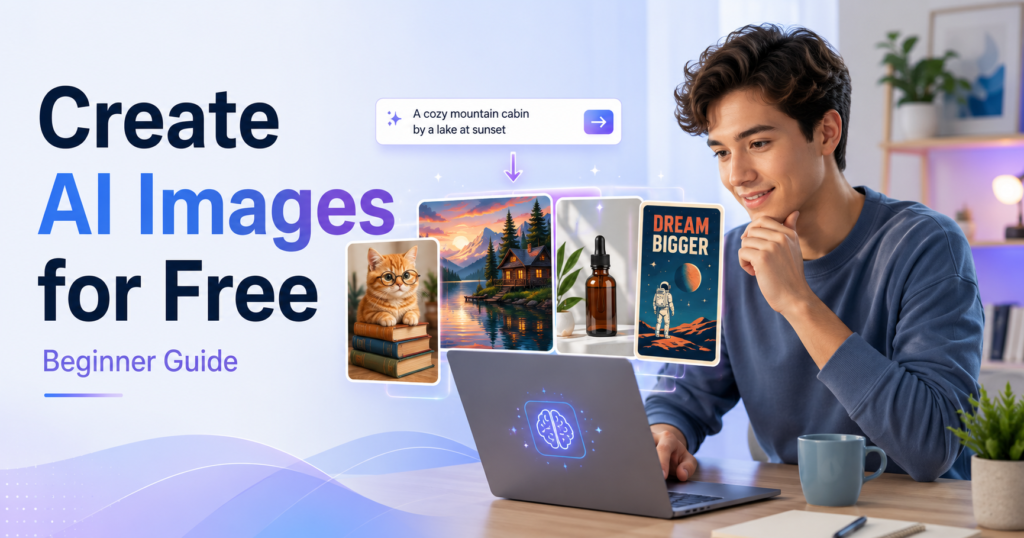
How to create AI images for free is easier than ever, even if you have no design experience. With beginner-friendly tools like Bing Image Creator, Google Gemini, Leonardo.Ai, Ideogram, and Canva, you can turn a simple written prompt into a finished image within minutes.
Creating digital artwork once required design experience, expensive software, or help from a professional illustrator. Today, several popular platforms let beginners experiment without purchasing a subscription. However, free plans differ in image quality, generation limits, privacy, and commercial-use terms.
In this beginner-friendly guide, you will learn:
- How AI image generators work
- The best free AI image tools for beginners
- How to create your first image step by step
- How to write better AI image prompts
- Whether you can use free AI images commercially
- Which tool is best for your specific needs
You do not need design experience, and you can start with a free account.
Last checked: July 2026. AI models, free-plan limits, and licensing terms can change. Always confirm important details on the tool’s official website before using an image commercially.
Affiliate disclosure: This article may contain affiliate links. If you purchase through one of these links, we may earn a small commission at no additional cost to you.
Table of Contents
What Is an AI Image Generator?
An AI image generator is a tool that creates an image from a written description, commonly called a prompt.
For example, you could enter:
“A cozy coffee shop on a rainy morning, warm lighting, watercolor illustration.”
The tool analyzes the description and produces one or more images based on your instructions.
Most beginner-friendly generators work directly in a web browser, so you usually do not need to download or install any software. Some tools also allow you to upload an existing image and ask the AI to edit, expand, restyle, or improve it.
However, AI-generated results are not always perfect. You may notice:
- Misspelled words inside images
- Unnatural hands or facial details
- Incorrect object placement
- Inconsistent lighting or shadows
- Elements you did not request
- Missing details from your prompt
The first result is often only a starting point. Learning how to refine your prompt is an important part of creating better images.
What Do You Need Before You Start?
You only need a few basic things:
- A computer, tablet, or smartphone
- An internet connection
- A free account for your chosen platform
- A simple idea for the image
- A few minutes to test and refine your prompt
You do not need drawing skills, professional design software, or a powerful computer because the image is generated on the platform’s servers.
For your first attempt, start with a simple subject rather than a complicated scene with many people, objects, and written words.
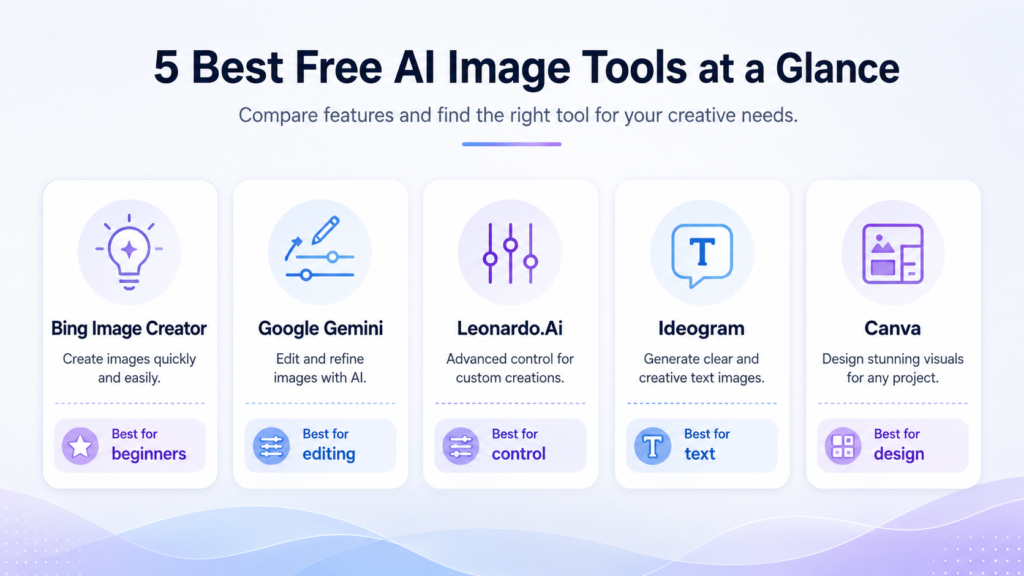
5 Best Free AI Image Tools for Beginners
The following tools all offer some form of free image generation, but each one is better suited to a different type of user.
1. Bing Image Creator
What is Bing Image Creator?
Bing Image Creator is Microsoft’s browser-based AI image generation tool. It offers different generation modes, models, aspect ratios, and image quantities depending on the option selected and what is available in your region.
You can access it through Bing Image Creator and sign in with a free Microsoft account.
Microsoft’s current interface offers several aspect-ratio options rather than limiting every image to a square format. It also provides free fast-generation credits and a standard generation mode, although the exact availability can change.
Best for
Absolute beginners who want to create a first AI image without purchasing a subscription.
Pros
- Easy interface for beginners
- No paid subscription required to start
- Multiple image-generation modes
- Several aspect-ratio options
- Can return multiple variations
- Free standard generation is available after fast credits are used
Cons
- Available models and options may vary
- Generation can become slower after fast credits are used
- Results may contain incorrect text or small visual mistakes
- Microsoft does not provide a simple blanket promise covering every possible commercial use
Is a free plan available?
Yes. Microsoft currently advertises free fast creations as well as standard generation, although account limits and interface options can change.
Can you use the images commercially?
Microsoft’s current Image Creator terms require creations to be used lawfully and without violating another person’s copyright, trademark, privacy, or other rights.
However, the terms do not provide a simple universal statement saying that every generated image is automatically cleared for all commercial purposes. Review the latest terms and consider the risks of your specific use before using an image in a product, advertisement, client project, or other commercial work.
2. Google Gemini
What is Google Gemini image generation?
Google Gemini can create and edit images through a conversational chat interface. You describe what you want, and Gemini generates an image that you can continue refining in the same conversation.
Google currently provides free users with access to image generation using Nano Banana 2. Paid subscribers receive expanded access and additional options such as Nano Banana Pro.
Without a paid AI plan, images can currently be downloaded at up to 1K resolution. Google also uses dynamic, compute-based limits rather than promising every free user a fixed number of images per day.
Best for
Beginners who prefer a conversational experience and want to refine an image by giving follow-up instructions.
Pros
- Simple chat-style interface
- Can generate and edit images
- Good instruction following
- Useful for making changes through follow-up prompts
- Free access is available
- Works well for users already using Google services
Cons
- Usage limits are dynamic and may change
- Some advanced image options require a paid Google AI plan
- Availability can depend on age, account type, language, and country
- Results can still include visual or factual errors
Is a free plan available?
Yes. Users without a Google AI subscription receive standard access, but Google calculates limits based on factors such as prompt complexity, model choice, feature use, demand, and conversation length.
Google may change those limits without notice.
Do Gemini images have a watermark?
Google uses SynthID, an invisible digital watermark designed to identify content generated or edited by Google’s AI systems. It is embedded into the image and normally does not visibly affect the result.
Can you use the images commercially?
Google advises users to use discretion before publishing or relying on generated content and to avoid violating copyright, privacy, and other third-party rights.
Before using a Gemini image commercially, review the current Google terms that apply to your account and location.
3. Leonardo.Ai
What is Leonardo.Ai?
Leonardo.Ai is a dedicated AI image platform with more creative controls than most basic chat-style generators.
It includes different models, style controls, image editing features, upscaling options, and tools for building more detailed visual workflows.
Leonardo.Ai is owned by Canva, but it remains a separate image-generation platform.
Best for
Beginners who have already created a few images and are ready for more control over models, styles, and settings.
Pros
- More control than basic one-click generators
- Multiple models and creative settings
- Free daily token allowance
- Useful for illustrations, concepts, characters, and design experiments
- Commercial use is permitted for images generated by free users
Cons
- The interface may initially feel complicated
- Free-plan generations are public
- Other users may be able to view and remix public creations
- Leonardo retains ownership of outputs generated under its free subscription terms
- Each action may consume a different number of tokens
Is a free plan available?
Yes. Free users currently receive 150 tokens every 24 hours. The number of images you can generate depends on the model, settings, and features you choose.
Can you use free Leonardo.Ai images commercially?
Yes. Leonardo states that free users may use their generated images commercially.
However, there is an important distinction between permission to use an image commercially and ownership of the output.
Under Leonardo’s current terms, images generated with the free subscription are public, and the intellectual property rights in free-plan outputs vest in Leonardo as between the user and Leonardo. Paid users can create private images and receive stronger ownership protections when private generation is enabled.
This means the free plan can be useful for commercial experiments, but it may not be the best choice when privacy, exclusivity, or ownership is essential.
4. Ideogram
What is Ideogram?
Ideogram is an AI image generator especially well known for creating images that contain readable text.
This makes it useful for:
- Posters
- Signs
- Quote graphics
- Logo concepts
- Social media graphics
- Product mock-ups
- Images containing short headlines
AI-generated text can still contain errors, but Ideogram is often a strong starting point when written words are an important part of the image.
Best for
Beginners who want to include short, readable text inside an AI-generated image.
Pros
- Strong text rendering compared with many general image generators
- Simple prompt-based workflow
- Useful for posters and social graphics
- Free plan available
- Commercial use is permitted
Cons
- Free generations are public
- The free plan has a limited weekly allowance
- Private generation requires a paid plan
- Free users have fewer editing and export options
- Long or complicated text may still contain mistakes
Is a free plan available?
Yes. Ideogram currently provides free users with 10 slow credits per week. Images are processed through a slower queue, and waiting time can depend on capacity and demand.
Can you use Ideogram images commercially?
Yes. Ideogram states that it does not claim ownership of user outputs and does not restrict users from using generated images for their own purposes, including commercial purposes.
You are still responsible for ensuring that your prompt and output do not violate another person’s rights.
5. Canva AI Image Generator
What is Canva AI image generation?
Canva includes AI image generation within its design platform.
Instead of downloading an image from one tool and uploading it to another, you can generate the image directly inside Canva and immediately add:
- Text
- Logos
- Shapes
- Icons
- Backgrounds
- Frames
- Brand elements
- Social media layouts
This makes Canva especially convenient for bloggers, content creators, marketers, and small businesses.
Best for
People who want to generate an image and turn it into a finished blog graphic, presentation, thumbnail, or social media post in one place.
Pros
- Image generation and design tools in one platform
- Easy drag-and-drop editor
- Useful templates for blogs and social media
- Free plan available
- Generated output can generally be used for lawful personal or commercial purposes
- Convenient for creating finished graphics
Cons
- AI usage is shared across Canva’s AI features
- Some models and advanced features require a paid plan
- The exact number of images depends on which AI feature or model you use
- Canva is primarily a complete design platform rather than a specialized image generator
- You must pay attention to licenses when adding Canva library content to your design
Is a free plan available?
Yes. Canva’s current Free plan advertises an AI allowance of up to 200 Standard AI uses or 20 Premium AI uses.
These are shared AI uses, not necessarily 200 image generations. The amount consumed depends on the particular feature and model being used.
Can you use Canva AI images commercially?
Canva’s current AI terms state that, as between you and Canva and to the maximum extent permitted by law, you own your output and may use it for any lawful purpose.
However, you are responsible for your input and output, and different rules may apply when a design includes licensed photos, videos, graphics, fonts, or other content from Canva’s library.
Commercial permission also does not guarantee that an image qualifies for copyright protection or that it is free from third-party claims.
Free AI Image Tools Compared
| Tool | Free access | Best for | Are free creations public? | Commercial use |
|---|---|---|---|---|
| Bing Image Creator | Free fast credits plus standard generation | Creating your first AI image | Not clearly presented as a public gallery | Review Microsoft’s current terms for your use case |
| Google Gemini | Free access with dynamic usage limits | Conversational generation and editing | Chat content follows Google account settings | Review Google’s current terms and third-party rights |
| Leonardo.Ai | 150 tokens every 24 hours | More creative controls | Yes | Permitted, but Leonardo owns free-plan outputs as between the parties |
| Ideogram | 10 slow credits per week | Readable text inside images | Yes | Permitted |
| Canva AI | Shared free AI allowance | Generating and designing in one place | Not generally presented as a public generation gallery | Generally permitted for lawful purposes, subject to applicable licenses |
Important: “Commercial use permitted” does not automatically mean the image is exclusive, protected by copyright, or free from trademark, privacy, publicity, and copyright concerns.
How to Create AI Images for Free: Step-by-Step
For this tutorial, we will use Bing Image Creator because it is easy to access and does not require purchasing a subscription.
The exact interface may change, but the basic process remains similar.
Step 1: Open Bing Image Creator
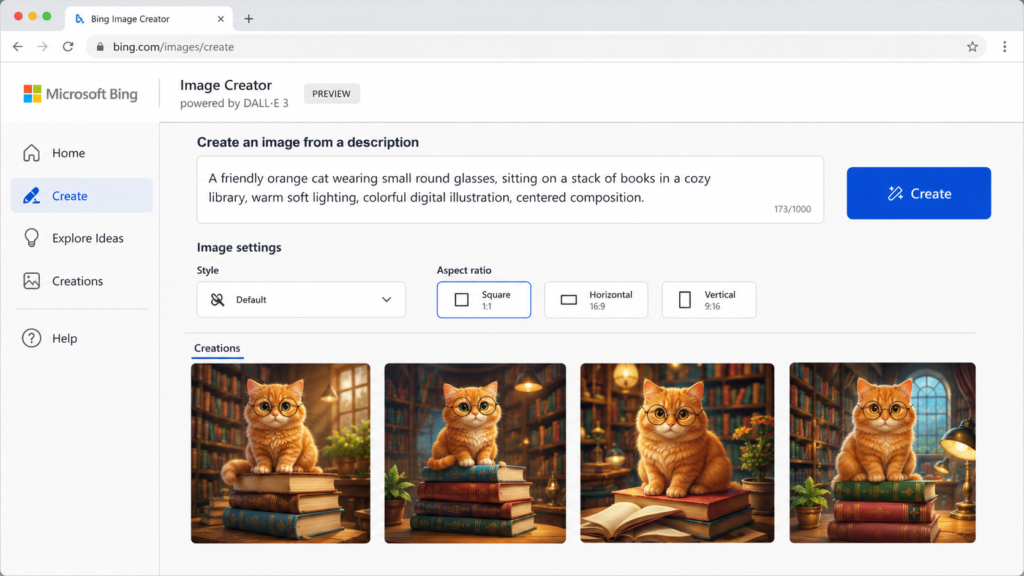
Open Bing Image Creator in your browser.
You may be able to test limited features as a guest, but signing in with a free Microsoft account provides access to more generation options and models.
You do not need to purchase a Microsoft subscription to begin.
Step 2: Choose Your Image Settings
Before entering your prompt, review the available settings.
Depending on the mode or model, you may be able to choose:
- Generation style or mode
- Aspect ratio
- Number of images
- Fast or standard generation
- An uploaded reference image
For your first attempt, select:
- A square or vertical aspect ratio
- The default generation mode
- Two or four image variations, when available
Do not worry about testing every advanced setting yet.
Step 3: Write a Clear Prompt
A prompt is the instruction you give the AI.
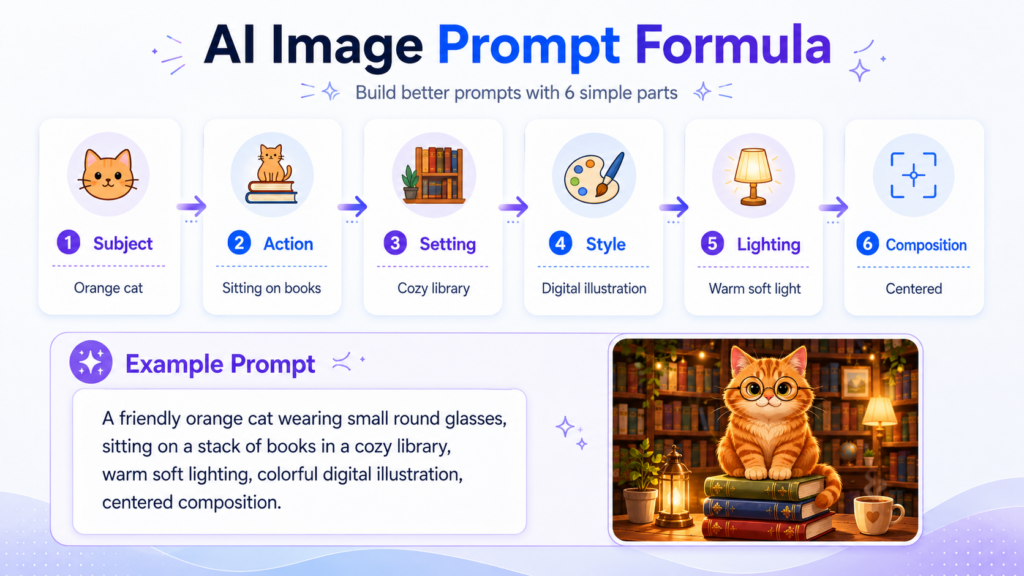
A useful beginner prompt should usually include:
- The main subject
- What the subject is doing
- The location or background
- The visual style
- The lighting or mood
- The preferred composition
Use this simple formula:
Subject + action + setting + style + lighting + composition
For example:
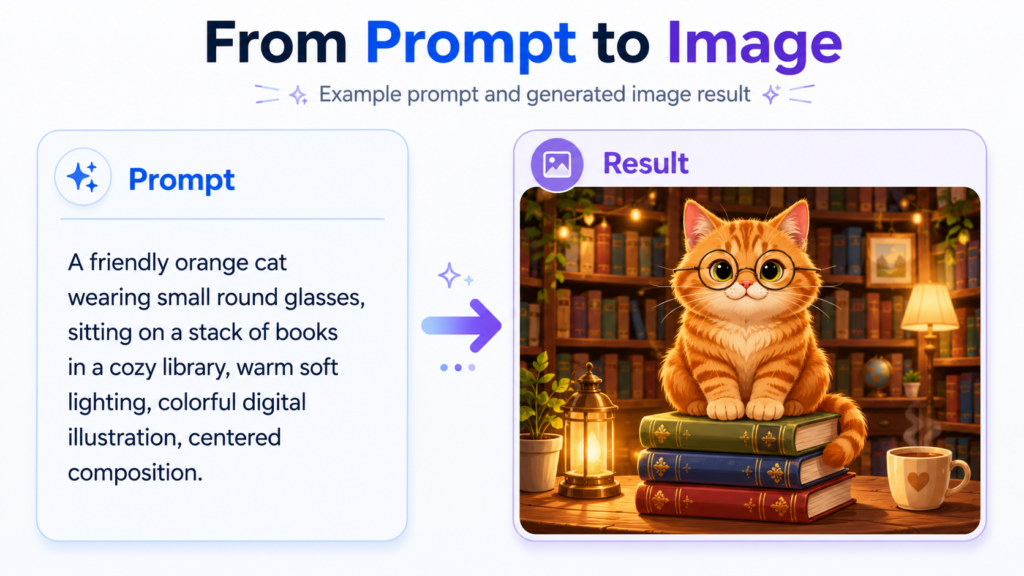
“A friendly orange cat wearing small round glasses, sitting on a stack of books in a cozy library, warm soft lighting, colorful digital illustration, centered composition.”
This prompt tells the tool:
- Subject: An orange cat
- Action: Sitting on books
- Setting: A cozy library
- Detail: Small round glasses
- Lighting: Warm and soft
- Style: Colorful digital illustration
- Composition: Centered
Your wording does not need to be perfect, but clear and specific instructions usually produce better results.
If you also use writing assistants to improve prompts, captions, or blog drafts, read our comparison of Grammarly vs QuillBot for beginners.
Step 4: Generate the Images
Select the Create or Generate button.
The tool will process your prompt and return one or more images, depending on the model and settings you selected.
Generation may take longer when:
- The service is busy
- You use standard rather than fast generation
- Your prompt is complicated
- You request a larger number of images
- The platform is reviewing the prompt for safety
Do not assume the first image will be perfect.
Step 5: Inspect the Result Carefully
Open each generated image and check the details.
Look for common AI mistakes such as:
- Extra fingers or limbs
- Uneven eyes
- Distorted faces
- Objects blending together
- Misspelled text
- Incorrect shadows
- Duplicate background elements
- Objects floating in the scene
- Missing details from the prompt
An image may look convincing at first glance but contain obvious mistakes when viewed at full size.
Step 6: Refine Your Prompt
When the result is not what you expected, do not immediately write a completely different prompt.
Change one or two details at a time.
For example, change:
“A cat sitting in a library.”
To:
“A friendly orange cat sitting on a stack of old books in a quiet library, warm window light, detailed digital illustration.”
You can also add corrective instructions:
- “No text”
- “Simple background”
- “One person only”
- “Full body visible”
- “Hands behind the back”
- “Centered subject”
- “No extra objects”
- “Natural facial expression”
- “Wide landscape composition”
Some tools also support negative prompts, which tell the model what you do not want in the image.
Step 7: Download Your Image
When you are satisfied with the result:
- Open the image at full size.
- Select the download option.
- Save the highest-quality version available.
- Give the file a descriptive name.
- Keep a copy of the prompt you used.
Instead of a filename such as:
image1234.png
Use something descriptive:
orange-cat-library-ai-illustration.png
A clear filename makes the image easier to organize and can be useful when uploading it to a website.
Before publishing or selling the image, check the tool’s current usage terms and review the image for protected logos, recognizable characters, real people, and other potentially restricted material.
How to Write Better AI Image Prompts
A longer prompt is not automatically a better prompt.
The best prompts are specific enough to communicate the idea but organized enough for the model to understand.
1. Describe One Clear Subject
Avoid starting with a large and complicated scene.
Instead of:
“Create a city, a beach, several people, flying cars, animals, signs, shops, and a concert.”
Start with:
“A futuristic electric car driving through a clean city at sunset.”
You can add more details after the main composition works.
2. Specify an Art Style
Useful style descriptions include:
- Photorealistic
- Digital illustration
- Watercolor painting
- Pencil sketch
- 3D render
- Flat vector illustration
- Minimalist poster
- Cinematic photography
- Children’s book illustration
- Clay-style character
- Isometric illustration
Avoid requesting the exact style of a living artist. Describe the visual characteristics you want instead.
For example:
“A dreamy landscape with soft pastel colors and delicate hand-painted textures.”
3. Add Lighting and Mood
Lighting strongly affects the result.
Try terms such as:
- Warm morning light
- Soft studio lighting
- Golden-hour sunlight
- Dramatic cinematic lighting
- Bright natural light
- Neon nighttime lighting
- Moody shadows
- Calm and peaceful atmosphere
Compare:
“A small cabin in a forest.”
With:
“A small wooden cabin in a misty forest at sunrise, warm light glowing through the windows, peaceful cinematic atmosphere.”
The second prompt gives the model much more direction.
4. Describe the Composition
Composition tells the tool how the subject should appear in the frame.
Useful instructions include:
- Close-up portrait
- Full-body view
- Wide-angle scene
- Bird’s-eye view
- Centered composition
- Side profile
- Product photography
- Symmetrical layout
- Subject on the right
- Empty space on the left for a headline
For a blog featured image, leaving empty space for text can make the result much easier to use.
Example:
“A beginner using an AI image generator on a laptop, bright modern workspace, clean digital illustration, subject positioned on the right, empty space on the left for a blog title.”
5. Mention the Intended Format
When supported by the tool, choose or request an aspect ratio that matches the final use.
Common examples include:
- 1:1: Square social media post
- 16:9 or similar landscape ratio: Blog header or presentation
- 9:16 or similar vertical ratio: Stories, Reels, and short-form video covers
- 4:5: Portrait social media post
- 2:3: Poster or vertical illustration
Choosing the right shape at the beginning reduces the need to crop important parts later.
Common AI Image Prompt Mistakes
Using a Prompt That Is Too Vague
Weak prompt:
“Make a cool technology image.”
Improved prompt:
“A beginner learning to use AI tools on a laptop, clean home office, blue screen glow, modern digital illustration, wide composition.”
Adding Too Many Unrelated Details
A complicated prompt can confuse the model and produce a crowded image.
Focus on the main subject first, then add supporting details gradually.
Expecting Perfect Text
Even tools known for text rendering can make spelling mistakes.
Always inspect every word before publishing the image. For important headlines, it is often safer to generate the background without text and add the wording manually in Canva or another design editor.
Ignoring the Background
If you only describe the main subject, the AI will decide what to place around it.
Include a simple background instruction, such as:
- Plain white background
- Clean office setting
- Blurred city background
- Minimal pastel background
- Dark studio background
- Transparent background, when supported
Forgetting the Intended Use
A detailed vertical image may not work as a wide blog header.
Decide where you will use the image before choosing the composition and aspect ratio.
Can You Use Free AI Images Commercially?
Sometimes, but the correct answer depends on the tool and the specific image.
“Free to generate” and “safe to use commercially” are not the same thing.
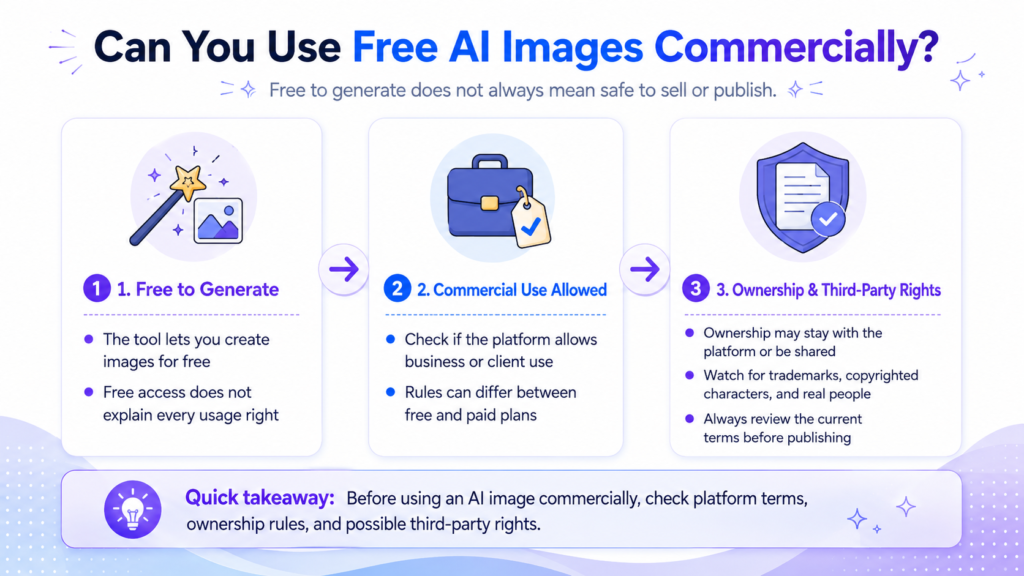
Before using an AI image commercially, consider four separate questions.
1. Does the Platform Permit Commercial Use?
Some platforms explicitly permit commercial use, while others use broader terms that require you to evaluate your particular use case.
The rules may also differ between free and paid plans.
2. Who Owns the Output?
A platform may permit you to use an image commercially without giving you full ownership of it.
Leonardo.Ai is an important example: free users can use their creations commercially, but Leonardo’s current terms state that ownership of free-plan outputs vests in Leonardo as between the parties.
3. Is the Image Eligible for Copyright Protection?
Permission from a platform does not guarantee that an AI-generated image will receive copyright protection.
Copyright treatment can depend on your country, the amount of human creative involvement, and the way the final work was produced.
4. Does the Image Violate Third-Party Rights?
You may still have problems if an image includes:
- A protected logo
- A copyrighted character
- A recognizable celebrity
- A real person used without permission
- A copied product design
- A trademarked brand identity
- Artwork that closely imitates protected material
Do not assume that the AI platform has cleared every part of the generated result for you.
Commercial-Use Summary by Tool
Bing Image Creator
Microsoft requires lawful and non-infringing use but does not provide a simple blanket statement covering every commercial situation. Review the current terms before using the output in paid work.
Google Gemini
Google advises users to consider copyright, privacy, and other rights before publishing or relying on generated content. Review the terms applying to your account and location.
Leonardo.Ai
Commercial use is permitted for free users, but free creations are public and Leonardo retains ownership of free-plan outputs under its current terms.
Ideogram
Ideogram allows generated outputs to be used commercially and does not claim ownership of them. Free-plan images are public.
Canva
Canva generally allows output to be used for lawful purposes, including commercial projects. You must still follow its AI terms and any license applying to other Canva content included in your design.
This section provides general information and is not legal advice. For an important commercial project, consult a qualified professional in your country.
My Recommendation
There is no single best free AI image generator for every beginner.
The right choice depends on what you are trying to create.
Best for Creating Your First AI Image: Bing Image Creator
Bing Image Creator is a practical starting point because the interface is straightforward and no paid subscription is required.
It is a good choice for experimenting with basic prompts, styles, aspect ratios, and image variations.
Best for Conversational Image Editing: Google Gemini
Gemini is useful when you want to create an image and continue making changes through a conversation.
You can ask it to change the background, adjust the colors, move an object, or create a new version without starting the entire process again.
Best for More Creative Control: Leonardo.Ai
Leonardo.Ai is better suited to users who want to explore models, styles, upscaling, editing tools, and more advanced controls.
The free plan is generous enough for learning, but remember that free outputs are public and subject to Leonardo’s ownership terms.
Best for Text Inside Images: Ideogram
Ideogram is the strongest option on this list when the image needs to contain readable words.
It is useful for posters, signs, quote graphics, and visual concepts containing short headlines.
Always proofread the generated text before publishing.
Best for Bloggers and Content Creators: Canva
Canva is the most convenient choice when you want to turn an AI-generated image into a finished design.
You can generate the visual, add a headline, insert your logo, resize the design, and export it without moving between several platforms.
It may not offer as many advanced generation controls as a dedicated platform, but its complete workflow makes it especially useful for blogs and social media.
Conclusion
Creating AI images for free is easier than ever, even when you have no design experience.
Start with one simple idea, describe it clearly, and generate a few variations. Inspect the details, refine your prompt, and make small changes until the result matches what you imagined.
For your first image, Bing Image Creator is an easy place to begin. Gemini is useful for conversational editing, Leonardo.Ai offers more control, Ideogram is strong at rendering text, and Canva provides the most convenient all-in-one design workflow.
Whichever platform you choose, remember three important rules:
- Free-plan limits can change.
- AI-generated images can contain mistakes.
- Commercial permission does not automatically remove every copyright, trademark, privacy, or ownership concern.
Experiment with the tools, save your successful prompts, and always review both the image and the latest platform terms before publishing important work.
FAQ
Can I create AI images without paying?
Yes. Bing Image Creator, Google Gemini, Leonardo.Ai, Ideogram, and Canva all provide some form of free AI image generation.
The limits differ between platforms and can change over time.
Do I need a credit card to start?
You generally do not need to purchase a subscription to begin using the free options covered in this guide.
You will usually need to create or sign in to a free Microsoft, Google, Leonardo.Ai, Ideogram, or Canva account.
Which free AI image generator is easiest for beginners?
Bing Image Creator is one of the easiest starting points because its basic workflow is simple: enter a prompt, choose your settings, and generate the image.
Google Gemini is also beginner-friendly for users who prefer a conversational interface.
Which AI image generator is best for text?
Ideogram is a strong option for generating images that contain short, readable words.
However, no AI image generator guarantees perfect spelling. Always inspect the text before using the image.
Can I sell free AI-generated images?
It depends on the platform, its current terms, and the content of the image.
Ideogram permits commercial use, while Leonardo.Ai also permits commercial use but applies important ownership and public-generation conditions to its free plan.
Canva generally allows lawful commercial use of output, subject to its terms and any licensed content included in the design.
Microsoft and Google users should review the latest terms for their specific commercial use case.
Do AI-generated images have watermarks?
Policies vary by platform.
Google uses SynthID, an invisible digital watermark that can help identify content created or edited by Google AI. Other services may use metadata, content credentials, visible labels, or different identification systems.
Can other people generate the same image?
Possibly.
Generative AI outputs may not be unique. Another user who enters the same or a similar prompt may receive a similar result.
This is especially important for logos, brand identities, and other designs that need to be exclusive.
How do I write a good AI image prompt?
Describe the main subject, action, setting, style, lighting, and composition.
For example:
“A small robot watering plants on a sunny apartment balcony, cheerful 3D illustration, soft morning light, centered composition.”
Start with a clear idea and add details gradually rather than placing too many unrelated instructions in one prompt.
Enjoyed this guide? Support ByteTony and help us create more simple, beginner-friendly tech guides.
☕ Support ByteTony