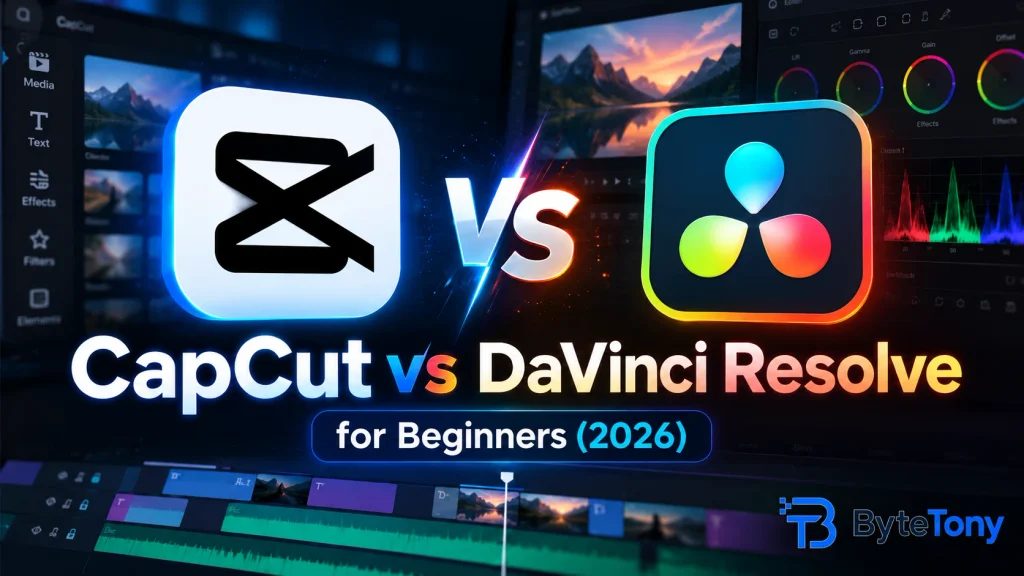
CapCut vs DaVinci Resolve for Beginners comes down to two priorities: fast social videos or deeper editing control. CapCut is ByteDance’s template-driven editor for mobile, desktop, and web, built for quick content creation. DaVinci Resolve 21 is a more advanced editor for Windows, Mac, and Linux that combines editing, color grading, visual effects, and audio in one application.
Short answer: Choose CapCut for fast TikToks, Reels, and YouTube Shorts. Choose DaVinci Resolve for longer videos, advanced editing, and professional skills without a subscription.
Last checked: October 8, 2026. Features, pricing, and availability may vary by region and platform.
Note: This article may contain affiliate links. If you buy through them, we may earn a small commission at no extra cost to you.
Table of Contents
CapCut vs DaVinci Resolve at a Glance
| CapCut | DaVinci Resolve | |
|---|---|---|
| Best for | Short social videos | Longer videos and advanced editing |
| Platforms | iOS, Android, Windows, Mac, web | Windows, Mac, Linux, iPad (separate app) |
| Learning curve | Gentle; templates and quick tools | Steeper; start with the Cut page |
| Free version | Basic editing; premium assets and tools restricted | Editing, color, effects, and audio; up to UHD 60fps |
| Paid upgrade | Standard/Pro subscriptions; prices vary | Studio: $295 one-time (US price) |
| AI tools | Basic and advanced tools; access varies by plan | Most advanced AI features require Studio |
| Hardware | Phones, browsers, and computers | More demanding; GPU and memory matter |
Hardware requirements: DaVinci Resolve 21 needs at least 16 GB of RAM on Windows (32 GB for Fusion), plus a compatible GPU with at least 4 GB of VRAM. Apple Silicon Macs can run it with 8 GB of memory (16 GB for Fusion). Linux requires at least 32 GB of RAM and a suitable dedicated GPU.
Resolve 21 does not support Intel Macs, although older Resolve versions may still work. Meeting minimum requirements does not guarantee smooth editing, particularly with demanding 4K footage.
CapCut is generally the more practical choice for phones and less powerful computers.
Ease of Use and Learning Curve
CapCut makes editing approachable with drag-and-drop tools, ready-made templates, transitions, and text effects designed for vertical videos. Beginners can usually create a short video without learning a complicated interface.
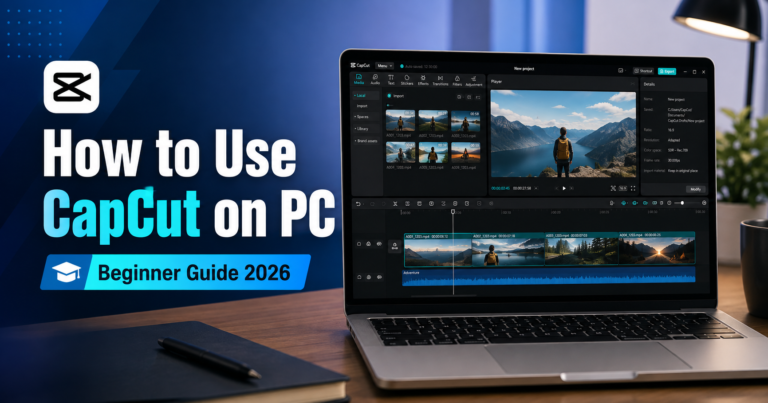
If you’re starting on Windows or Mac, ByteTony’s How to Use CapCut on PC for Beginners guide explains how to import clips, trim footage, add effects, and export your first video.
DaVinci Resolve organizes its features into dedicated workspaces, including Cut, Edit, Fusion, Color, Fairlight, and Deliver. The Cut page is a good starting point because it simplifies everyday editing tasks.
Resolve takes longer to learn, but its workflow gives you greater control as your projects become more complex.
What about automatic captions?
CapCut offers automatic captioning across mobile, desktop, and web. However, free access, advanced caption styles, and export restrictions can differ by platform and subscription.
DaVinci Resolve Studio includes automatic subtitle generation from audio. Free users can create captions manually or import subtitle files, but native automatic transcription requires Studio.
For caption-heavy social videos, CapCut is generally more convenient.
Free Version vs Paid Upgrade
DaVinci Resolve: The free version supports editing and exporting videos at up to Ultra HD (3840 × 2160) and 60fps. It includes professional color grading, visual effects, audio editing, and collaboration features.
According to Blackmagic Design’s official comparison, DaVinci Resolve Studio costs $295 as a one-time purchase in the United States.
Studio adds:
- DaVinci AI Neural Engine features and advanced AI tools
- Automatic transcription, Magic Mask, and advanced noise reduction
- Additional effects and broader codec support
- Higher-resolution exports and frame rates up to 120fps
The free version can export videos without a watermark. However, using certain Studio-only effects may add a watermark to previews and exports until those effects are removed or a Studio license is activated.
Most beginners can work comfortably with the free edition.
CapCut: CapCut provides free editing tools alongside paid Standard, Pro, and Teams options, depending on the platform and region.
The free version supports everyday editing, but premium templates, effects, advanced AI features, and some export options require a subscription.
CapCut Pro generally offers monthly and yearly subscriptions. Pricing varies by region, device, taxes, and promotions. Check the subscription screen for the current price before paying.
The main difference: Both editors offer free versions. CapCut’s paid upgrades involve recurring subscriptions, while DaVinci Resolve Studio uses a one-time payment.
CapCut vs DaVinci Resolve for Beginners: Which Should You Choose?
Choose CapCut if you mainly create TikToks, Instagram Reels, YouTube Shorts, or other quick social videos. Its templates, captions, and mobile-friendly workflow help you finish projects faster.
Choose DaVinci Resolve if you want to edit longer YouTube videos, improve your color grading, work with multiple audio tracks, or develop professional editing skills.
Your computer also matters. CapCut is usually the safer starting point on older or lower-spec devices. Resolve requires more capable hardware, although Apple Silicon Macs can run its current version with as little as 8 GB of memory.
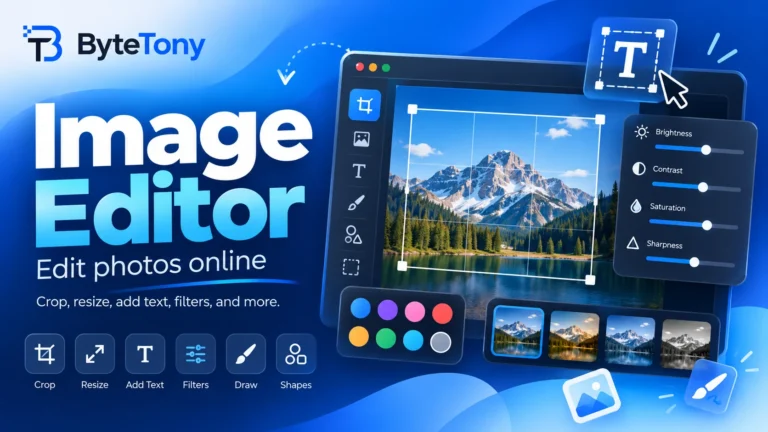
Bonus tip: If you’re creating YouTube videos, you can prepare thumbnails with ByteTony’s free Image Editor. It lets you crop images, add text, adjust colors, and export thumbnails directly in your browser without uploading your images.
FAQ
Can I start with CapCut and switch to DaVinci Resolve later?
Yes. Basic editing skills such as trimming, cutting, arranging clips, and adjusting audio transfer between editors. You’ll need to learn Resolve’s interface, but your editing knowledge remains useful.
Is DaVinci Resolve really free without a watermark?
Yes. Its free version can export supported videos without a watermark. Certain Studio-only effects may introduce a watermark, but standard editing tools do not require a paid license.
Is CapCut a good choice for freelance or client work?
It can be, but review the CapCut Terms of Service before handling client footage. CapCut does not claim ownership of your content, but its terms grant certain rights to content submitted through the service. Shared templates and licensed assets may also have usage restrictions.
Check commercial-use permissions for music, templates, and effects, along with your client’s privacy requirements. Also confirm that CapCut is available in your country; for example, it remains blocked in India.
Conclusion
For most beginners, CapCut is the easier way to start editing short videos. DaVinci Resolve is the stronger long-term choice for creators who want advanced tools and greater editing control.
The best editor depends on your content, hardware, and goals. Try the free version of either program and finish one real project before paying for an upgrade.
Enjoyed this guide? Support ByteTony and help us create more simple, beginner-friendly tech guides.
☕ Support ByteTony