You finish a client call, close the meeting, and realize you remember only part of what was agreed. Somewhere in the conversation was a deadline, a scope change, and something you promised to send later.
That is exactly the problem Otter.ai is designed to solve.
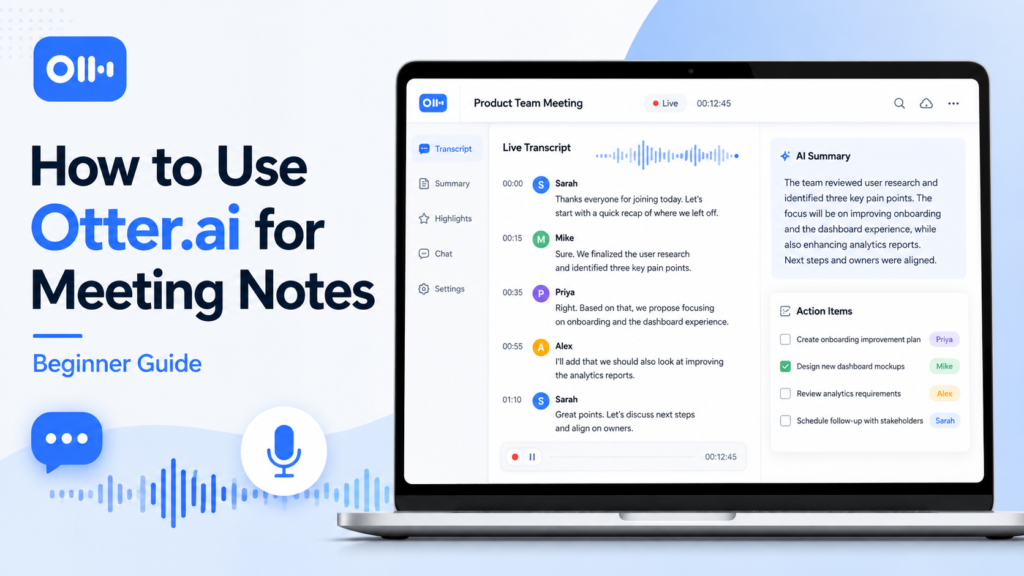
Otter.ai can join online meetings, transcribe conversations, identify speakers, and generate summaries and action items while you focus on the discussion instead of constantly taking notes.
In this beginner guide, you’ll learn how to use Otter.ai for meeting notes, step by step, starting with the free plan. We’ll also look at the limits beginners should know about, common mistakes to avoid, and a few alternatives worth considering.
Note: This article may contain affiliate links. If you buy through them, ByteTony may earn a small commission at no extra cost to you.
Table of Contents
What Is Otter.ai?
Otter.ai is an AI-powered meeting assistant that records and transcribes conversations.
It can:
- Create live transcripts during meetings
- Identify different speakers
- Generate automated meeting summaries
- Extract action items
- Let you search previous conversations
- Answer questions about a transcript with AI Chat
- Share transcripts and meeting notes with other people
There are two main ways to use it.
Otter Notetaker
Otter’s Notetaker can join supported online meetings such as Zoom, Microsoft Teams, and Google Meet as a visible meeting participant.
It captures the conversation and creates a transcript automatically.
This is usually the easiest option for scheduled online meetings.
Manual recording
You can also start a recording manually from Otter’s web or mobile apps.
This is useful for:
- In-person meetings
- Interviews
- Brainstorming sessions
- Lectures
- Voice notes
- Unscheduled conversations
For beginners, Otter is especially useful if you regularly attend client calls, team meetings, interviews, or other conversations where remembering decisions and next steps matters.
How to Use Otter.ai for Meeting Notes
The basic setup is straightforward. You can create an account and start recording your first meeting without building a complicated workflow.
Step 1 — Create Your Otter.ai Account
Go to Otter.ai and create an account.
You can sign up using options such as Google or Microsoft, or use another supported sign-in method.
After creating the account, complete any required email verification.
Once inside, check your account profile and set your display name correctly.
This matters because your name may appear in transcripts or shared conversations. A clear professional name is better than an old username or abbreviated email address.
You do not need to record a voice sample before using Otter.
Speaker identification improves as you label speakers in your transcripts, which we’ll cover later.
Step 2 — Decide How Otter Should Join Your Meetings
This is one of the most important setup decisions.
You generally have three options:
| Method | Best for | What to know |
|---|---|---|
| Calendar + Otter Notetaker | Scheduled and recurring online meetings | Be careful with automatic joining |
| Manual recording | One-off or in-person meetings | You must remember to start recording |
| File import | Existing audio or video recordings | The free plan has strict import limits |
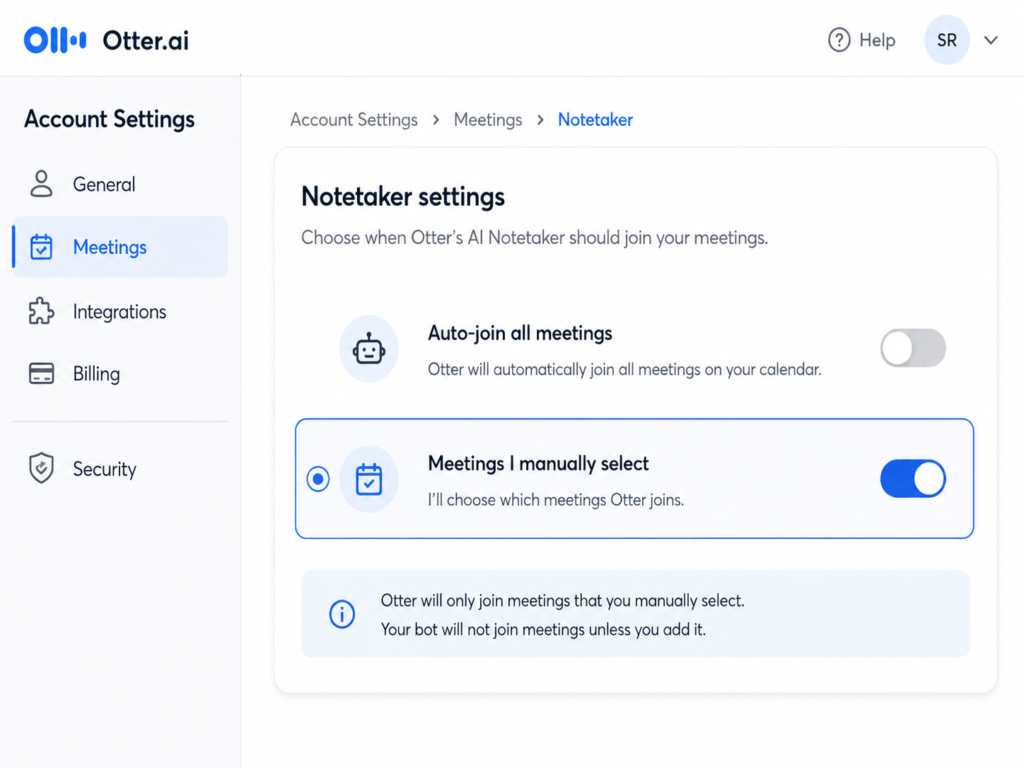
If you connect a calendar, Otter can detect upcoming meetings and send its Notetaker automatically.
That sounds convenient, but I recommend that beginners avoid allowing Otter to join every meeting by default.
Go to your meeting or Notetaker settings and review the automatic-join options.
A safer workflow is to enable Otter only for the meetings you actually want recorded.
That prevents the Notetaker from appearing unexpectedly in private, internal, or sensitive meetings.
If you often organize meetings and notes across different apps, you may also find our beginner guide to using Notion AI useful for turning meeting notes into organized project information later.
Step 3 — Record Your First Meeting
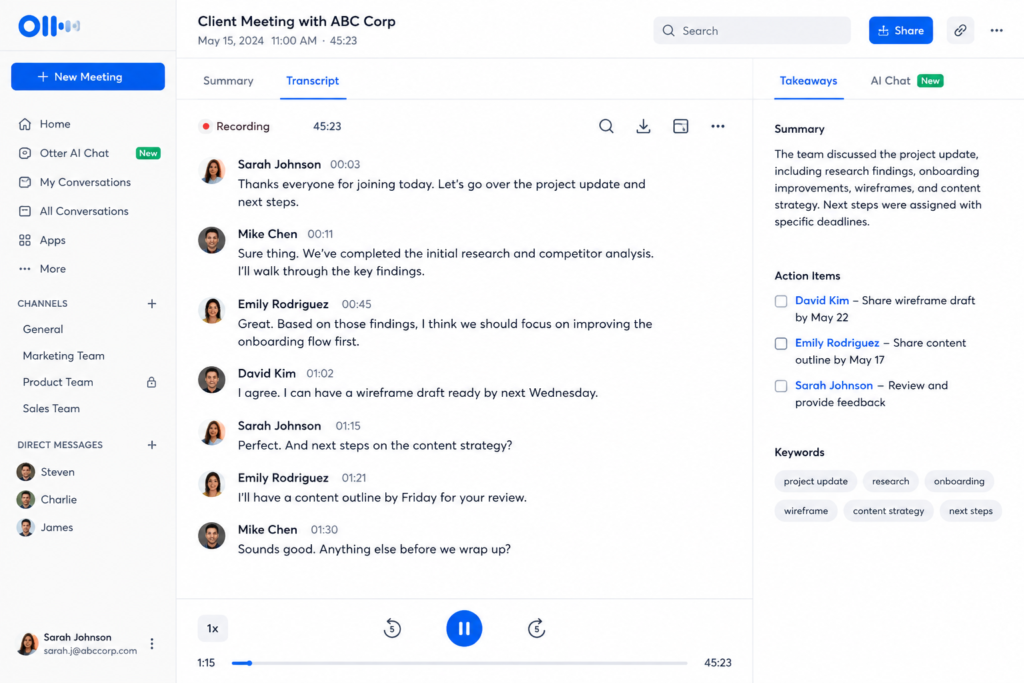
Before the conversation starts, confirm that Otter is actually recording.
If you’re using the Notetaker, it should appear as a participant in the meeting.
If you’re manually recording, open Otter and start the recording yourself.
Once recording begins, the transcript starts appearing as people speak.
There may be a short delay between speech and the text appearing on screen, which is normal.
For online meetings, using the meeting integration or supported Notetaker workflow is generally preferable to recording the sound through a laptop microphone.
For in-person meetings, place your phone or recording device somewhere that can clearly capture everyone speaking.
Audio quality has a major effect on transcription quality.
Step 4 — Use Highlights During the Meeting
Otter allows you to interact with the transcript while the meeting is happening.
Depending on your setup and plan, you may be able to:
- Highlight important text
- Add comments
- Review the live transcript
- Capture key moments for later
The important thing is not to highlight everything.
Focus on information you will actually need after the meeting, such as:
- Decisions
- Deadlines
- Responsibilities
- Follow-up tasks
- Changes to a project
For example, imagine a client says:
“Let’s move the launch to the 14th. I’ll send you the final copy by Tuesday.”
That is worth highlighting.
The several minutes of discussion leading up to that decision probably are not.
Your full transcript already preserves the conversation. Highlights should make the most important moments easier to find.
Step 5 — Clean Up the Transcript
After the meeting ends, open the completed transcript.
Do not feel that you need to correct every sentence.
Instead, focus on the errors that affect meaning.
Label the speakers
If Otter has not identified someone correctly, assign their name to the appropriate speaker.
Otter can then associate that voice with the speaker and improve identification across conversations.
This is especially helpful when you regularly meet the same clients or team members.
Correct important mistakes
Fix transcription errors involving:
- Names
- Dates
- Deadlines
- Numbers
- Prices
- Product names
- Important commitments
If Otter changes casual wording slightly but the meaning remains obvious, you usually do not need to edit it.
The goal is usable meeting notes, not a perfectly edited interview transcript.
Add custom vocabulary carefully
Otter provides custom vocabulary features that can help with unusual:
- Company names
- Product names
- Technical terms
- Acronyms
- People’s names
The free plan has limited custom vocabulary capacity, so prioritize terms that appear frequently in your meetings.
Step 6 — Turn the Transcript Into Useful Meeting Notes
This is where Otter becomes more useful than a basic voice recorder.
Open the automated summary after the meeting.
Otter can identify important points and action items, giving you a shorter version of the conversation without requiring you to reread the entire transcript.
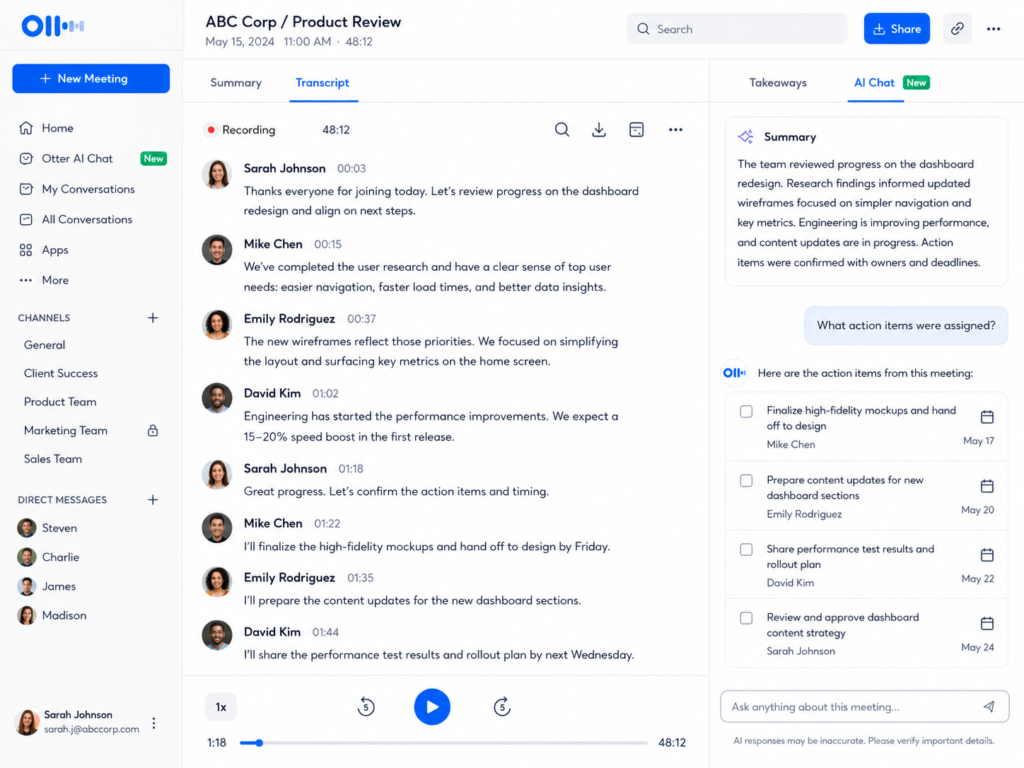
You can also use AI Chat to ask questions about the meeting.
Useful prompts include:
- “What did I agree to do?”
- “List all deadlines mentioned in this meeting.”
- “Who is responsible for each next step?”
- “What decisions were made?”
- “Summarize the key points for someone who did not attend.”
On the free Basic plan, AI Chat usage is limited, including a monthly allowance and a per-conversation limit.
Because of that, it is better to use a few focused questions instead of chatting with the transcript unnecessarily.
A simple workflow is:
- Read the automated summary.
- Check the action items.
- Ask AI Chat about anything important that is missing.
- Move the final tasks into the tool where you actually manage your work.
For example, you could copy the tasks into Notion, Trello, ClickUp, or your calendar.
If you use Google Drive to store client documents and meeting files, our guide on how to organize files in Google Drive can help prevent transcripts and meeting documents from becoming another pile of difficult-to-find files.
Step 7 — Share or Export Your Notes
Once the meeting notes are ready, you can share the conversation with other people or export supported content.
On Otter’s Basic plan, export options are more limited than on paid plans.
Basic currently supports formats such as:
- TXT
- MP3
Additional document and subtitle export formats such as PDF, DOCX, and SRT are available on higher plans.
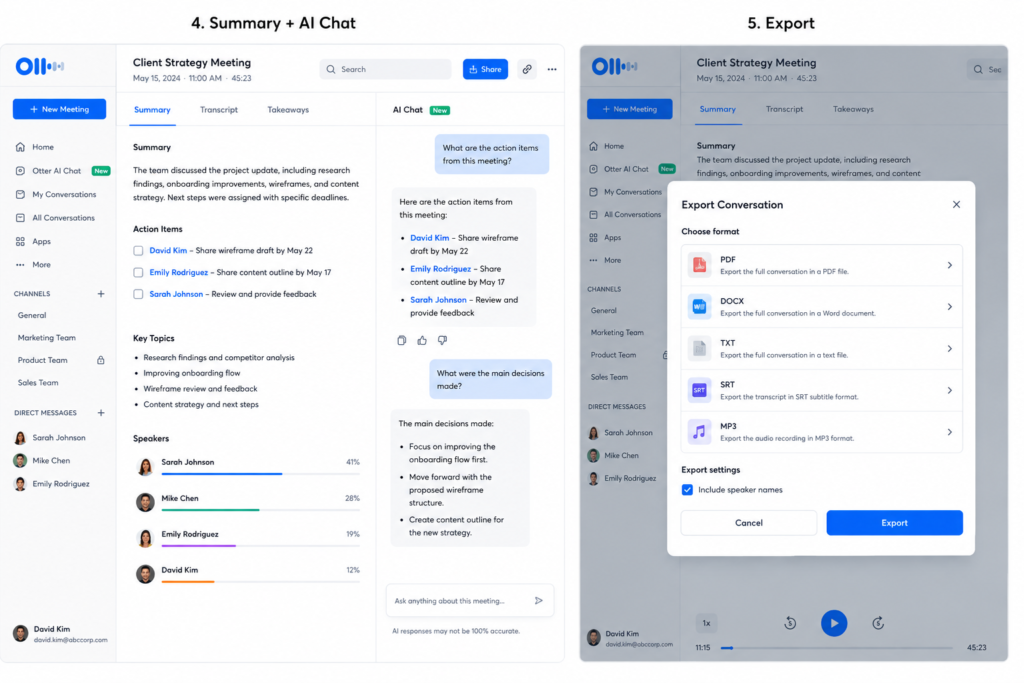
For many beginners, exporting the entire transcript is not necessary.
A practical workflow is to copy the summary and action items into the system you already use and keep the full transcript inside Otter as a searchable reference.
Before sharing a conversation, also check its sharing permissions.
Meeting transcripts can contain information you would not normally publish or send outside a team.
What Does the Otter.ai Free Plan Include?
Otter calls its free tier Basic.
As of August 2026, some of the most important Basic-plan limits include:
- 300 transcription minutes per user per month
- 30 minutes of accessible transcription per conversation
- 25 most recent conversations available in the account
- 3 file imports for the lifetime of the account
- Limited custom vocabulary
- Limited AI Chat usage
- One concurrent meeting
Unused monthly transcription minutes do not roll over to the next month.
Pricing and plan limits can change, so check Otter’s current pricing page before upgrading.
The 30-Minute Limit Is Important
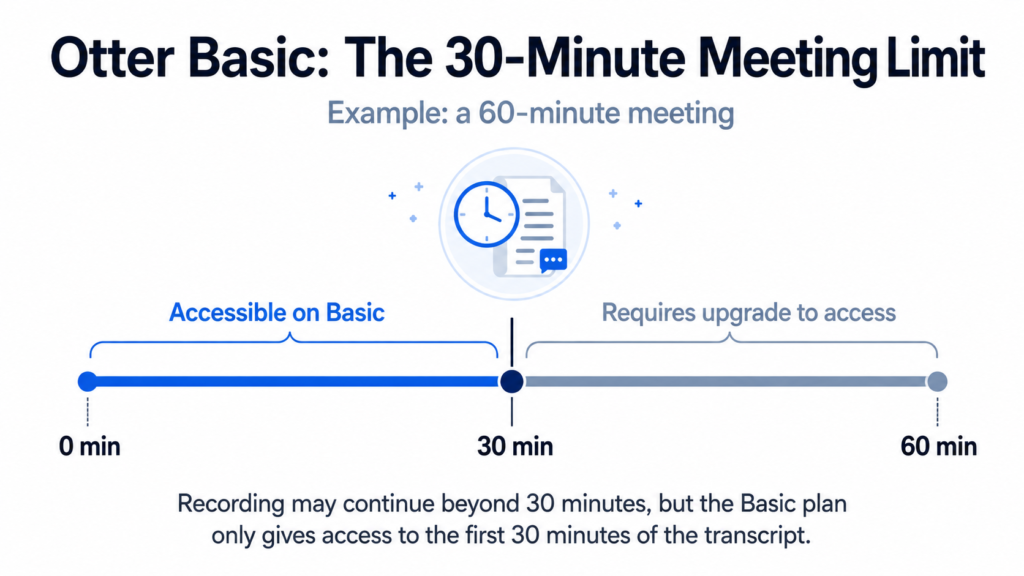
This is probably the most important free-plan limitation to understand.
A beginner might assume that a 30-minute conversation limit means Otter simply stops recording after 30 minutes.
That is not necessarily what happens.
Otter can continue capturing a longer meeting, but on the Basic plan you may only be able to access the first 30 minutes of the transcript.
The remaining portion can be placed behind an upgrade prompt.
That means a one-hour meeting could leave you with only the first half immediately accessible on the free plan.
This matters because decisions and action items often appear near the end of meetings.
If most of your meetings regularly last 45–60 minutes, the Basic plan may become restrictive quickly.
Otter.ai Basic vs Pro vs Business
The exact prices and limits can change, but as of August 2026 the main differences look like this:
| Feature | Basic | Pro | Business |
|---|---|---|---|
| Monthly price | Free | About $16.99/user when billed monthly | About $30/user when billed monthly |
| Annual-plan equivalent | Free | About $8.33/user/month | About $19.99/user/month |
| Transcription minutes | 300/month | 1,200/month | Higher/unlimited meeting transcription depending on current terms |
| Maximum per conversation | 30 min | 90 min | Up to several hours |
| Conversation history | 25 most recent | Unlimited | Unlimited |
| File imports | 3 lifetime | Higher monthly allowance | Higher allowance |
| AI Chat | Limited | Higher allowance | Higher allowance |
| Export options | TXT, MP3 | Adds PDF, DOCX, SRT | Additional business features |
| Concurrent meetings | 1 | 2 | 3 |
Check Otter’s official pricing page before purchasing because SaaS pricing and feature limits can change.
When Is Otter Pro Worth It?
You probably do not need Pro immediately.
Start with Basic and see how Otter fits your workflow.
The clearest reason to upgrade is meeting length.
If your important meetings regularly exceed the 30-minute Basic limit, Pro’s higher per-conversation limit becomes much more useful.
The additional transcription minutes, conversation history, AI usage, and export formats also matter more once you begin using Otter regularly for work.
Common Otter.ai Mistakes Beginners Should Avoid
Leaving Automatic Meeting Joining Enabled Everywhere
Automatic joining is convenient until Otter appears in a meeting you did not want recorded.
Review your calendar and Notetaker settings and enable recording deliberately.
Forgetting About the 30-Minute Free Limit
A 60-minute meeting does not become a fully accessible 60-minute transcript on Basic.
If an important meeting will run longer than 30 minutes, plan for that limitation before the call.
Recording Laptop Audio Through Your Phone
For an online video call, use the proper meeting workflow when possible.
Recording your laptop speaker using a phone microphone introduces unnecessary room noise and can reduce transcription accuracy.
Trying to Correct Every Word
Meeting transcripts do not have to read like professionally edited articles.
Fix mistakes that affect meaning and ignore harmless imperfections.
Deleting Conversations to Recover Minutes
Deleting a meeting does not restore transcription minutes that have already been used.
Treat the monthly transcription allowance as consumed once a recording has been processed.
Do You Need Permission to Record Meetings?
Possibly.
Otter’s Notetaker appears as a visible participant, but visibility does not automatically mean everyone has legally consented to recording.
Recording and consent laws differ between countries and can also differ between states or regions.
A simple professional habit is to tell everyone at the beginning of the meeting that you are using an AI note-taking tool.
For example:
“I’m using Otter to record the meeting and generate notes. Let me know if you’d prefer that I turn it off.”
For sensitive meetings, client conversations, healthcare discussions, legal matters, or confidential company information, check your organization’s policies and the laws that apply to everyone involved.
This article is not legal advice.
Is Otter.ai Private?
Otter processes recordings and transcripts in the cloud, so privacy deserves consideration before you use it for sensitive information.
According to Otter’s privacy and security information, it applies security measures to customer data and maintains certifications and compliance programs including SOC 2 Type II.
Otter also explains that it may use de-identified data in connection with improving its own models.
Its policies regarding AI processing, training, storage, and third-party providers can change, so organizations handling confidential information should review Otter’s current privacy and security documentation rather than assuming that a consumer meeting tool automatically meets their requirements.
For ordinary client or team meetings, also review sharing permissions before sending transcript links to anyone.
Otter.ai Alternatives Worth Knowing
Otter is not the only AI meeting assistant available.
For most beginners, you do not need to compare ten different services before recording your first meeting. However, three alternatives are worth knowing about.
Fathom
Fathom is an AI meeting assistant that supports platforms including Zoom, Google Meet, and Microsoft Teams.
Its free tier is particularly attractive if your main problem with Otter is meeting length because Fathom offers generous recording and transcription access.
Some more advanced AI features are limited on the free plan, including advanced functionality available for only a limited number of calls.
Fathom may therefore be a better choice if you care more about recording long meetings than having unrestricted access to every AI feature.
Fireflies.ai
Fireflies.ai is another meeting assistant that can join meetings, create transcripts, and generate AI-powered meeting information.
One of its major advantages is language coverage. Fireflies supports far more transcription languages than Otter.
Its free plan, however, uses a combination of storage and AI-related limits that can feel less straightforward for a beginner.
If multilingual transcription is your priority, Fireflies is worth comparing with Otter.
Built-In Google Meet or Microsoft Teams Tools
Before paying for another meeting assistant, check whether your existing work subscription already includes transcription or AI note-taking.
Google Workspace plans can provide Google Meet transcription and Gemini-powered meeting notes depending on the account, edition, and administrator settings.
Microsoft Teams also supports live transcription in eligible environments, with additional features depending on Microsoft 365 and Teams licensing.
These tools can be enough if almost all your meetings happen on one platform.
The disadvantage is portability: Otter and similar services can provide one searchable meeting archive across different meeting platforms.
Otter.ai vs Fathom vs Fireflies.ai
| Feature | Otter.ai | Fathom | Fireflies.ai |
|---|---|---|---|
| Beginner-friendly setup | Excellent | Excellent | Good |
| Free transcription | Limited by monthly and meeting caps | Very generous | Generous but other limits apply |
| Languages | Limited selection | Varies by feature | 100+ languages |
| AI summaries | Yes | Yes | Yes |
| Meeting bot | Yes | Yes | Yes |
| Best for | Simple meeting-note workflow | Long free recordings | Multilingual meetings |
The best choice depends less on which service has the longest feature list and more on which limitation affects you first.
When Otter Basic Is Enough — and When to Upgrade
For a beginner, Otter Basic is a sensible place to start.
You can learn the entire workflow without paying:
- Connect or schedule a meeting.
- Let Otter capture the conversation.
- Label the speakers.
- Review the summary.
- Extract the action items.
- Store those tasks where you actually manage your work.
If most of your meetings are shorter than 30 minutes and you do not record many hours each month, Basic may be enough.
If meetings regularly exceed 30 minutes, the free plan becomes much harder to rely on.
That is the point where Pro is worth considering—not because you suddenly need dozens of additional features, but because the larger meeting limit makes the core workflow much more practical.
If you create videos rather than primarily recording meetings, you may also want to read our Descript review for YouTube beginners. Descript approaches transcription from an editing and content-creation perspective rather than functioning mainly as a meeting assistant.
Frequently Asked Questions
Does Otter.ai Work in Languages Other Than English?
Yes, although its language selection is much smaller than some competitors.
Otter currently supports transcription in several languages, including English, Spanish, French, German, Japanese, and Chinese.
If you regularly hold meetings in languages outside Otter’s supported list, a service with broader multilingual transcription such as Fireflies may be more appropriate.
Can I Use Otter.ai on My Phone?
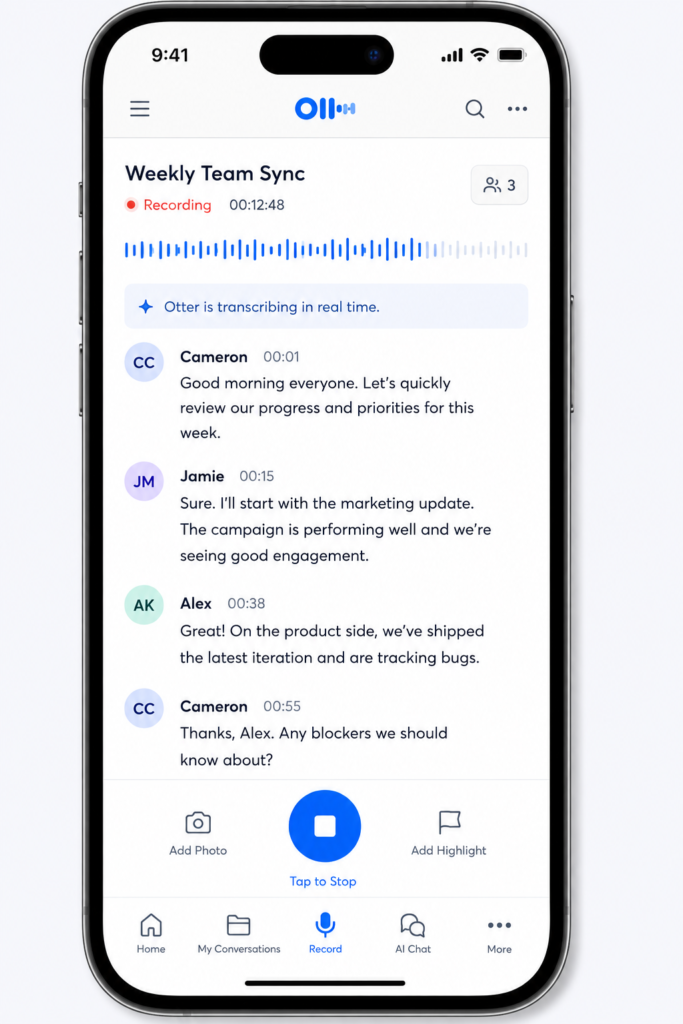
Yes.
Otter provides mobile apps for iOS and Android.
The mobile app is particularly useful for:
- In-person meetings
- Interviews
- Lectures
- Voice notes
- Conversations away from your computer
For online meetings, using the supported meeting integration is generally the better option.
What Happens If I Cancel Otter Pro?
Your account can return to the Basic plan rather than simply deleting all your conversations.
However, Basic’s restrictions apply again, including limits on how many recent conversations you can access.
Older conversations can become archived rather than immediately disappearing.
Check Otter’s current downgrade and retention rules before cancelling if you rely on older transcripts.
Can Otter.ai Replace Manual Meeting Notes?
For routine meetings, it can replace a large portion of manual note-taking.
You should still review important:
- Deadlines
- Numbers
- Decisions
- Responsibilities
- Names
AI transcription and summaries can make mistakes, so important commitments should always be checked against the transcript.
Final Thoughts
Learning how to use Otter.ai for meeting notes does not require a complicated setup.
For most beginners, the workflow is:
- Create an account
- Review automatic meeting-join settings
- Record a meeting
- Label speakers
- Correct important transcription mistakes
- Review the automated summary
- Extract action items
- Move those actions into your normal productivity system
The free Basic plan is enough to determine whether AI meeting notes improve the way you work.
Its biggest limitation is the 30-minute accessible transcript limit per conversation, followed by the monthly transcription allowance.
If your meetings are usually short, you may be able to stay on Basic for a long time.
If client or team calls regularly run longer, upgrading becomes much easier to justify.
The most important thing is not creating perfect transcripts. It is making sure decisions, deadlines, and responsibilities do not disappear as soon as the meeting ends.
And if you’re exploring other practical AI software for your workflow, see our guide to the best AI tools for content creators.
Enjoyed this guide? Support ByteTony and help us create more simple, beginner-friendly tech guides.
☕ Support ByteTony