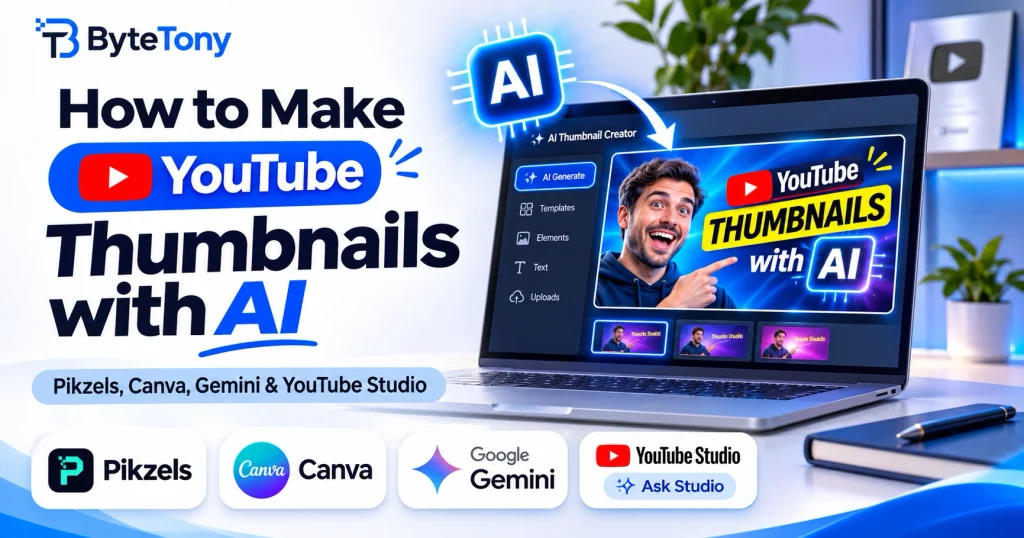
Learning how to make YouTube thumbnails with AI is easier than ever. You can turn a simple prompt into an eye-catching thumbnail without Photoshop or design experience. This guide covers the tools, prompts, editing steps, and YouTube upload requirements. You’ll need a verified YouTube account to upload custom thumbnails.
Note: This article may contain affiliate links. If you buy through them, we may earn a small commission at no extra cost to you.
Table of Contents
Step 1: Choose an AI Thumbnail Tool
The right tool depends on your budget and how much control you need.
| Tool | Cost | Best for | Main limitation |
|---|---|---|---|
| Pikzels | Free trial; paid plans | YouTube-specific AI thumbnails and titles | Ongoing use requires a subscription |
| Ask Studio (YouTube Studio) | Free for eligible creators | Suggestions based on your video | Limited availability and eligibility |
| Canva | Free plan; optional Pro | Templates, text, and editing | Limited free AI generations |
| Google Gemini | Free with usage limits | Custom images from detailed prompts | Usage limits and possible editing needs |
My recommendation: Start with Canva or Ask Studio if you want a free option. If you regularly publish YouTube videos and want specialized AI thumbnail features, Pikzels is worth considering.
For more options, see our best AI YouTube thumbnail makers for beginners.
Step 2: How to Make YouTube Thumbnails with AI Using Pikzels
Start with a prompt describing five elements: subject, expression or emotion, background, lighting, and composition.
For example, for a keyboard review video:
Close-up of a surprised young man holding a glowing mechanical keyboard, bright yellow background, strong blue rim lighting, high contrast, 16:9 composition, empty space on the left for text.
To generate a thumbnail with Pikzels:
- Open Pikzels AI Thumbnail Generator.
- Select Prompt mode and describe your thumbnail idea.
- Choose the appropriate format and available generation options.
- Generate your thumbnail and review the result.
- Use Edit to request changes, such as a different background or stronger contrast.
Pikzels also offers Recreate, which uses an existing thumbnail or YouTube link as a visual reference, and Persona, which lets you reuse your appearance across thumbnails.
Its Pikzels Score and One-Click Fix features can suggest improvements, although AI scores cannot guarantee more clicks.
If you prefer a free approach, create the image in Gemini or use Ask Studio’s thumbnail suggestions when available.
Step 3: Generate Variations and Choose the Best
Create three or four variations rather than accepting the first result.
Compare them at mobile-screen size and check for:
- One clear focal subject.
- Strong contrast and readable text.
- Natural-looking faces, hands, and objects.
- A background that doesn’t distract from the message.
- An accurate connection to your video’s content.
Avoid misleading thumbnails or exaggerated claims that the video doesn’t support.
If you’re using Ask Studio, open it in your YouTube Studio publishing workflow and request a thumbnail suggestion based on your video.
Step 4: Add Text and Final Touches
Keep thumbnail text short, ideally three to five words when text is needed. Use large fonts and avoid repeating the entire video title.
AI-generated text can contain errors, so check every word before publishing.
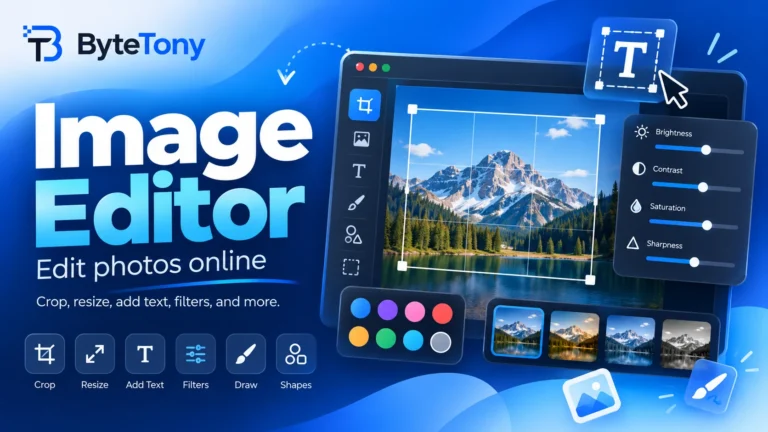
For final adjustments, try the free ByteTony Image Editor. It lets you crop images, add text, adjust colors, and export PNG or JPEG files directly in your browser without uploading your images.
A simple thumbnail with one recognizable subject often works better than a crowded design.
Step 5: Export and Upload Your Thumbnail to YouTube
Before uploading, follow these recommended specifications for standard YouTube videos:
- Resolution: 3840 × 2160 pixels recommended; 1280 × 720 remains a practical option.
- Aspect ratio: 16:9.
- Format: JPG or PNG.
- File size: Up to 2 MB when uploading on mobile or 50 MB on desktop.
- Minimum width: 640 pixels.
YouTube recommends using the highest practical image resolution. Check its official custom thumbnail guidelines for current requirements.
To upload your thumbnail:
- Open YouTube Studio → Content.
- Select the video you want to edit.
- Under Thumbnail, choose Upload file.
- Select your image and click Save.
Changes may take some time to appear.
For YouTube Shorts: Custom thumbnails can be uploaded through YouTube Studio on a computer. YouTube recommends a vertical 9:16 aspect ratio, ideally 2160 × 3840 pixels.
Optional A/B testing: Eligible creators with advanced features can test up to three thumbnails using YouTube Studio on desktop. YouTube evaluates the options based on watch time share, and tests can take up to two weeks. Shorts are not eligible.
FAQ
Can I make YouTube thumbnails with AI for free?
Yes. Canva, Gemini, and Ask Studio offer free options, although AI usage limits or eligibility requirements may apply. Pikzels offers a free trial, with paid plans for continued use.
Is Pikzels better than Canva for YouTube thumbnails?
It depends on your needs. Pikzels specializes in YouTube thumbnails, offering AI generation, editing, Personas, and thumbnail analysis. Canva is more versatile for templates, manual design, and other graphics. Beginners on a budget may prefer Canva, while frequent YouTube creators may benefit from Pikzels.
Why can’t I upload my custom thumbnail?
Your account may need verification, the image may exceed the file-size limit, or your channel may have reached its daily upload limit. Community Guidelines violations can also restrict thumbnail privileges.
Can I change my thumbnail after publishing?
Yes. Open the published video in YouTube Studio, upload a replacement thumbnail, and save your changes.
Conclusion
Learning how to make YouTube thumbnails with AI doesn’t require professional design skills. Start with a clear prompt, generate a few variations, check readability, and export the image in the correct format.
Free tools are enough for many beginners. For creators who regularly publish videos, Pikzels provides a more specialized workflow for generating and refining YouTube thumbnails.
Whichever tool you choose, focus on clarity, accuracy, and testing different designs rather than relying on AI alone.
Enjoyed this guide? Support ByteTony and help us create more simple, beginner-friendly tech guides.
☕ Support ByteTony