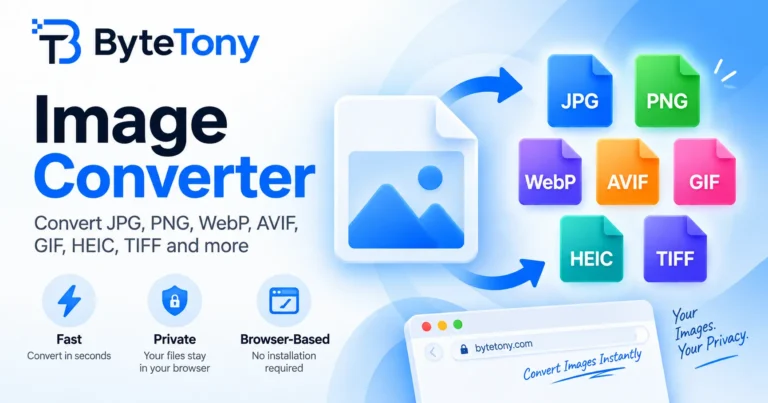

Need to convert PNG to JPG online for free? You can do it in three simple steps using your browser, without installing software or creating an account. JPG is widely supported and often smaller for photos, while PNG is better for transparency and sharp graphics. This guide shows you how to convert images using ByteTony’s free Image Converter.
Note: This article may contain affiliate links. If you buy through them, we may earn a small commission at no extra cost to you.
Table of Contents
How to Convert PNG to JPG Online for Free (3 Steps)
- Open the converter and add your PNG. Go to ByteTony Image Converter. Drag in your image, click Select Images, or use Paste Image. Your files are processed directly in your browser and are never uploaded to or stored by ByteTony. You can add up to 30 images at once.
- Choose JPG and adjust the quality. Under Output format, select JPG. The Quality slider starts at 90%, and 80–90% is a useful starting range for balancing file size and visual quality. If your PNG has transparency, choose a Background color: White (default), Black, or Custom. JPG cannot preserve transparent backgrounds.
- Convert, download, and check. Click Convert Images, then download your JPG. Compare the original and converted file sizes, and check the result for blurry text or visible compression artifacts. If necessary, convert the original PNG again at a higher quality setting.
Common PNG-to-JPG Problems (and When to Keep PNG)
- Transparent backgrounds become solid colors. JPG does not support transparency. Choose your background color carefully, or keep logos and cut-out images as PNG.
- Text or sharp edges look blurry. JPG compression can soften fine details, especially at lower quality settings. Try a higher quality setting, or keep screenshots and text-heavy graphics as PNG.
- The JPG is not smaller. Converting PNG to JPG does not always reduce file size, particularly for simple graphics, icons, or images with large areas of solid color.
- Quality decreases after repeated saves. JPG uses lossy compression, so repeatedly re-encoding the image can reduce quality. Always keep your original PNG.
For more details about choosing the right format, see MDN’s image file type guide.
FAQ
Can I convert multiple PNG files to JPG at once?
Yes. ByteTony Image Converter supports batch conversion of up to 30 images. You can convert them together and download the results as a ZIP file.
Can I convert PNG to JPG without internet?
Yes, using offline software. On Windows, open the image in Paint and choose File → Save as → JPEG picture. On a Mac, open it in Preview, choose File → Export, and select JPEG.
Can I convert JPG back to PNG to restore transparency?
No. Converting JPG back to PNG does not recover the original transparent areas. Keep your original PNG if you may need transparency later.
Conclusion
You can convert PNG to JPG online for free by uploading your image to ByteTony’s browser-based converter, choosing JPG, adjusting the quality, and downloading the result. Keep your original PNG for transparency or future editing.
If your JPG is still too large, try ByteTony Image Compressor. And if you’re creating images from scratch, our guide on how to create AI images for free can help you get started.
Enjoyed this guide? Support ByteTony and help us create more simple, beginner-friendly tech guides.
☕ Support ByteTony