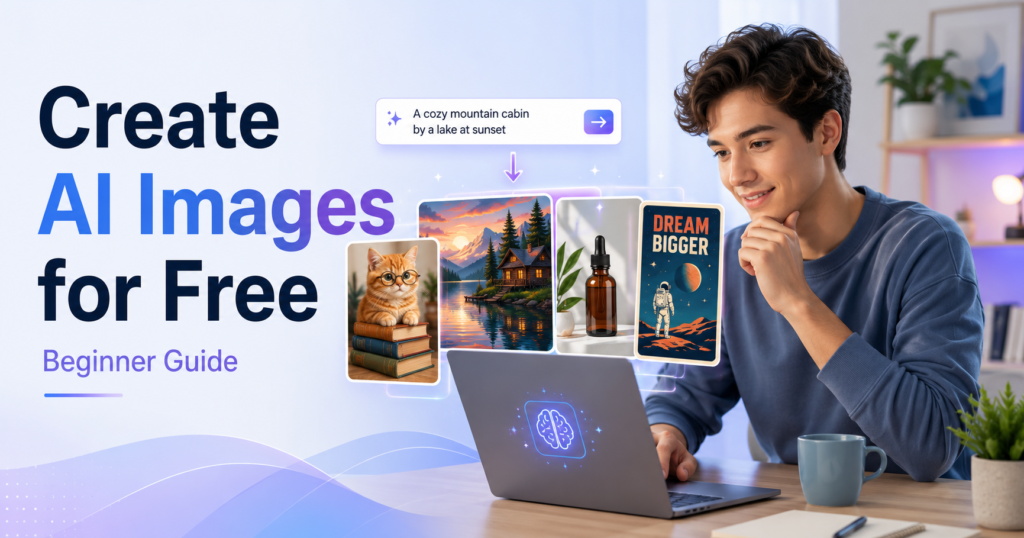
You can create AI images for free using a browser or phone app, with no design skills required. Simply describe what you want, and an AI image generator turns your words into a picture. This beginner guide covers four steps: choose a tool, write a prompt, refine the result, and download it. Free plans have usage limits, so they don’t offer unlimited image generation.
Note: This article may contain affiliate links. If you buy through them, we may earn a small commission at no extra cost to you.
Table of Contents
Step 1: Choose a Tool to Create AI Images for Free
These three AI image generators offer free access, but their limits and features differ.
| Tool | What you need | Free plan limits | Best for |
|---|---|---|---|
| Google Gemini | Google account | Usage allowance refreshes every 5 hours, up to a weekly limit | Everyday images and simple edits |
| ChatGPT | Free ChatGPT account | Separate image-generation limits; reset timing is shown when available | Detailed prompts and conversational editing |
| Ideogram | Google, Apple, or Microsoft sign-in for free credits | 30 credits per week | Posters, logos, and text-heavy designs |
Last checked: October 16, 2026. Limits may change. See Google’s usage-limit guide and Ideogram’s official plans for updates.
If you’re unsure, start with Gemini. Open Gemini, sign in, select Images from the sidebar, and enter a description of the image you want. You can also choose a template. Age requirements vary by country, and Gemini image editing requires users to be at least 18.
If you prefer a design-focused workflow, see our Canva AI Image Generator guide for another beginner-friendly option.
Step 2: Write a Clear Prompt
A good prompt tells the AI what to create, where the subject is, and how the image should look.
Use this simple formula:
Subject + setting + style + lighting/mood + aspect ratio
- Before: “a cat”
- After: “a ginger cat sleeping on a sunny windowsill, watercolor style, soft morning light, wide 16:9 image”
Two useful tips:
- Specify text clearly. Put any words you want inside quotation marks, such as a poster that says “Grand Opening.”
- Choose the right shape. Ask for a square image for Instagram or a wide 16:9 image for a blog header.
Be specific, but don’t worry about writing a perfect prompt. You can improve the result afterward.
Step 3: Refine the Image
If your first image is close to what you imagined, you don’t need to start over. Ask the tool to change a specific detail.
For example:
“Keep the same cat and composition, but change the lighting to a moonlit night.”
Gemini and ChatGPT support conversational image editing, although available features and limits depend on your account.
- Change one detail at a time when you want to keep the rest of the image consistent.
- Try different versions and compare the results before downloading.
- Fix incorrect text by using shorter phrases, placing exact words in quotation marks, or trying Ideogram.
Remember that each generation or edit may count toward your free usage allowance. In Gemini, longer or more complex conversations can use more of your allowance.
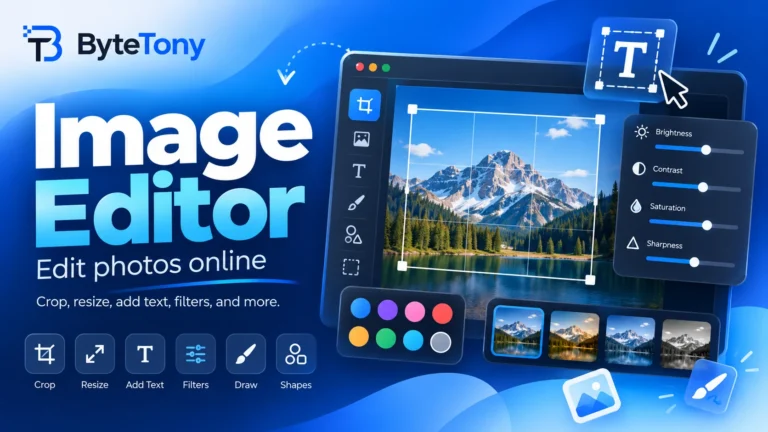
If you want to make additional adjustments after generating your image, try ByteTony’s free Image Editor. You can crop images, adjust colors, add text, and export your finished design in different formats — directly in your browser, with no sign-up required.
Step 4: Download and Check Usage Rights
Before publishing your AI image, check these four things:
- File quality: Gemini downloads without a paid AI plan are limited to 1K resolution. Ideogram’s free plan generally provides JPEG downloads, but transparent images can be downloaded as 1K PNG files. Higher-resolution exports may require payment.
- Watermarks: Gemini may add a visible watermark, which eligible users can manage under Settings → Media watermark. Gemini and ChatGPT also use invisible AI-origin signals and Content Credentials. Some of these signals or metadata may be lost during editing or conversion.
- Privacy: Images generated on Ideogram’s free plan are public, so avoid using it for confidential or client-sensitive work. Review your privacy settings before sharing sensitive content with any AI service.
- Commercial use: These tools generally permit commercial use of generated images under their terms. However, this doesn’t guarantee exclusive copyright ownership or protection from third-party claims. Be careful with brand logos, copyrighted characters, and recognizable people.
Last checked: October 16, 2026. Review each provider’s latest terms before using AI images for commercial projects.
Once your image is ready, you can reduce its file size before uploading it to your website using ByteTony’s free Image Compressor. It processes images directly in your browser without uploading them to a server.
FAQ
Is there a truly unlimited free AI image generator?
None of the three tools in this guide offers unlimited free image generation. When you reach your limit, wait for it to reset or try another tool. The number of images you can create depends on each provider’s current restrictions.
Can I create AI images on my phone?
Yes. Gemini and ChatGPT support AI image creation on mobile devices. You can use their supported apps or browser versions. Features and availability may vary by device and region.
Conclusion
You don’t need expensive software or design experience to create AI images for free. Start with Gemini, try the example prompt from Step 2, and refine your image until you’re happy with the result.
A clear description and a few thoughtful adjustments often matter more than choosing the most advanced tool. Start with one image, experiment with different styles, and improve your prompts as you learn.
Enjoyed this guide? Support ByteTony and help us create more simple, beginner-friendly tech guides.
☕ Support ByteTony