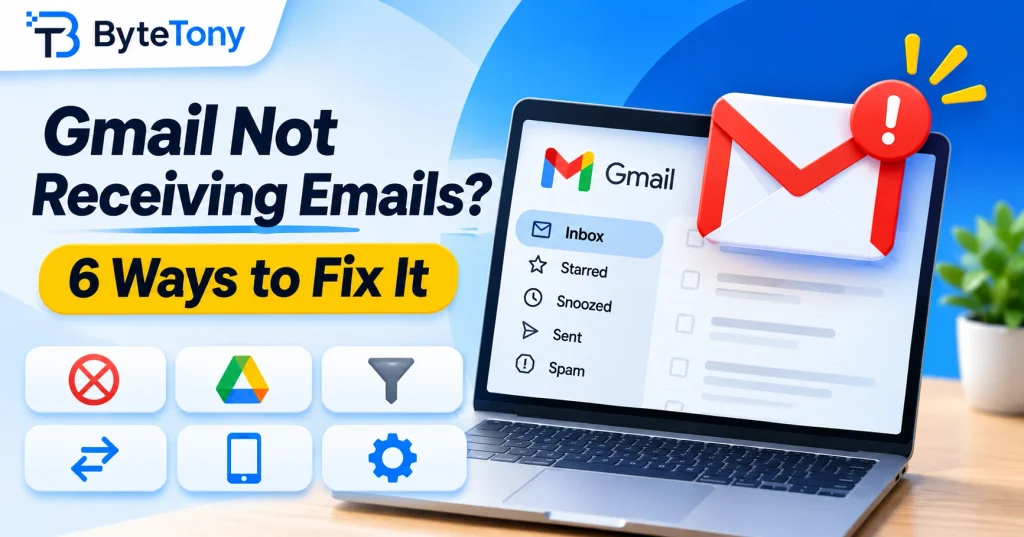
Gmail not receiving emails? The message might be hidden in Spam, blocked by a filter, or rejected because your Google storage is full. These six fixes help you find the cause and start receiving emails again. After each change, send a test email from another account.
Note: This article may contain affiliate links. If you buy through them, we may earn a small commission at no extra cost to you.
Table of Contents
Gmail Not Receiving Emails? Start With a Quick Test
Open Gmail in your browser and send yourself an email from another account.
- Arrives on the web but not in the app? Skip to Step 5 to fix syncing.
- Missing everywhere? Follow the steps below to check storage, filters, forwarding, and delivery problems.
1. Check Spam, Promotions, and All Mail
Search Gmail for in:anywhere from:sender@example.com, replacing the example with the sender’s address. This searches across Gmail, including Spam and Trash.
Also check the Promotions and Social tabs.
- In Spam: Open the message and click Not spam to help Gmail recognize future messages.
- In Promotions: Move the message to Primary.
- In Trash: Move the message back to your Inbox if you need it.
Gmail automatically deletes messages in Spam and Trash after 30 days.
2. Free Up Google Account Storage
Free personal Google Accounts include up to 15 GB of storage shared across Gmail, Google Drive, and Google Photos. When your storage is full, Gmail can’t send or receive messages, and incoming emails may bounce back to their senders.
- Check your available space at Google One Storage.
- Search Gmail for
has:attachment larger:10Mto find large emails you no longer need. - Empty Spam and Trash to permanently free up space.
If storage is still full, follow our guide on how to free up Google Drive storage.
You can also use ByteTony’s free Image Compressor to create smaller copies of large images stored in Drive. Keep backups of important originals before replacing them.
3. Review Filters and Blocked Addresses
On Gmail’s website, go to Settings (gear icon) → See all settings → Filters and Blocked Addresses.
- Look for filters that use Delete it or Skip the Inbox (Archive it). Click Edit or Delete to correct them.
- Check whether the missing sender is blocked. Blocked senders’ messages typically go to Spam. Select the address and click Unblock selected addresses if appropriate.
For more details, see Google’s official guide to finding missing Gmail messages.
4. Check Forwarding and POP/IMAP Settings
Open Settings → See all settings → Forwarding and POP/IMAP. The tab name may vary.
- Forwarding: If automatic forwarding is enabled, choose Keep Gmail’s copy in the Inbox so messages remain visible.
- POP: If you access Gmail using POP, avoid settings that archive or delete Gmail’s copy.
- IMAP: Check whether another connected email app is automatically deleting or archiving your messages.
Security tip: If you discover an unfamiliar forwarding address, disable it immediately and review your Google Account security. You can create a new, unique password with our Password Generator and learn how to set up a password manager safely.
Important: Google is discontinuing Gmail’s web-based POP fetching from third-party email accounts in January 2027. If you rely on that feature, consider automatic forwarding from your other email provider. Accessing Gmail through external POP/IMAP email clients will remain supported. See Google’s official announcement.
5. Fix Sync Problems in the Gmail App
If messages appear on Gmail’s website but not on your phone, syncing may be the problem.
First, check your internet connection, pull down on the inbox to refresh, update the Gmail app, and restart your device.
Android:
- Open Gmail → Menu → Settings.
- Select your account.
- Under Data usage, make sure Sync Gmail is enabled.
Syncing can take up to 15 minutes or longer if the device hasn’t been used recently.
iPhone/iPad:
Go to Settings → General → Background App Refresh and enable it for Gmail. This helps the app download emails in the background.
Last resort on Android: Go to Settings → Apps → Gmail → Storage & cache → Clear storage, then restart your device. Only do this if other fixes fail, as it may erase drafts, signatures, and app settings.
For additional help, see Google’s Gmail sync troubleshooting guide.
6. Rule Out Google Outages and Sender Problems
Check the Google Workspace Status Dashboard for Gmail service disruptions or delivery delays.
If your test email arrives but another sender’s messages don’t, check whether that sender is blocked or filtered. Ask them to confirm your email address and check for a bounce message.
Using Gmail with a custom domain? If you use Google Workspace, incorrect MX records can prevent incoming messages from reaching your mailbox. Ask your domain administrator or hosting provider to verify the records.
FAQ
Can I recover emails that bounced while my storage was full?
Generally, no. Once a message has bounced back, you need to free up storage and ask the sender to resend it.
Why do some Gmail emails arrive hours late?
Delays can occur because of temporary problems with the sender’s mail server, email routing, or Gmail itself. Check the Google Workspace Status Dashboard if the issue affects multiple messages.
Conclusion
If Gmail is not receiving emails, start by checking Spam, account storage, filters, and forwarding settings. If emails arrive on the web but not your phone, focus on app syncing instead.
After each fix, send yourself a test email. Once it arrives successfully, you can return to your inbox without worrying about missing important messages.
Enjoyed this guide? Support ByteTony and help us create more simple, beginner-friendly tech guides.
☕ Support ByteTony