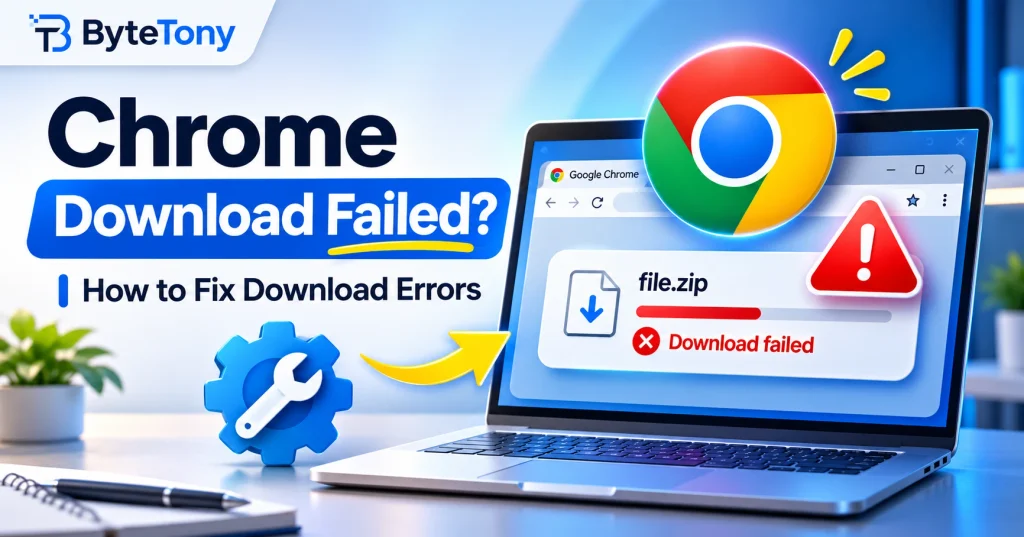
Chrome download failed? Open chrome://downloads to find the error message next to your file. Chrome may show “Failed – Network error,” “Forbidden,” “Disk full,” or another message that helps identify the problem. Try the quick fixes first, then follow the steps for your specific error.
On Windows, press Ctrl+J to open your downloads. On Mac, press Cmd+Shift+J.
Note: This article may contain affiliate links. If you buy through them, we may earn a small commission at no extra cost to you.
Table of Contents
Quick Fixes to Try First
- Resume the download. Open
chrome://downloadsand click Resume if available. Some downloads can continue from where they stopped; others must restart. - Use Save link as. Right-click the download link, choose Save link as, and select a folder.
- Restart and update Chrome. Close and reopen Chrome, then check for updates at
chrome://settings/help.
Chrome download failed? Fixes for Common Error Messages
Find the exact error in chrome://downloads and follow the matching fix below.
“Failed – Network error”
A network error means the download was interrupted. Possible causes include an unstable connection, a website problem, a VPN, a proxy, or security software.
Try these fixes:
- Click Resume if available, or restart the download.
- Check your internet connection or try another network.
- Restart your router if the connection is unstable.
- If you use a VPN or proxy, temporarily disconnect it to test the download.
VPN connections can sometimes affect downloads. If you’re comparing VPN options, read our Free VPN vs Paid VPN guide.
If “NETWORK_FAILED” appears while installing an extension from the Chrome Web Store, unwanted software may be interfering. Remove suspicious software and try again. Reinstall Chrome only if necessary.
“Failed – Forbidden” or “Needs authorization”
The website’s server isn’t allowing you to download the file.
Sign in to the website, confirm you have permission to access the file, and try again. Some download links expire, so return to the original page to get a fresh link.
If the problem continues, contact the website owner rather than downloading the file from an untrusted source.
“Virus scan failed,” “Virus detected,” or “Blocked”
These messages indicate that antivirus software or security settings may have prevented the download.
- Virus scan failed / Virus detected: Check your antivirus protection history or quarantine for details. Don’t restore or open a file identified as malicious.
- Blocked: Check your computer’s security settings. On Windows, Attachment Manager or internet security restrictions may prevent the download.
Chrome may also warn that a file is “dangerous,” “suspicious,” or “insecure.” Don’t disable Safe Browsing or ignore security warnings simply to complete a download.
For more details, see Google’s official guide to fixing Chrome download errors.
“Insufficient permissions” or “System busy”
Chrome couldn’t save the file to your computer.
Cancel the download and try again. If it still fails, right-click the link and choose Save link as, then select a folder you can access.
You can also change the download location:
- Open
chrome://settings/downloads. - Under Location, click Change.
- Select another folder, or enable Ask where to save each file before downloading.
On Windows, Controlled folder access may prevent Chrome from writing to protected folders if that feature is enabled. Try another location or review the app’s permissions in Windows Security.
“Disk full,” “No file,” or “File missing”
- Disk full: Your computer doesn’t have enough available storage. Delete unnecessary files, empty the Recycle Bin or Trash, and try again. Our guide on how to organize your Downloads folder can help you identify files you no longer need.
- No file / File missing: The file was deleted or moved on the website. Return to the original download page or contact the website owner.
If large photos are taking up storage, you can reduce their size with ByteTony’s free Image Compressor. Verify the compressed copies before deleting any originals.
Still Failing? Try These Fixes
If your Chrome download failed even after following the matching steps, try these additional checks:
- Try Incognito mode. Most extensions are disabled there by default. If downloading works, disable your extensions one at a time to find the problem.
- Clear cached files. Open
chrome://settings/clearBrowserDataand clear cached images and files. Only clear cookies if necessary, since doing so may sign you out of websites. - Reset Chrome settings. Open
chrome://settings/resetand restore the original settings. Your saved passwords and bookmarks remain, but extensions are disabled and some settings and site data are reset. - Try another browser. If the same file fails there too, investigate the website, network, storage, or system security settings.
The fastest way to fix Chrome download errors is to identify the exact message before changing browser settings. Start with the simplest solution, keep your security protections enabled, and leave resetting Chrome as a last resort.
Enjoyed this guide? Support ByteTony and help us create more simple, beginner-friendly tech guides.
☕ Support ByteTony