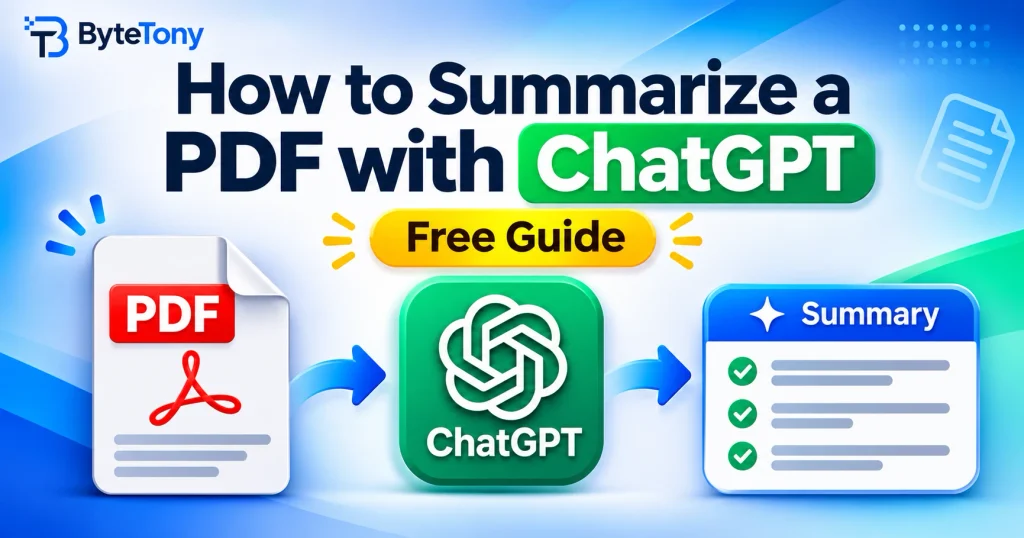
Want to learn how to summarize a PDF with ChatGPT for free? Sign in, upload your PDF, and ask for a focused summary. You don’t need a paid subscription, although free accounts have upload limits.
You’ll need a free ChatGPT account and preferably a PDF with selectable text. If your PDF is scanned, see the troubleshooting tips below.
Note: This article may contain affiliate links. If you buy through them, we may earn a small commission at no extra cost to you.
Table of Contents
How to summarize a PDF with ChatGPT (step by step)
Step 1: Upload Your PDF
Open ChatGPT in your browser or mobile app and sign in to your free account.
Start a new chat, select the + button, choose Add photos & files, and upload your PDF. Wait for the attachment to finish loading before sending your prompt.
Step 2: Ask for a Summary with a Clear Prompt
Instead of typing only “summarize this,” specify the length, format, and audience. For example:
Summarize this PDF in 5 bullet points for a beginner. Include the main findings, important numbers, and a one-sentence takeaway. Don’t add information that isn’t in the document.
More prompts you can copy and paste:
- Quick overview: “Summarize this PDF in 3–4 sentences.”
- Key points: “List the main points as bullets.”
- Section by section: “Summarize each section or chapter in 1–2 sentences.”
- For a purpose: “Summarize this as notes for a [blog post / client brief].”
- Action items: “List the action items and decisions mentioned in this PDF.”
Step 3: Refine and Check the Summary
If the result is too long or complicated, ask ChatGPT to “Make it shorter” or “Explain it in simpler language.”
For important information, try:
Which page or section supports each key point? If you cannot verify something, say so.
ChatGPT can make mistakes, including incorrect page references. Always compare important names, figures, and conclusions with the original PDF.
Need a specific word limit? Check the result with ByteTony’s free Word Counter & Character Counter. If copied text contains unnecessary spaces or blank lines, use the Text Cleaner.
Free Plan Limits and Common Problems
- Upload limits: OpenAI currently allows Free users up to 3 file uploads per day, with possible reductions during peak hours. Check the official file upload documentation for current limits.
- Very long PDFs: Ask ChatGPT to summarize specific chapters or page ranges first, then combine the summaries. Check that no important sections were skipped.
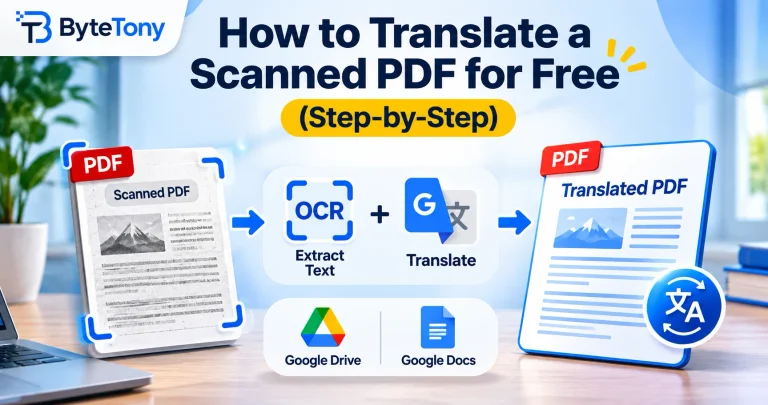
- Scanned or image-only PDFs: Text extraction and visual support can vary depending on how the file is processed. If ChatGPT misses text, use OCR to make it searchable. PDF2Go offers a free tool for creating searchable PDFs. Check the OCR output before uploading it again.
- Can’t read the file: Try exporting the PDF again, reducing its size, or removing password protection if you’re authorized to do so. For other editing options, see our guide to the 4 Best Free PDF Editors Without Watermarks.
- Privacy: Avoid uploading confidential documents without permission. To prevent eligible chats from being used for model training, go to Settings → Data controls and turn off Improve the model for everyone. This doesn’t automatically delete your chats or uploaded files.
Conclusion
Now you know how to summarize a PDF with ChatGPT for free: upload a readable document, use a specific prompt, refine the result, and verify important details.
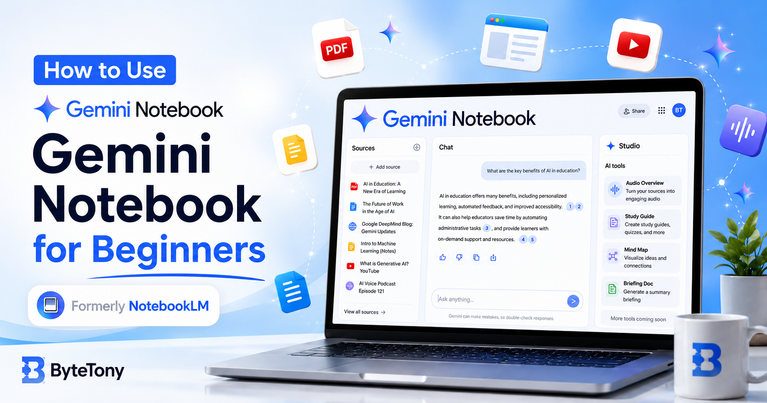
For source-focused document research, explore our guide on How to Use Gemini Notebook for Beginners. You can also read ChatGPT vs Perplexity for Research to decide which assistant better suits your research needs.
Enjoyed this guide? Support ByteTony and help us create more simple, beginner-friendly tech guides.
☕ Support ByteTony