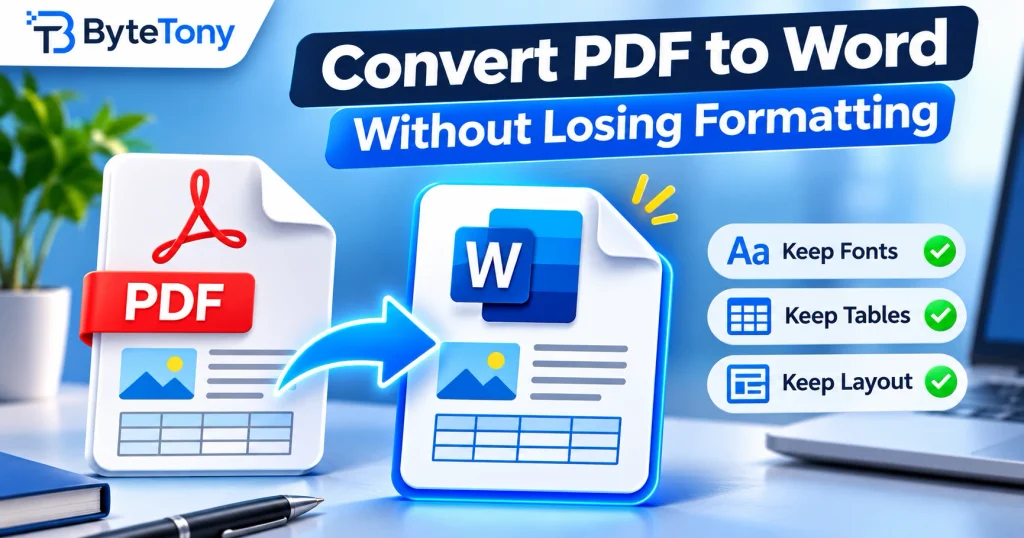
Want to convert PDF to Word without losing formatting? Copying and pasting often breaks fonts, tables, and page layouts. This guide shows two practical methods for creating an editable Word document, plus quick fixes when something shifts.
Quick pick: Try Adobe’s free online converter for complex layouts. If you already have desktop Microsoft Word, use its built-in conversion feature for files you prefer to keep on your computer.
No converter can guarantee perfect formatting, so always check the result.
Note: This article may contain affiliate links. If you buy through them, we may earn a small commission at no extra cost to you.
Table of Contents
How to Convert PDF to Word Without Losing Formatting
Method 1: Use Adobe Acrobat’s Free Online Converter
- Open Adobe Acrobat’s PDF to Word converter.
- Click Select a file, or drag your PDF onto the page.
- Wait for the conversion to finish.
- Download the Word (.docx) file.
Adobe’s converter attempts to preserve fonts, images, paragraphs, tables, and columns, including multi-column layouts. However, complex documents may still need some cleanup.
The tool offers free conversions with daily limits. You can start without signing up, although additional conversions or certain features may require an account or paid plan.
Another option: If Adobe doesn’t produce the result you need, PDF2Go offers PDF-to-Word conversion with limited free use. It also supports OCR for scanned documents, although OCR and higher usage limits may require premium access.
Before uploading: Online converters process files on their servers. Avoid uploading confidential documents unless you have reviewed the provider’s privacy and security policies.
Method 2: Open the PDF in Microsoft Word
If you already have a licensed desktop version of Microsoft Word 2016 or later, including Word through Microsoft 365, you can convert PDFs without paying for a separate conversion tool.
- Open Word and select File > Open > Browse.
- Choose your PDF file.
- Click OK when Word explains that it will convert the document.
- Review the result, then select File > Save As and save it as a Word Document (.docx).
Word creates an editable copy without changing the original PDF.
According to Microsoft’s official documentation, conversion works best with documents containing mostly text. Complex tables, graphics, page borders, and footnotes may not convert accurately.
When working with a PDF stored locally, desktop Word also avoids uploading the file to a third-party conversion website.
How to Fix Formatting Problems After Converting
Even when you convert PDF to Word without losing formatting as much as possible, some elements may still need adjustment.
- Text can’t be edited. Your PDF may contain scanned pages rather than selectable text. Use Optical Character Recognition (OCR) to extract the text. One free option is Google Drive:
- Upload the PDF to Google Drive.
- Right-click the file and choose Open with > Google Docs.
- Select File > Download > Microsoft Word (.docx).
- Fonts look different. The original font may not be installed on your computer. Install it if available, or choose a similar font.
- Tables or layout shifted. Try the other conversion method. In Word, enable Show/Hide ¶ to inspect paragraph breaks and spacing.
- Images moved. Select an image and try Wrap Text > In Line with Text. This can stabilize its position but may change the surrounding layout.
- Copied text has extra spaces or blank lines. Paste the extracted text into ByteTony’s free Text Cleaner to remove unwanted whitespace before adding it back to your document. The tool processes text directly in your browser.
If you only need to change a few words in the original PDF, converting may be unnecessary. Explore our free PDF editors without watermarks for alternatives.
FAQ
Can I convert PDF to Word for free on my phone?
Yes. Adobe’s online PDF-to-Word converter works in mobile browsers on iPhone and Android. Upload your PDF, convert it, and download the Word document. Free usage limits apply.
Can I convert a scanned PDF into an editable Word document?
Yes, but you usually need OCR first. Google Docs can extract text from scanned PDFs, while PDF2Go offers OCR with usage or plan restrictions. OCR accuracy depends on scan quality, language, and document complexity.
Is it safe to upload confidential PDFs to online converters?
Online converters require uploading your document to another company’s servers. Even when a provider uses encryption and automatic deletion policies, sensitive files deserve extra caution.
For confidential contracts, financial records, or client documents, consider converting a locally stored PDF using desktop Word, subject to your organization’s security requirements.
Conclusion
To convert PDF to Word without losing formatting as much as possible, choose the method that fits your document. Adobe is worth trying for complex layouts, while desktop Word is convenient for text-heavy or private files.
For scanned documents, use OCR first. Before sharing the final Word file, check its fonts, tables, images, and page breaks against the original PDF.
Enjoyed this guide? Support ByteTony and help us create more simple, beginner-friendly tech guides.
☕ Support ByteTony