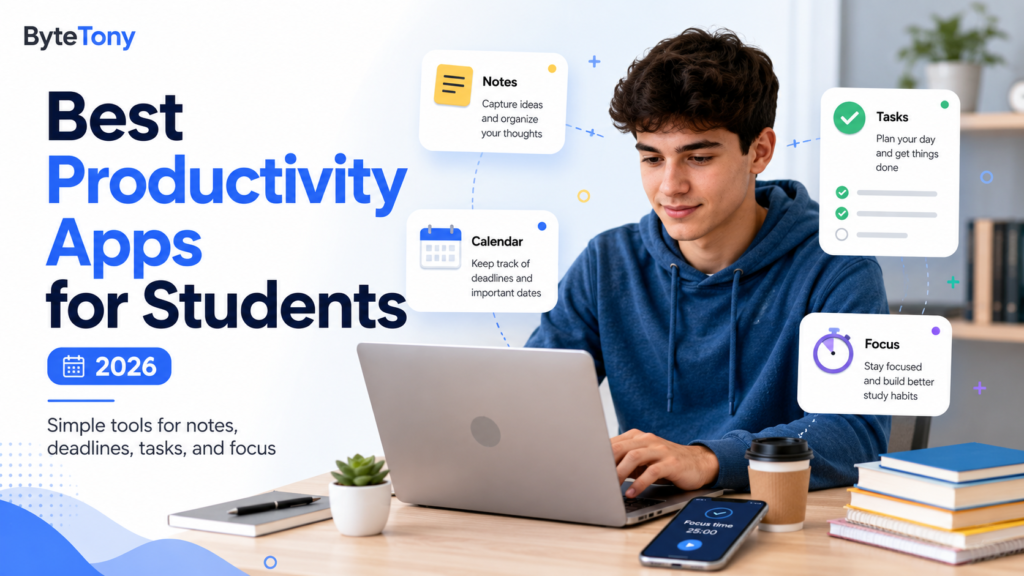
Looking for the best productivity apps for students shouldn’t mean choosing complicated tools that take hours to set up. Most productivity-app lists seem to assume you enjoy building productivity systems.
If you’ve ever spent an hour creating a colour-coded dashboard, adding dozens of tags, designing the perfect weekly planner, and then stopped using it a few days later, this guide is for you.
These are the best simple productivity apps for students who want tools that are useful almost immediately — without complicated templates, databases, workflows, or hours of setup.
Most of the apps below have genuinely useful free versions. Some have limits or optional paid upgrades, but none requires you to build an elaborate system before it becomes useful.
The goal is simple: use fewer apps, give each app one job, and spend more time studying than organising how you study.
Note: This article may contain affiliate links. If you buy through them, ByteTony may earn a small commission at no extra cost to you.
Table of Contents

How We Picked These Apps
Every app on this list had to meet four basic rules:
- Easy to start using. You shouldn’t need a tutorial just to create your first note or task.
- A useful free option, or clearly explained limits when the free version isn’t enough.
- One obvious job it does well.
- Available on the devices students actually use.
Google Calendar is the main exception to the quick-setup rule because entering your semester timetable takes a little longer. But once it’s done, it can save you work for months.
A note on transparency: pricing, free-tier limits, and features can change. The information below reflects the plans available around August 2026. Always check the app’s official website or your device’s app store before paying for a subscription.
The Best Productivity Apps for Students
1. Google Keep — Best for Fast Notes
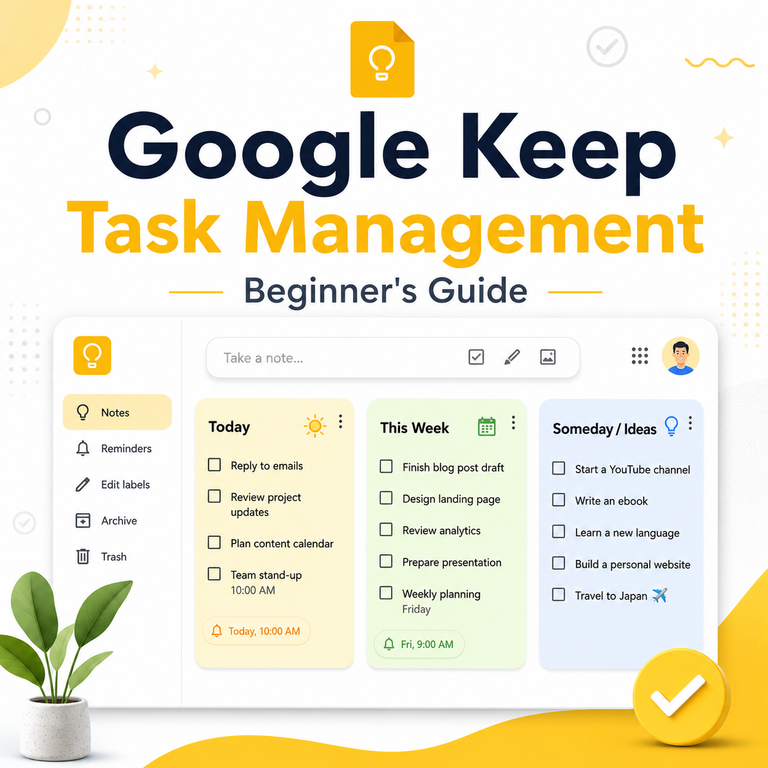
Google Keep is one of the simplest ways to capture notes, lists, reminders, links, images, and quick ideas without building a note-taking system first.
Open the app, create a note, and start typing.
That’s basically the setup.
Why it’s here
For students who hate complicated note apps, Keep has very little friction.
You can pin important notes, add labels, use colours, create checklists, and capture voice notes without learning databases, folders, templates, or advanced formatting.
If you already use a Google account, getting started is especially easy.
Beginner example
Create one note for each module.
For example:
- Economics
- Biology
- Programming
- Marketing
Pin those notes to the top.
Whenever you remember something related to a module — an idea, book recommendation, assignment reminder, or question for your lecturer — add it to that note.
Don’t create an elaborate tagging system until you actually need one.

Pros
- Free with a personal Google account.
- Very quick to learn.
- Good for short notes and checklists.
- Voice, photo, and reminder support.
- Syncs across devices.
- Works particularly well for capturing ideas quickly.
Cons
- No traditional folder structure.
- Limited document-style formatting.
- Labels and pins can become messy if you accumulate hundreds of notes.
- Not designed for writing long research documents.
Free plan
Yes. Google Keep is free with a personal Google account.
Setup time
Around 2 minutes for a basic student setup.
Setup times throughout this article are rough estimates for first-time users, not measured benchmarks.
2. Microsoft To Do or Apple Reminders — Best for a Simple Weekly Task List
Before downloading another productivity app, check what is already available on your phone or computer.
Apple users already have Reminders, while Microsoft To Do is a simple option for Windows, Android, iPhone, and the web.
Both are good enough for students who simply want to remember what needs to be done.
Why they’re here
You don’t necessarily need a dedicated productivity platform.
For many students, a basic list containing this week’s tasks works better than a complicated project-management app.
Which one should you use?
If you mainly use an iPhone or Mac, start with Apple Reminders.
If you use Windows, Android, or several different platforms, Microsoft To Do is an easy alternative.
Don’t overthink the choice.
Beginner example
Create one list:
This Week
Add:
- Finish chapter 4
- Email professor
- Submit economics assignment
- Buy notebook
- Review lecture notes
Tick tasks off as you finish them.
At the beginning of the next week, clean up the list and start again.
That’s already a functioning productivity system.
Pros
- Simple.
- Free for normal personal use.
- Reliable reminders.
- Minimal setup.
- Good for recurring tasks.
- No need to learn a complex workflow.
Cons
- Limited project-management features.
- Not designed for taking detailed notes.
- No built-in study or focus system.
- Students wanting advanced planning may eventually outgrow them.
Setup time
Around 2–5 minutes.
3. Google Calendar — Best for Classes and Deadlines
If you install only one productivity app for university or college, a calendar should probably be near the top of the list.
Google Calendar lets you create recurring classes, assignment deadlines, exams, appointments, study sessions, and reminders.
Why it’s here
Many student productivity problems aren’t really task-management problems.
They’re deadline problems.
You forget that an assignment is due next Thursday, two classes overlap with another commitment, or an exam suddenly feels close because you never put it on a calendar.
Google Calendar solves that with relatively little maintenance.
Beginner example
At the start of the semester:
- Add every regular class as a recurring weekly event.
- Set the recurrence to stop at the end of the term.
- Add known assignment deadlines as all-day events.
- Add exam dates.
- Stop there.
You don’t need to schedule every hour of your life.

Pros
- Free with a Google account.
- Recurring events are excellent for class schedules.
- Works across devices.
- Good for assignment deadlines.
- Easy to share calendars when needed.
- Requires little maintenance once your semester is entered.
Cons
- It’s a calendar, not a full task manager.
- Turning every task into a calendar event can quickly create visual clutter.
- Initial semester setup takes longer than most apps on this list.
Setup time
Budget around 15–20 minutes when entering your timetable for the first time.
After that, maintenance should be minimal.
4. TickTick — Best All-in-One Option
TickTick combines several tools students often install separately:
- Task management
- Pomodoro focus timer
- Habit tracking
- Calendar features
- Reminders
That makes it one of the most practical choices if you’d rather manage fewer apps.
Why it’s here
Instead of using one app for tasks, another for focus sessions, and a third for habits, TickTick can cover all three jobs.
It’s more advanced than Microsoft To Do or Apple Reminders, but you don’t need to use most of its features.
Beginner example
Create a task:
Read chapter 4
Then start a 25-minute Pomodoro session directly from your study workflow.
When the timer finishes, take a break.
There’s no need to build a complicated productivity dashboard.

Features worth knowing
TickTick includes features such as:
- Tasks and subtasks
- Recurring tasks
- Reminders
- Pomodoro timer
- Habit tracking
- Calendar views
- Priority levels
- Eisenhower Matrix-style planning
You don’t need all of them on day one.
Start with tasks and the timer.
Pros
- Several useful student tools in one app.
- Good free version for basic use.
- Built-in focus timer.
- Habit tracking is available without installing a separate habit app.
- Works across common platforms.
- Can grow with you if your needs become more advanced.
Cons
- The free tier has limits.
- Some calendar and advanced planning features require Premium.
- More features also mean slightly more to learn than Google Keep or Microsoft To Do.
- Easy to overcomplicate if you enable everything immediately.
Pricing
TickTick Premium was listed at approximately $49.99 per year on the web around August 2026.
Eligible students may also be able to receive an education discount of around 25%, bringing the annual cost to approximately $37.49.
Pricing and student eligibility can vary, so check TickTick’s official website before subscribing.
Who should choose TickTick?
Choose it if you want one app for tasks, focus sessions, and habits rather than maintaining several separate productivity tools.
If the free plan does everything you need, there’s no reason to upgrade immediately.
5. Todoist — Best for Managing Lots of Deadlines
Todoist is a popular task manager, but one feature makes it especially useful for students: natural-language date entry.
You can type something like:
Essay first draft Friday 5pm
and Todoist can recognise the date while you’re creating the task.
Why it’s here
Students often stop using task managers because entering and organising every task becomes another chore.
Todoist makes capturing tasks unusually quick.
Beginner example
Instead of creating one huge task called:
Write history essay
break it into:
- Pick topic Monday
- Research sources Wednesday
- Create outline Friday
- First draft Sunday
- Final edit next Wednesday
The project suddenly becomes much easier to follow.

Features worth knowing
Todoist includes:
- Tasks and subtasks
- Natural-language dates
- Recurring dates
- Priority levels
- Labels
- List and board layouts
- Shared projects
- Reminders
- Filters
Pros
- Fast task entry.
- Clean interface.
- Permanent free plan.
- Works across phones, computers, and browsers.
- Excellent for students with many overlapping deadlines.
- Easy to start small and expand later.
Cons
The free plan has meaningful restrictions.
Around August 2026, the Beginner plan included limits such as:
- 5 active personal projects
- 3 filter views
- 7 days of activity history
- 5 MB file uploads
Some advanced features — including custom reminders, calendar layout, task durations, and Todoist’s separate Deadlines feature — require Pro.
A realistic free-plan limitation
If you create one Todoist project for every module, you can reach the free project’s limit quickly.
For example:
- Biology
- History
- Economics
- Computer Science
- Personal
You’ve already used all five.
A simpler approach is to keep fewer projects and organise tasks using sections, priorities, or labels.
Pricing
Todoist Pro was listed around $7 per month or $60 per year in August 2026.
Pricing may change, so verify it on Todoist’s official website before upgrading.
Who should choose Todoist?
Todoist is particularly useful if your biggest problem is remembering several different deadlines at once.
If you only have a handful of weekly tasks, Microsoft To Do or Apple Reminders may be all you need.
6. Forest — Best for Staying Off Your Phone
Sometimes organisation isn’t the problem.
You already know exactly what you should be doing.
The problem is that your phone is sitting next to you.
Forest takes a different approach from the other apps on this list. Instead of organising tasks, it encourages you to stay focused for a set period.
Start a focus session and a virtual tree grows while you work.
Why it’s here
Another task manager won’t help much if the real problem is distraction.
Forest turns staying away from your phone into a simple visual challenge.
Beginner example
Before reading a chapter:
- Start a 25-minute Forest session.
- Put your phone down.
- Read until the session finishes.
- Take a short break.
- Repeat if necessary.
No planning system required.

Pros
- Extremely simple idea.
- Focuses on distraction instead of organisation.
- Works alongside any task or calendar app.
- Good for short study sessions.
- Doesn’t require you to build a productivity system.
Cons
- It’s a focus tool, not a task manager.
- Gamification doesn’t motivate everyone.
- Paid features and available plans can vary by platform and region.
Free plan
Forest now offers a free way to use its basic focus features without an expiry period.
The app has also moved away from its older Pro model for new users and offers additional paid features through newer subscription options such as Forest Plus.
Because pricing can vary by platform and country, check the current listing in your app store before subscribing.
7. Quizlet — Best for Quick Flashcard Revision
Quizlet is different from most of the apps above because it focuses on studying, not general organisation.
It provides flashcards and other revision modes, and its biggest advantage is the huge collection of study sets created by other users.
Why it’s here
Creating a productivity system isn’t useful if you still need a practical way to revise.
With Quizlet, you can often search for your subject and find an existing flashcard set instead of building everything from scratch.
Beginner example
Suppose you have a biology seminar tomorrow.
Search Quizlet for the topic you’re studying, find a relevant set, quickly check that the information is accurate, and spend ten minutes reviewing it.
That’s much easier than designing a complete revision system.
Pros
- Huge library of user-created study sets.
- Easy to start.
- Useful for short revision sessions.
- You can create your own sets.
- Particularly helpful for terminology and definitions.
Cons
- User-created material can contain mistakes.
- Some study modes and advanced features have limits on the free tier.
- Offline and other premium features may require a subscription.
- You should verify important information rather than assuming every public flashcard set is correct.
Free plan
Quizlet still provides useful free features, including basic flashcard studying and set creation, but some learning modes and advanced features are restricted.
Check Quizlet’s current plans before paying because subscriptions and feature limits can change.
What About Anki?
Anki deserves a mention because it is one of the most powerful flashcard systems available.
Its spaced-repetition system is particularly useful for subjects where you need to remember information for months or years, such as:
- Medicine
- Law
- Languages
- Professional certifications
So why isn’t it one of the main recommendations?
Because this article is specifically for students who hate complicated tools.
Anki is incredibly flexible, but creating decks, configuring settings, choosing add-ons, and understanding how its system works can take more effort than Quizlet.
The desktop version, AnkiWeb, and Android options such as AnkiDroid can be used free, while the official iPhone app is a paid purchase.
If you’re serious about long-term spaced repetition, Anki may eventually be the better tool.
If you just want to revise tomorrow’s lecture, Quizlet is easier to start with.
Quick Comparison
| App | Best for | Free option | Setup time* | Paid option |
|---|---|---|---|---|
| Google Keep | Fast notes | Yes | ~2 min | None needed for Keep |
| Microsoft To Do | Simple weekly tasks | Yes | ~2–5 min | None for normal consumer use |
| Apple Reminders | Simple tasks on Apple devices | Yes | ~2 min | None |
| Google Calendar | Timetable + deadlines | Yes | ~15–20 min | None needed for personal use |
| TickTick | Tasks + timer + habits | Yes, with limits | ~5–10 min | Premium available |
| Todoist | Deadline-heavy semesters | Yes, with project limits | ~5–10 min | Pro available |
| Forest | Avoiding phone distraction | Basic free access | ~2 min | Forest Plus / paid features |
| Quizlet | Flashcard revision | Yes, with restrictions | ~5 min | Paid plans available |
*Setup times are rough estimates for a first-time user, not measured benchmarks.
Pricing and plan limits can change. Always check the official website or app store before paying.
The 15-Minute Student Productivity Setup
If you’ve already abandoned several productivity systems, don’t install seven apps.
Use three.
Give each one a single job.
Notes
Use:
Google Keep
Deadlines
Use:
Google Calendar
Tasks
Use one of:
- Apple Reminders
- Microsoft To Do
- TickTick
- Todoist
Then follow these steps.

Step 1: Create one note per module
Open Google Keep.
Create one note for each class or module.
Don’t add complicated labels yet.
Step 2: Pin the important notes
Pin those module notes so they’re always easy to find.
Stop there.
No colour-coded system required.
Step 3: Add your timetable to Google Calendar
Create recurring weekly events for each class.
Set them to stop when your semester ends.
Step 4: Add assignment deadlines
Add every assignment deadline you already know.
Use all-day events if you don’t need an exact time.
Don’t start scheduling every study session yet.
Step 5: Create three task lists
In your chosen task app, create:
This Week
Assignments
Admin
Nothing else.
Step 6: Add known assignments
Add each assignment to the Assignments list with its deadline.
Step 7: Plan only the next seven days
Move or add the tasks you actually need to work on this week.
Don’t plan the next three months in detail.
Step 8: Create one weekly reminder
Create one recurring Sunday reminder:
Review next week’s tasks and deadlines.
That reminder is more important than almost every advanced productivity feature.
Two Rules That Keep the System Simple
Rule 1: One app per job
Don’t keep your assignments in Todoist, Google Keep, Notion, and Apple Reminders at the same time.
Pick one place.
Duplicating information creates maintenance work.
Rule 2: Add features only when you hit a real problem
Don’t create a new dashboard because someone on YouTube has one.
Only change your setup when you can identify a specific problem.
For example:
“I keep forgetting assignments that are two weeks away.”
That’s a real problem.
Then you can add a better reminder or deadline system.
But:
“Maybe someday I might need a project dashboard.”
isn’t a problem yet.
Don’t Ignore Your Files
Productivity isn’t only about calendars and task lists.
If you spend five minutes every day trying to remember where you saved lecture slides, assignment drafts, PDFs, and research files, your digital files also need a simple system.
You don’t need dozens of folders. A few clear folders and consistent file names are usually enough.
If Google Drive is where you keep your coursework, read ByteTony’s guide on how to organize files in Google Drive for a simple structure you can maintain throughout the semester.
Apps We Left Off on Purpose
The apps below aren’t bad.
In fact, some of them are excellent.
They’re simply not the best starting point for a student whose main requirement is:
Keep it simple.
Notion
Notion can combine:
- Notes
- Databases
- Tasks
- Calendars
- Wikis
- Project boards
- Study dashboards
Its flexibility is both its biggest advantage and its biggest disadvantage.
You can create almost any productivity system you want.
But first, you have to create it.
That’s exactly the kind of setup this article is trying to avoid.
If you enjoy building your own systems, Notion can be fantastic.
If you repeatedly abandon complex productivity apps, start with Google Keep and a simple task list instead.
Students who already use Notion and want to explore its AI features can also read our beginner guide on how to use Notion AI.
ClickUp and Asana
ClickUp and Asana are powerful project-management platforms.
They’re especially useful when teams need:
- Assigned tasks
- Status tracking
- Workflows
- Multiple project views
- Collaboration
- Permissions
Most students don’t need that overhead for managing four classes and a few assignments.
They’re good tools.
They’re just solving a larger problem than most individual students have.
Obsidian
Obsidian is a local-first Markdown knowledge-management app that lets you create links between notes and build a personal knowledge base.
It’s particularly attractive if you want to keep your notes in local plain-text files.
But its real value often appears over months or years.
Plugins, linking strategies, folder structures, and customisation can also become their own hobby.
If that sounds enjoyable, try it.
If it sounds exhausting, use Google Keep.
Anki
Anki is better suited to students who want serious spaced repetition over long periods.
If you’re studying medicine, languages, law, or another memorisation-heavy subject, learning Anki can be worth the effort.
But Quizlet is easier for someone who wants to start reviewing material immediately.
| App | Better fit for |
|---|---|
| Notion | Students who enjoy designing their own system |
| ClickUp / Asana | Teams and complex collaborative projects |
| Obsidian | Long-term research and connected notes |
| Anki | Serious long-term spaced repetition |
What If Writing Assignments Are the Real Problem?
Sometimes your task system is fine, but essays and written assignments are what slow everything down.
In that case, adding another calendar probably won’t help.
A writing tool may be more useful.
ByteTony has a comparison of Grammarly vs QuillBot for beginners if you want help choosing between grammar correction, rewriting, and paraphrasing tools.
You can also see our guide to the best free AI writing tools for beginners if you want to explore additional options without immediately paying for another subscription.
The important point is the same: choose a tool because it solves a problem you already have, not because it has a long feature list.
My Recommendations
If you don’t want to compare every app individually, here’s the simple version.
Best for complete beginners: Google Keep + Google Calendar + Apple Reminders or Microsoft To Do
Start here if you’ve abandoned productivity apps before.
You get:
- Notes
- Deadlines
- Tasks
without needing to learn a productivity methodology.
Try this setup for a month before changing anything.
Best single productivity app: TickTick
Choose TickTick if you’d rather use one app for:
- Tasks
- Focus sessions
- Habits
It’s more advanced than a basic task list but still possible to keep simple.
Best for deadline-heavy semesters: Todoist
Choose Todoist if your main problem is keeping track of lots of assignments with different dates.
Its fast natural-language task entry makes it particularly convenient when you’re constantly adding deadlines.
Best for students distracted by their phone: Forest
Choose Forest if you already know what you’re supposed to do but struggle to stay focused long enough to do it.
Best for revision: Quizlet
Choose Quizlet if flashcards and quick revision are more important to you than general organisation.
Conclusion
A good productivity app should reduce work, not create another project for you to manage.
You don’t need seven apps.
You probably don’t need an elaborate dashboard.
And you definitely don’t need to spend your Sunday evening redesigning a system you won’t use by Thursday.
Start with three jobs:
Notes. Deadlines. Tasks.
Use Google Keep for notes, Google Calendar for deadlines, and one simple task app.
Then keep that setup until you encounter a specific problem it can’t solve.
If you eventually need more, upgrade gradually.
A simple system you use every day is far better than a perfect productivity system you abandon after a week.
FAQ
What are the best simple productivity apps for students?
For most students, a good simple setup is Google Keep for notes, Google Calendar for deadlines, and one task app such as Microsoft To Do, Apple Reminders, TickTick, or Todoist.
You don’t need to use every app in this article.
Which productivity apps are completely free?
Google Keep, Google Calendar, Microsoft To Do, and Apple Reminders can all be used for normal personal productivity without requiring a paid productivity subscription.
TickTick, Todoist, Quizlet, and Forest also offer free access or free tiers, but some features or limits may depend on the app, platform, or plan.
Is TickTick good for students?
Yes, particularly if you want tasks, Pomodoro focus sessions, and habit tracking in one app.
Its free version may be enough for many students, while eligible students may also qualify for an education discount on Premium.
Is Todoist free for students?
Todoist has a permanent free Beginner plan.
You don’t need a student account to use it, although the free plan has limits such as a maximum number of active personal projects.
If you need more projects or advanced planning features, Todoist Pro is available.
Is Quizlet still useful for free?
Yes, particularly for basic flashcards and finding existing study sets.
However, some advanced study modes and premium features are restricted, so students who rely heavily on Quizlet may eventually consider a paid plan.
Is Notion too complicated for students?
Notion itself isn’t necessarily difficult to use.
The problem is that its flexibility makes it easy to spend too much time building a productivity system instead of using one.
If you enjoy creating dashboards and databases, Notion may be excellent.
If you want something you can start using in a few minutes, Google Keep and a simple task app are easier.
How many productivity apps should a student use?
For most students, three apps or fewer is enough:
- One for notes.
- One for deadlines.
- One for tasks.
Add another tool only if it solves a specific problem your current setup cannot handle.
What if I always stop using productivity apps?
Make your setup smaller instead of switching apps again.
Start with:
- Three task lists
- One calendar
- One weekly review reminder
Avoid templates, advanced tags, dashboards, and complicated workflows until you genuinely need them.
The simplest system that you consistently use is usually the most productive one.