How to Use Notion AI for Beginners (2026 Guide)

How to use Notion AI for beginners step by step

If you already use Notion for notes, to-do lists, project planning, or documents, you may not need a separate AI tool for every writing task. Notion includes AI features directly inside the same workspace where your content already lives.

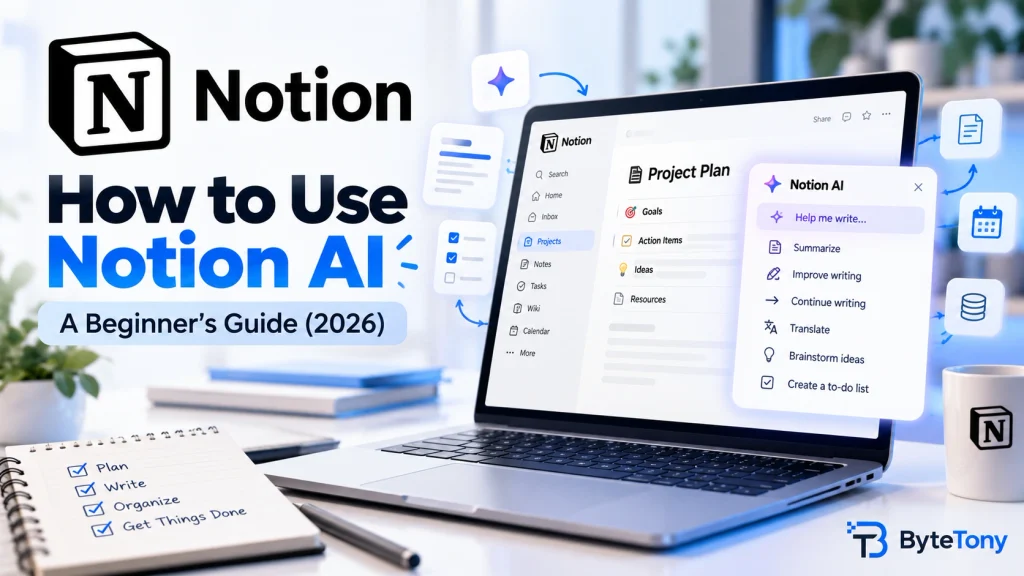
Learning how to use Notion AI for beginners is easier than it may seem. You can ask questions about your notes, summarize long pages, improve your writing, create task lists, translate content, and even build or update pages without constantly copying and pasting between Notion and another chatbot.

In this guide, you’ll learn what Notion AI is, whether it is free, how its plans work, and how to use its main features step by step. You’ll also find five simple prompts you can copy and try immediately.

Disclosure: This article may contain affiliate links. If you purchase through one of these links, we may earn a small commission at no extra cost to you.


What Is Notion AI?

Notion AI is a collection of artificial intelligence features built directly into Notion, an all-in-one workspace for notes, documents, tasks, projects, and databases.

One of its main features is Notion Agent, an AI assistant that can answer questions, use information from your workspace, and help create or edit pages and databases. Notion AI also includes tools for improving text inside pages, generating content, summarizing meetings, searching workspace information, translating pages, and filling database properties.

The important thing to understand is that Notion AI is not a separate app. It works inside the Notion workspace you already use.

For example, you can ask it to:

  • Summarize a long page.
  • Rewrite a paragraph more clearly.
  • Create a task list from meeting notes.
  • Draft an email or project outline.
  • Translate a page.
  • Find information stored across your workspace.
  • Create or update a database.
  • Turn rough notes into an organized document.
Notion Agent open inside a Notion workspace

Best for: People who already use Notion for notes, documents, tasks, or project management.

Main benefit: Your AI assistant and your content are available in the same workspace.

Main limitation: Free and Plus users receive only a limited trial of Notion AI. Ongoing access to the full AI feature set requires a Business or Enterprise plan.


Is Notion AI Free?

Notion has a free plan, and new users can try Notion AI without paying. However, the Free plan includes only a limited number of complimentary AI responses.

The Plus plan also provides a limited Notion AI trial rather than ongoing access to the full AI feature set.

Once you use all your complimentary AI responses, Notion may ask you to upgrade to the Business or Enterprise plan to continue using the AI features.

Notion Plans Explained

PlanStarting priceNotion AI accessBest for
Free$0Limited AI trialIndividuals testing Notion and its AI tools
Plus$10 per member/month when billed annuallyLimited AI trialIndividuals and small teams needing additional Notion features
Business$20 per member/month when billed annuallyOngoing Notion AI accessRegular AI use for work and team projects
EnterpriseCustom pricingOngoing AI access with additional security and administrative controlsLarger organizations

The Business plan includes features such as Notion Agent, AI Meeting Notes, Research Mode, and search across workspace content and supported connected apps.

Although Business and Enterprise plans provide ongoing AI access, usage allowances and fair-use limits may still apply. Some AI features can become temporarily unavailable when a workspace reaches its allowance.

Note: Prices, features, and usage limits may change. Check Notion’s official pricing page before subscribing.

What About Custom Agents?

Custom Agents are different from the regular Notion Agent.

They can run repetitive workflows automatically, such as organizing incoming requests or creating scheduled status updates. Custom Agents use a separate credit system, and their cost depends on how frequently they run, how many steps they complete, and which AI model they use.

Most beginners do not need Custom Agents when they first start using Notion AI.

Is Notion Free for Students?

Eligible university students and teachers can receive the Education Plus Plan for free for a one-member workspace.

You generally need to use an email address from an accredited educational institution. The free Education Plus Plan still provides only the limited Notion AI trial rather than ongoing full AI access.


What You Need Before Using Notion AI

You do not need technical knowledge, coding experience, or a complicated installation process.

Before you begin, you only need:

  • A Notion account.
  • Access to the web, desktop, or mobile version of Notion.
  • A page containing text, notes, or a simple task to practice with.
  • Remaining complimentary AI responses or access through an eligible paid plan.

Starting with a blank practice page is a good idea because you can experiment without changing an important document.


How to Use Notion AI for Beginners: Step-by-Step Guide

Notion AI is built into Notion, so there is no separate extension or AI application to install.

Here is how to run your first command.

Step 1: Create a Notion Account

Visit Notion’s official website and create an account.

You can use Notion through:

  • A web browser.
  • The Windows or macOS desktop app.
  • The iOS or Android mobile app.

The Free plan does not require you to begin with a paid subscription. After creating your account, Notion will open your new workspace.

Step 2: Open or Create a Page

Create a new blank page or open an existing page containing text you want to summarize, edit, or organize.

To create a simple practice page:

  1. Select New page in the Notion sidebar.
  2. Give the page a name, such as “Notion AI Practice.”
  3. Add a short paragraph, a few rough notes, or a list of tasks.

You can now use Notion AI with the content on that page.

Step 3: Choose How You Want to Access Notion AI

Notion provides several ways to use its AI features. The best method depends on what you want the AI to do.

Option 1: Open Notion Agent

Click the friendly face icon near the bottom of your Notion workspace or open Notion AI from the sidebar.

Notion Agent is useful when you want to:

  • Ask a question.
  • Search for information.
  • Work with several pages.
  • Create or edit a page or database.
  • Complete a multi-step task.
  • Use information from your workspace or connected apps.

You can type your request into the chat box just as you would with a regular chatbot.

Option 2: Use Notion AI Inside a Page

To edit or generate content directly inside a page:

  • Highlight existing text to display available AI actions.
  • Place your cursor on an empty line and press the spacebar to open the AI prompt.

This method is best for quick writing tasks such as:

  • Improving a paragraph.
  • Making text shorter or longer.
  • Changing the tone.
  • Fixing grammar.
  • Summarizing the page.
  • Continuing a draft.
  • Creating new content.

Option 3: Add an AI Block

Type:

/AI Block

Then select the AI Block option from the menu.

An AI Block is useful when you want Notion to generate a specific type of content that can be refreshed later. For example, you could create an AI Block that summarizes a project page whenever the information changes.

These methods all use Notion AI, but they do not open exactly the same interface. Notion Agent is designed for conversations and more complex tasks, while inline AI tools are better for editing content directly on a page.

Three ways to access Notion AI inside Notion

Step 4: Run Your First AI Command

Start with a simple and specific request.

For example, add a few notes to your page and enter:

Summarize this page in five bullet points.

Notion AI will analyze the content and generate the summary inside your page or Agent conversation.

Notion AI summarizing a page in five bullet points

You could also try:

Turn these notes into a simple to-do list.

The clearer your instruction is, the more useful the result is likely to be.

Step 5: Review and Refine the Result

You do not have to accept the first result.

Depending on the feature you are using, Notion may allow you to:

  • Accept or discard the changes.
  • Make the response shorter or longer.
  • Change the tone.
  • Continue writing.
  • Ask for a different format.
  • Try again.
  • Add more instructions.
Reviewing and refining a Notion AI response

For example, after asking Notion AI to create a task list, you could follow up with:

Organize these tasks by priority and add a suggested deadline for each one.

Treat the first AI response as a starting point rather than a finished document.

Step 6: Check Your AI Usage

Every completed AI action can count toward your complimentary responses.

Actions that may count include:

  • Generating new content.
  • Editing existing text.
  • Asking Notion Agent a question.
  • Using an AI Block.
  • Using AI Autofill in a database.
  • Selecting Try again to generate another response.

Free and Plus users may eventually see an upgrade message after using their complimentary responses.

Notion AI complimentary response limit message

Therefore, it is better to begin with clear prompts instead of repeatedly generating slightly different versions without changing your instructions.


Basic Notion AI Commands for Beginners

You do not need complicated prompts to get useful results from Notion AI.

Here are some of the most useful beginner actions.

Summarize a Page

Use this when a page contains long notes, research, meeting information, or a detailed document.

Example:

Summarize this page in five simple bullet points. Focus on the most important decisions and action items.

Improve Existing Writing

Highlight the text you want to improve and ask Notion AI to make it clearer.

Example:

Rewrite this paragraph in clear, friendly language for a beginner.

Create a To-Do List

Notion AI can turn unorganized notes into actionable tasks.

Example:

Turn these notes into a prioritized to-do list. Put the most urgent tasks first.

Draft New Content

You can use Notion AI to create an initial draft for an email, outline, project plan, or short document.

Example:

Draft a simple project plan for launching a beginner-friendly technology blog.

Translate Text

Notion AI can translate a page or selected content into another language.

Always review translated text carefully, especially when it includes technical, legal, medical, or financial information.


5 Notion AI Prompts for Beginners

Copy and paste these prompts into Notion AI to begin experimenting.

1. Summarize a Page

Summarize this page in five bullet points. Use simple language and include only the most important information.

2. Create a Task List

Turn these notes into a clear to-do list. Organize the tasks by priority and group related tasks together.

3. Improve a Paragraph

Rewrite this paragraph so it sounds clearer, more natural, and easier for a beginner to understand. Keep the original meaning.

4. Organize Rough Notes

Turn these rough notes into a short, organized document with a title, clear headings, and bullet points where useful.

5. Explain a Topic

Explain [topic] in simple terms for a complete beginner. Include one practical example and avoid unnecessary technical language.


How to Write Better Notion AI Prompts

A good prompt usually tells the AI four things:

  1. The task: What do you want it to do?
  2. The context: What information should it use?
  3. The audience: Who will read the result?
  4. The format: How should the answer be organized?

For example, compare these two prompts.

Vague prompt:

Write about productivity.

Better prompt:

Write a 300-word beginner-friendly introduction explaining how freelancers can use Notion to organize weekly tasks. Use short paragraphs and include three practical tips.

The second prompt gives Notion AI a clear topic, audience, length, purpose, and format.

You can use this simple formula:

[Action] + [topic or content] + [target audience] + [desired format] + [important limitations]

Example:

Summarize these meeting notes for a project manager. Use five bullet points, list every decision, and create a separate action-item section.


Common Notion AI Mistakes to Avoid

Using Vague Prompts

A request such as “Write something” does not give the AI enough direction.

Explain what you want, who it is for, and how the answer should be formatted.

Trusting Every Answer Automatically

AI-generated content can contain incorrect, outdated, or invented information.

Always verify:

  • Names.
  • Dates.
  • Prices.
  • Statistics.
  • Product features.
  • Legal or financial information.
  • Links and citations.

Notion AI should assist your work, not replace your judgment.

Sharing Highly Sensitive Information

Avoid entering passwords, private financial details, identification numbers, confidential client information, or other sensitive data into an AI prompt unless your organization has reviewed and approved the relevant privacy requirements.

Ignoring the Limited Trial

Free and Plus plans provide complimentary AI responses rather than unlimited ongoing use.

Use clear prompts and review your request before submitting it so you do not waste trial responses.

Publishing the First Draft

The first response may be repetitive, too general, or written in the wrong tone.

Review the result, correct inaccurate information, and ask Notion AI to refine specific problems.


Is Notion AI Safe for Personal Notes?

Notion states that it does not use workspace data or personal information to train its AI models by default. It also requires its AI subprocessors to agree not to use customer data to train their models.

For non-Enterprise workspaces, third-party AI providers may retain customer data for up to 30 days before deletion. Enterprise workspaces use zero-data-retention processing with Notion’s large language model providers by default.

Notion Agent also follows your existing workspace permissions. It should not be able to view or edit content that you cannot access yourself.

However, no AI service should be treated as the ideal place for passwords or extremely sensitive personal information. Review Notion’s current privacy and security documentation before using it with confidential business, medical, legal, or customer data.


Notion AI Alternatives for Beginners

Notion AI is most useful when your notes, tasks, and documents already live in Notion. However, another tool may be better when you need a standalone chatbot or a dedicated writing assistant.

For more options, read our guide to the best free AI writing tools for beginners.

Notion AI vs. ChatGPT vs. Grammarly vs. Jasper

ToolBest forFree optionMain strengthMain limitation
Notion AIWorking with notes, tasks, pages, and databases inside NotionLimited AI trialAI and workspace content in one placeOngoing access requires Business or Enterprise
ChatGPTGeneral questions, brainstorming, learning, and flexible content creationYesVersatile standalone AI assistantRequires moving content between ChatGPT and your workspace
GrammarlyGrammar, clarity, rewriting, and tone improvementsYesWorks across many websites and applicationsMore focused on writing improvement than workspace organization
JasperMarketing teams and high-volume branded contentTrial or paid access, depending on the current offerMarketing workflows and brand consistencyUsually more expensive and complex than beginners need

Choose Notion AI When:

  • You already organize your work in Notion.
  • You want AI to use your existing pages and databases.
  • You want to edit content without switching applications.
  • You need help organizing notes, tasks, and project information.

Choose ChatGPT When:

  • You want a flexible standalone chatbot.
  • You do not use Notion regularly.
  • You want a useful free option for general questions and writing.
  • You frequently explore unrelated topics.

Choose Grammarly When:

  • You already write your own drafts.
  • Your main goal is fixing grammar and improving clarity.
  • You want writing suggestions across different websites and apps.

Choose Jasper When:

  • You produce marketing content at a larger scale.
  • You need brand-voice controls and team workflows.
  • You are prepared to pay for a specialized marketing platform.

My Recommendation

Best for Beginners Who Already Use Notion: Notion AI

Notion AI is a natural choice when your notes, tasks, documents, and project information are already stored in Notion.

You can experiment with the limited AI trial before deciding whether you need a paid plan. Begin with simple tasks such as summarizing pages, organizing notes, and improving paragraphs.

Best Free General-Purpose Option: ChatGPT

ChatGPT is likely the better starting point when you want a flexible chatbot and do not need direct access to your Notion workspace.

Its free plan is suitable for experimenting with writing, brainstorming, explanations, and everyday questions.

Best for Improving Existing Writing: Grammarly

Grammarly is useful when you mainly need help correcting grammar, improving clarity, adjusting tone, and polishing text across different websites and applications.

Best for Regular Notion AI Use: Notion Business

The Business plan makes the most sense when Notion is already central to your daily work and you regularly need Agent, meeting notes, workspace search, or other Notion AI features.

Do not upgrade only because the AI trial ends. First consider how frequently you use Notion AI and whether the time it saves is worth the recurring per-member cost.


Conclusion

Notion AI gives beginners a practical way to use artificial intelligence without leaving the workspace where their notes, documents, tasks, and databases are stored.

You can use Notion Agent for questions and multi-step tasks, use inline AI tools to improve content directly inside a page, or add AI Blocks for reusable outputs.

The easiest way to begin is to create a blank page and try one simple prompt:

Summarize this page in five bullet points.

Review the result, add clearer instructions, and gradually experiment with tasks that match your real workflow.

The Free and Plus plans are suitable for testing Notion AI, but their complimentary responses are limited. Consider the Business plan only when you are using the AI features regularly and the added convenience justifies the cost.


Frequently Asked Questions

Is Notion AI Free?

You can try Notion AI for free using a limited number of complimentary AI responses. The Free and Plus plans do not include ongoing full AI access. Continued access requires the Business or Enterprise plan after the trial responses are used.

Do I Need a Paid Plan to Use Notion AI?

You do not need a paid plan to test Notion AI. However, you need the Business or Enterprise plan for ongoing access after the complimentary responses are exhausted.

What Is the Difference Between Notion AI and Notion Agent?

Notion AI is the overall collection of AI features available inside Notion.

Notion Agent is one part of Notion AI. It provides a conversational interface that can answer questions and help create or edit pages and databases using information from your workspace and connected sources.

How Is Notion AI Different From ChatGPT?

Notion AI works directly inside your Notion workspace and can use information from your pages and databases.

ChatGPT is a standalone general-purpose assistant. It is more flexible across different topics, but you may need to copy and paste information between ChatGPT and the application where you work.

Can I Use Notion AI on My Phone?

Yes. Notion is available on iOS and Android, and supported AI features can be used through the mobile application. The exact interface and available shortcuts may differ from the desktop and web versions.

Can Notion AI Summarize a Page?

Yes. Notion AI can summarize an entire page or selected content. For a more useful result, tell it how long the summary should be and what information it should prioritize.

Can Notion AI Make Mistakes?

Yes. Like other generative AI tools, Notion AI can produce incorrect or outdated information. Review its output and verify important facts before publishing or relying on them.

Does Notion Use My Notes to Train Its AI?

Notion states that it does not use your workspace data or personal information to train its AI models by default. It also says its AI subprocessors are contractually prohibited from using customer data to train their models.

Leave a Comment

Your email address will not be published. Required fields are marked *

Scroll to Top