
If you want to know how to remove video background in CapCut, the Auto removal tool can cut a person out of ordinary footage without a green screen. This guide explains how to do it on desktop, mobile, and web, plus how to fix rough edges and replace the background.
Auto removal generally works best with clearly visible people. Results with pets, products, or complex objects may vary.
Affiliate disclosure: This article contains affiliate links. If you purchase through them, we may earn a commission at no extra cost to you.
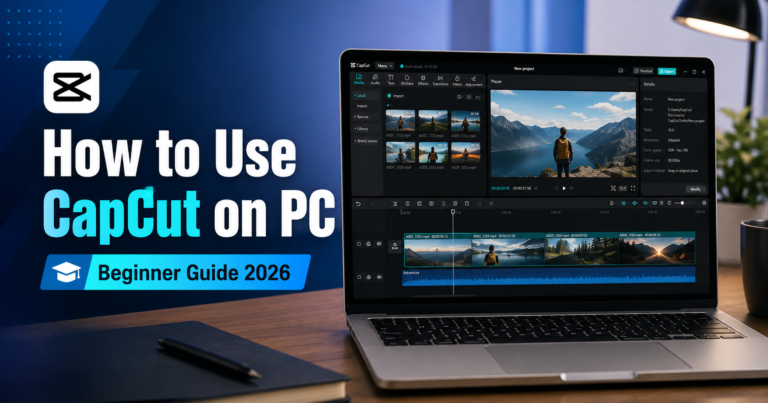
To get started, open CapCut and choose a well-lit clip with a clear subject. If you’re new to the desktop editor, see our CapCut PC beginner’s guide.
Table of Contents
How to remove video background in CapCut on desktop
- Import your video. Open CapCut, create a project, and drag your video onto the timeline. If you’re replacing the background, place the new image or video on a lower track and your subject clip above it.
- Enable Auto removal. Select the subject clip, then open Video > Remove BG > Auto removal in the right panel. CapCut will automatically process the footage and remove the background.
- Check and refine the result. Preview the clip, especially around hair, hands, and moving objects. If the cutout looks uneven, try Custom removal. Use the Smart brush to restore areas you want to keep and the Smart eraser to remove unwanted parts. Click Apply when finished.
- Export your video. Click Export, select your preferred resolution and frame rate, and save the video. Check for Pro restrictions before exporting.
Tip: Without a background layer underneath, the removed area may appear black in the preview or standard export. Add a replacement background for a finished composition.
You can prepare your replacement image using ByteTony’s free Image Editor and adjust its dimensions with the Image Resizer before importing it into CapCut.
How to Remove Video Background in CapCut on Mobile
- Open CapCut and tap New project. Select your video and tap Add.
- Select the clip, then go to Edit > Remove BG > Auto removal. Wait for the background to disappear.
- Preview the result and use Custom removal if necessary. Tap Export to save your video.
To replace the background, place your new background on the main timeline and add the subject video as an Overlay above it. Apply background removal to the overlay.
How to Remove Video Background in CapCut Online
- Open CapCut’s web editor, create a video project, and upload your clip.
- Select the clip, then go to Smart tools > Remove background > Auto removal.
- Add a background color, image, or video, then select Export > Download.
Menu names and feature availability may vary slightly between versions.
Fix Common Background Removal Problems
- The subject isn’t detected correctly: Auto removal works best with clearly defined subjects. Try Custom removal for difficult areas.
- Hair or edges look rough: Use even lighting, strong contrast, and higher-quality footage. Reduce motion blur where possible and refine the edges manually.
- Removal fails on a long clip: Split the video into shorter sections and process them separately.
- The background is green, blue, or another solid color: Try Video > Remove BG > Chroma key instead. Select the background color and adjust Intensity and Shadow for a cleaner cutout.
For the best results, check several frames before exporting rather than judging the cutout from a single image.
FAQ
Is background removal free in CapCut?
CapCut offers background removal tools, but access to Auto removal and exporting the results may depend on your platform, region, and app version.
If Auto removal displays a Pro icon, you may be able to preview the effect but need CapCut Pro to export the finished video.
CapCut’s published US reference pricing includes $19.99/month or $179.99/year for Pro. Actual prices may vary, so check the subscription offer in your account before purchasing.
For more details, read our CapCut Free vs Pro comparison.
Can I remove a video background without a green screen?
Yes. CapCut’s Auto removal uses AI to identify and separate subjects from ordinary footage without requiring a physical green screen.
Alternatively, Descript offers an AI-powered Green Screen effect that removes backgrounds from regular videos. Check its available features and plan limits before choosing an editor.
Conclusion
Use Auto removal to remove video backgrounds in CapCut without a green screen, Custom removal to refine imperfect edges, and Chroma key for solid-color backgrounds.
Once your subject is separated, add your preferred background, preview the result, and export your finished video.
Enjoyed this guide? Support ByteTony and help us create more simple, beginner-friendly tech guides.
☕ Support ByteTony