Descript Review for YouTube Beginners: Worth It in 2026?

Descript review for YouTube beginners in 2026

This article may contain affiliate links. If you buy through these links, we may earn a commission at no extra cost to you.

Traditional video editors can feel overwhelming when you are just getting started. Timelines, tracks, layers, keyframes, effects, and export settings may appear before you have even made your first cut.

Descript takes a different approach.

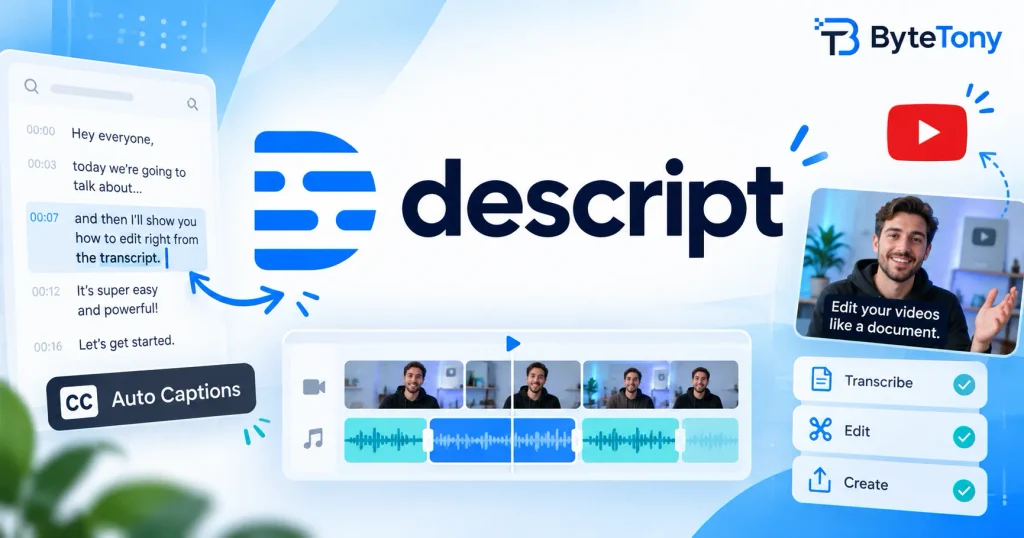
Instead of editing your video mainly through a timeline, Descript lets you edit much of it through a written transcript. Delete a sentence from the transcript, and the corresponding section of the video or audio is removed as well.

This document-style workflow sounds easier, but is Descript actually worth using for your first YouTube videos?

In this Descript review for YouTube beginners, we will examine its main features, ease of use, current plans, advantages, limitations, and how it compares with CapCut and DaVinci Resolve.

The goal is to help you decide whether Descript fits the type of videos you want to create—not to suggest that it is the best editor for everyone.

Editorial note: This review evaluates Descript from a beginner’s perspective using its documented features and current official information. Features, prices, AI allowances, and plan limits can change, so confirm important details on the official Descript website before subscribing.

Descript Review for YouTube Beginners: Quick Verdict

Descript is worth considering if you create videos built mainly around speech, explanations, interviews, or screen recordings.

It is particularly suitable for:

  • Talking-head YouTube videos
  • Software tutorials
  • Screen recordings
  • Educational videos
  • Podcast clips
  • Online courses
  • Software review channels
  • Creators who want to edit spoken content faster

Its biggest advantage is transcript-based editing. Instead of searching through a timeline to find every mistake, you can locate the words in the transcript and remove them like text in a document.

However, Descript is not the best choice for every type of creator.

It may be a poor fit for:

  • Cinematic vlogs
  • Music videos
  • Advanced color grading
  • Complex visual effects
  • Detailed multi-camera productions
  • Creators who want full professional timeline control
  • People who need a completely offline editing workflow
CategoryBeginner Assessment
Ease of getting startedVery good
Spoken-content editingExcellent
Audio cleanup toolsVery useful
Captions and screen recordingVery useful
Advanced visual editingLimited compared with professional editors
Best overall useTutorials, talking-head videos, podcasts, and screen recordings

ByteTony’s verdict: Descript is a strong option for beginners who make spoken-word videos and value editing speed. Start with the free plan and use it for one real project before deciding whether a paid plan is worthwhile.

What Is Descript?

Descript is a video and audio editing platform that allows you to edit recorded content through a written transcript.

After you upload or record a video, Descript transcribes the spoken words. You can then edit the recording by changing the transcript.

For example, imagine that you say:

Today we are going to, um, review Descript for beginners.

You can remove “um” from the transcript, and Descript removes the matching section from the audio and video.

This is different from a traditional video editor, where you would normally locate the mistake on a timeline, split the clip, remove the unwanted section, and close the gap manually.

Descript still includes a timeline, scenes, layers, and visual editing controls. However, text-based editing is the feature that makes it different from many alternatives.

Who Is Descript Mainly Built For?

Descript is designed primarily for people who create spoken content, including:

  • YouTubers
  • Podcasters
  • Tutorial creators
  • Educators
  • Online course creators
  • Software reviewers
  • Screen-recording creators
  • Coaches
  • Marketers
  • Interview-based channels

When most of your video consists of someone speaking, teaching, reviewing, or explaining something, Descript fits the workflow well.

When your content relies mainly on cinematic footage, music, complicated transitions, visual effects, or detailed color grading, a traditional editor will usually give you more control.

Is Descript Beginner-Friendly?

For many beginners, yes.

The transcript-based workflow removes one of the most confusing parts of early video editing: finding the exact point where you made a mistake and cutting it correctly on a timeline.

With Descript, you can often find the unwanted sentence in the transcript and delete it directly.

This can make Descript easier for beginners editing:

  • Talking-head videos
  • Tutorials
  • Educational content
  • Interviews
  • Podcast clips
  • Product demonstrations
  • Screen recordings

What Feels Easy at the Beginning

The most approachable tasks include:

  • Creating a new project
  • Importing a video
  • Reading the generated transcript
  • Removing mistakes by deleting text
  • Shortening repeated sentences
  • Generating captions
  • Applying basic audio cleanup
  • Exporting a simple video

These tasks may feel less intimidating than learning tracks, keyframes, waveforms, panels, and advanced export settings immediately.

What Still Requires Practice

Descript is easier to start with than many traditional editors, but it is not effortless.

You will still need time to understand:

  • Scenes
  • Layers
  • Timeline adjustments
  • Visual layouts
  • Export settings
  • Media minutes
  • AI credits
  • Plan restrictions
  • Underlord and other AI tools

Descript lowers the initial learning barrier, but it does not remove the need to learn basic video-editing concepts.

Key Descript Features YouTube Beginners Will Use

Descript offers many tools, but new creators do not need to learn everything immediately. The following features are the most relevant to beginner YouTubers.

1. Transcript-Based Video Editing

Transcript editing is the main reason many creators consider Descript.

When you remove words or sentences from the transcript, Descript removes the corresponding parts of the recording.

This is useful for:

  • Cutting mistakes
  • Removing repeated sentences
  • Shortening long explanations
  • Cleaning up false starts
  • Removing unnecessary sections
  • Editing podcast clips
  • Improving talking-head videos

For spoken content, editing can feel closer to revising a written document than cutting a movie.

However, you should still watch the edited section afterward. Deleting text can occasionally produce an abrupt visual or audio cut that needs further adjustment.

2. Filler Word and Silence Removal

Beginner recordings often contain words and sounds such as:

  • “Um”
  • “Uh”
  • “Like”
  • “You know”
  • Repeated words
  • False starts

They may also contain long pauses while the speaker thinks about what to say next.

Descript can help identify filler words and shorten silent sections. Used carefully, these tools can make a video feel faster and more polished.

Do not remove everything automatically without reviewing the result.

Some pauses help viewers understand an important point, and removing every filler word can make speech sound unnatural. Automation should speed up your editing, not replace your judgment.

3. Studio Sound

Studio Sound is Descript’s audio enhancement feature.

It can help make speech clearer and reduce some background noise, which may be useful when recording with:

  • A laptop microphone
  • A basic USB microphone
  • A room with mild background noise
  • Nonprofessional recording equipment

Studio Sound can improve a usable recording, but it cannot fully repair every audio problem.

If the original recording is heavily distorted, extremely noisy, or filled with echo, the result may still be disappointing.

For better results:

  • Record in a quiet room
  • Stay reasonably close to the microphone
  • Reduce echo where possible
  • Turn off fans and other noise sources
  • Record a short test before starting
  • Avoid recording at a level that causes distortion

Treat Studio Sound as additional polish rather than a replacement for good recording habits.

4. Automatic Captions and Subtitles

Captions can make your videos easier to follow and more accessible. They are also useful for viewers who watch without sound.

Descript can automatically generate captions and allow you to adjust their appearance.

This is helpful for:

  • YouTube tutorials
  • Educational content
  • Talking-head videos
  • Short social clips
  • Podcast highlights
  • Content repurposed for social media

Always review automatic captions before publishing.

AI transcription may misunderstand:

  • Brand names
  • Product names
  • Technical terms
  • Personal names
  • Accents
  • Unclear speech

Publishing incorrect captions can confuse viewers and make an otherwise professional video look unfinished.

5. Screen Recording

Descript includes screen-recording capabilities, making it relevant to tutorial channels and software reviewers.

This is useful for channels covering:

  • AI tools
  • Software tutorials
  • Productivity apps
  • Website walkthroughs
  • Online services
  • Beginner technology guides

You can record your screen and continue editing within the same platform instead of using a separate recording program and moving the footage into another editor.

For simple tutorials, keeping recording and editing within one workflow can save time.

6. Scenes, Layers, and Timeline Controls

Although transcript editing is Descript’s main attraction, videos still need visual organization.

Scenes allow you to divide the video into visual sections. Layers let you add and arrange elements such as:

  • Text
  • Images
  • Screen recordings
  • Backgrounds
  • Video clips
  • Captions
  • Logos
  • Other visual elements

Descript also includes a timeline for adjusting timing and making more precise edits.

These controls give you more flexibility, but they are also where the learning curve becomes more noticeable. Beginners should learn them gradually rather than trying to master every feature in the first project.

7. Underlord (Beta) AI Co-Editor

Underlord is Descript’s AI co-editor.

You can describe what you want in natural language, and Underlord can help with editing and content-related tasks. Depending on the project and available tools, it may assist with activities such as reorganizing content, creating clips, improving sections, or repurposing existing material.

Underlord remains a beta feature, and its use consumes AI credits. The number of credits used can vary depending on the request, selected model, media length, and actions performed.

If you are also comparing general-purpose AI assistants, read our ChatGPT vs Claude for beginners
comparison to understand which tool may better fit your workflow.

For complete beginners, Underlord can be useful, but it can also add another feature to learn.

A practical approach is to begin with:

  1. Transcript editing
  2. Basic cuts
  3. Audio cleanup
  4. Captions
  5. Simple visual changes

After you understand those tools, you can explore Underlord and other AI features more confidently.

How to Edit Your First YouTube Video in Descript

The following workflow keeps your first Descript project simple.

Step 1: Create a New Project

Create a new project in Descript and give it a clear name.

When evaluating the software, begin with the free plan instead of paying immediately. A small real project will tell you more about the workflow than reading a long list of features.

Step 2: Import or Record Your Footage

Upload an existing video or record your content inside Descript.

For your first test, use something manageable, such as:

  • A three-minute talking-head video
  • A short software tutorial
  • A basic screen recording
  • A podcast clip
  • A simple product explanation

Avoid testing the software with a large or complicated project. A short video makes it easier to understand what Descript does well and where you may need more control.

Once the file is processed, Descript will generate a transcript.

Step 3: Review and Correct the Transcript

Read the transcript while listening to the recording.

Correct important transcription errors before you begin making larger edits. This is especially useful when the content contains names, software terms, acronyms, or brand names.

Then remove:

  • Clear mistakes
  • Unnecessary repetitions
  • False starts
  • Off-topic sentences
  • Sections that do not add value

When you delete text, watch the affected part of the video to make sure the cut feels natural.

Step 4: Remove Filler Words and Long Pauses

Use the filler word and silence tools to identify sections that may slow the video down.

Apply these tools carefully rather than accepting every suggested removal.

A good result should sound cleaner while preserving natural speech. If the speaker begins to sound rushed or robotic, restore some pauses or words.

Step 5: Improve the Audio

Listen to the recording with headphones before applying audio enhancement.

When the voice sounds slightly noisy, distant, or thin, try Studio Sound and compare the result with the original.

Avoid applying the strongest setting automatically. Too much processing can make a voice sound artificial.

Step 6: Add and Review Captions

Generate captions and choose a clean, readable style.

Check:

  • Spelling
  • Punctuation
  • Line breaks
  • Timing
  • Names
  • Technical terms
  • Text placement

Make sure captions do not cover important elements on the screen.

Step 7: Add Basic Visual Polish

For your first videos, keep visual editing simple.

You may add:

  • A short title
  • Basic text labels
  • Screen-recording sections
  • A few scene changes
  • Simple captions
  • A logo
  • A clean intro or outro

Do not delay publishing your first useful video because you are trying to create advanced motion graphics.

Clear information, understandable audio, and clean editing matter more than complicated visual effects.

Step 8: Export or Publish the Video

Before exporting, check:

  • Video resolution
  • Audio quality
  • Aspect ratio
  • Caption placement
  • File format
  • Video length
  • Plan limitations

Descript supports direct publishing to YouTube. You can set information such as the video title, description, category, and tags during the export process.

Current direct YouTube export limits depend on the plan. The Free plan supports up to 720p and one hour, Hobbyist supports up to 1080p and one hour, and Creator, Business, and Enterprise support up to 4K and three hours. YouTube Shorts and brand or shared-access channels are not supported through the direct integration, so those videos may need to be downloaded and uploaded manually.

You can also export the video to your computer and upload it through YouTube Studio.

For a beginner, manual uploading may be preferable because it gives you a final opportunity to check:

  • The thumbnail
  • The title
  • The description
  • Chapters
  • Visibility settings
  • Subtitles
  • End screens
  • Cards

Descript Pricing for Beginners

Descript currently offers Free, Hobbyist, Creator, Business, and Enterprise plans.

Its plans use two main types of allowances:

Media minutes: Used when you import or record video and audio in Descript.

AI credits: Used by features such as Underlord, Studio Sound, filler word removal, generated media, and other AI-powered tools.

Unused monthly media minutes and AI credits generally do not roll over to the following month.

Current Descript Plan Comparison

The following details were listed on Descript’s official pricing page at the time of writing in July 2026.

PlanListed Price per PersonMedia AllowanceAI CreditsVideo ExportBest For
Free$01 hour per month100 AI credits per monthUp to 720p, watermark-freeTesting the basic workflow
Hobbyist$16 monthly with annual billing or $24 month-to-month10 hours per month400 per monthUp to 1080p, watermark-freeOccasional solo creators
Creator$24 monthly with annual billing or $35 month-to-month30 hours per month800 per monthUp to 4K, watermark-freeRegular YouTubers and creators
Business$50 monthly with annual billing or $65 month-to-month40 hours per month1,500 per monthUp to 4K, watermark-freeTeams and collaborative workflows
EnterpriseCustomBased on the organizationBased on the organizationBased on agreementLarger organizations

These limits and prices can change. Confirm the latest information on the official Descript pricing page before subscribing.

What Is the Free Plan Good For?

The free plan is useful for:

  • Exploring the interface
  • Testing transcript editing
  • Editing one short project
  • Trying basic captions
  • Testing audio cleanup
  • Exporting a sample video
  • Deciding whether the workflow feels natural

The current free plan includes one media hour per month, 100 AI credits per month, and watermark-free export up to 720p.

That is enough to evaluate the main editing experience, but the monthly AI allowance and lower export resolution may become restrictive if you publish regularly.

When Might a Beginner Need to Upgrade?

A paid plan may make sense when:

  • You publish videos consistently
  • You need more media hours
  • You want 1080p or 4K exports
  • You use Studio Sound regularly
  • You remove filler words from many recordings
  • You need more monthly AI credits
  • You edit longer videos
  • You frequently create clips from long recordings
  • You collaborate with another person

For an occasional creator, Hobbyist may provide enough capacity.

For a YouTuber publishing longer videos regularly, Creator may be more practical because it offers more media hours, more AI credits, and 4K export.

Do not choose a plan based only on the feature list. First edit one real video and determine whether Descript saves enough time to justify the ongoing cost.

Pros and Cons of Descript for YouTube Beginners

Pros

  • Transcript editing can be easier than traditional timeline editing
  • Useful for talking-head videos and tutorials
  • Fast way to remove spoken mistakes
  • Filler word and silence tools can reduce repetitive editing
  • Studio Sound can improve usable voice recordings
  • Automatic captions are helpful for YouTube and social clips
  • Built-in screen recording suits software tutorials
  • Good workflow for podcast-to-video content
  • Direct YouTube publishing is available
  • Free plan allows beginners to test the workflow
  • Paid exports are watermark-free, and the free plan currently supports watermark-free 720p export

Cons

  • Not ideal for cinematic editing
  • Less suitable for complex visual effects
  • Advanced color grading is not its main strength
  • Scenes and layers still require practice
  • Automatic edits can sound unnatural when applied carelessly
  • Captions and transcripts require manual correction
  • AI tools consume limited credits
  • The free plan’s 720p resolution may be insufficient for some channels
  • Regular creators may need a paid subscription
  • It does not provide the same level of timeline control as professional editors

Descript vs CapCut vs DaVinci Resolve

The right editor depends more on your content style than on which product has the longest feature list.

Descript vs CapCut

Descript is usually the better fit when most of your editing involves speech.

Choose Descript for:

  • Talking-head videos
  • Tutorials
  • Podcasts
  • Interviews
  • Screen recordings
  • Educational content
  • Removing spoken mistakes quickly

CapCut is generally more comfortable for:

  • Short-form social videos
  • YouTube Shorts
  • Reels
  • Template-based edits
  • Visual effects
  • Trend-style content
  • Fast mobile editing

Choose Descript when your biggest problem is editing spoken content.

Choose CapCut when your videos depend more on visual effects, transitions, templates, and short-form presentation.

Descript vs DaVinci Resolve

Descript focuses on speed and accessibility for spoken content.

DaVinci Resolve provides much deeper control over:

  • Timelines
  • Color grading
  • Visual effects
  • Audio mixing
  • Multi-camera projects
  • Cinematic editing
  • Professional post-production workflows

Choose Descript when you want to produce tutorials, reviews, interviews, or talking-head videos without spending months learning a professional editor.

Choose DaVinci Resolve when your long-term goal is to develop advanced editing skills and gain detailed creative control.

Beginner Comparison Table

ToolBest ForLearning DifficultyFree OptionMain StrengthMain Limitation
DescriptTalking-head videos, tutorials, podcasts, and screen recordingsEasy to mediumYesTranscript-based editingLimited advanced visual control
CapCutShorts, social videos, templates, and visual editsEasyYesFast visual-first editingLess focused on long spoken-content workflows
DaVinci ResolveAdvanced and cinematic video editingMedium to difficultYesProfessional editing capabilitiesSteeper learning curve
Canva Video EditorSimple branded videos and presentationsVery easyYesTemplates and design integrationNot a full professional editor

Which Video Editor Should a Beginner Choose?

Choose Descript When:

  • Your videos mainly feature speaking
  • You create tutorials or educational content
  • You record software walkthroughs
  • You want to edit mistakes through text
  • You turn podcasts into videos or clips
  • Traditional timelines feel intimidating
  • You value speed over detailed cinematic control

Choose CapCut When:

  • You mainly create Shorts or social videos
  • You want templates and quick effects
  • Your videos are more visual than spoken
  • You prefer a mobile-friendly workflow
  • You follow short-form content trends

Choose DaVinci Resolve When:

  • You want professional editing control
  • You plan to create cinematic content
  • You want advanced color grading
  • You need detailed audio and visual tools
  • You are willing to spend more time learning

Choose Canva Video Editor When:

  • You create simple branded videos
  • You already design thumbnails and graphics in Canva
  • You need basic presentations or promotional clips
  • You do not need advanced editing controls

Best for Spoken-Word YouTube Videos: Descript

Descript is the most suitable option in this comparison for talking-head videos, tutorials, podcast clips, and screen recordings.

Its transcript-based workflow can reduce the time spent finding and cutting spoken mistakes manually.

Start with the free plan, edit one complete video, and evaluate whether the process feels faster than your current editor.

Best for Learning Advanced Editing: DaVinci Resolve

DaVinci Resolve is the better long-term choice for creators who want to learn professional editing.

It is more difficult than Descript, but the additional learning provides far greater control over color, effects, audio, and complex timelines.

Best for Short-Form Social Content: CapCut

CapCut is a practical option for short videos built around templates, transitions, visual effects, and social-media formatting.

It may feel more natural than Descript when the visual presentation matters more than spoken editing.

Best for Simple Branded Content: Canva Video Editor

Canva Video Editor works well for simple promotional videos, presentations, social clips, intros, and branded visuals.

It is not a complete replacement for Descript, CapCut, or DaVinci Resolve, but it can be convenient when most of your design work already happens in Canva.

Final Verdict: Should You Use Descript for Your First YouTube Videos?

Descript is a strong choice for YouTube beginners who create spoken-word content.

When your videos mainly consist of tutorials, talking-head recordings, software reviews, podcast clips, educational explanations, or screen recordings, transcript-based editing can make the process feel much easier than working only on a traditional timeline.

Its most valuable feature is not a complicated visual effect. It is the ability to edit your video by editing its words.

That can help beginners:

  • Remove mistakes faster
  • Shorten repetitive explanations
  • Clean up filler words
  • Improve basic audio
  • Add captions
  • Publish more consistently

However, Descript is not the right editor for every creator.

For cinematic videos, advanced effects, detailed color grading, and professional timeline control, DaVinci Resolve is a better long-term choice.

For short-form social videos based on templates, effects, and transitions, CapCut may feel more comfortable.

The smartest approach is to start with Descript’s free plan and edit one real video from beginning to end.

If transcript-based editing saves you time and makes publishing less frustrating, upgrading may be worthwhile. If you find yourself needing more visual control than Descript provides, move to an editor that better matches your content style.

Frequently Asked Questions

Is Descript good for YouTube beginners?

Yes. Descript is particularly suitable for beginners creating talking-head videos, tutorials, educational content, podcast clips, software reviews, and screen recordings.

Its transcript-based workflow can feel easier than cutting every mistake manually on a timeline.

Is Descript free to use?

Yes. Descript currently offers a free plan with one media hour per month, 100 AI credits per month, and watermark-free video export up to 720p.

The free plan is best used to evaluate the workflow before choosing a subscription. Plan features and limits can change, so check the official pricing page for current details.

Does Descript add a watermark?

The current Free plan supports watermark-free export up to 720p. Paid plans provide higher available resolutions while remaining watermark-free.

Check the current plan comparison before exporting because resolution and other restrictions depend on your subscription.

Do I need video-editing experience to use Descript?

No advanced editing experience is required to begin.

Transcript editing makes the first steps more approachable, but you will still need to learn scenes, layers, visual layouts, timeline adjustments, and export settings.

Can Descript export directly to YouTube?

Yes. Descript supports direct publishing to YouTube and allows you to enter information such as the title, description, category, and tags.

Current limitations include the lack of direct support for YouTube Shorts and brand or shared-access channels. In those cases, download the video and upload it manually through YouTube Studio.

Can Descript remove filler words automatically?

Descript can identify and remove filler words and repeated speech.

Always review the result manually. Removing too many words or pauses can make speech sound rushed or unnatural.

Can Descript improve poor audio?

Studio Sound can improve voice clarity and reduce some background noise, but it cannot fully repair extremely distorted, echo-filled, or badly recorded audio.

Record the cleanest audio possible first, and then use Studio Sound for additional improvement.

Is Descript better than CapCut for beginners?

It depends on the content.

Descript is better suited to talking-head videos, tutorials, podcasts, interviews, and spoken-word editing.

CapCut is generally more suitable for short-form videos, social content, templates, transitions, and visual-first editing.

Is Descript better than DaVinci Resolve?

Descript is easier for beginners who want to edit spoken videos quickly.

DaVinci Resolve is more powerful for advanced editing, visual effects, color grading, audio work, and cinematic projects.

Neither is universally better. They are designed for different types of users.

Is Descript good for vlogs?

Descript can work for simple vlogs containing a lot of speech.

For cinematic vlogs built around music, visual storytelling, advanced transitions, and detailed color grading, a traditional editor such as DaVinci Resolve may be more suitable.

How much does Descript cost?

Descript has a free plan and several paid plans.

At the time of writing, paid plans started at $16 per person per month with annual billing or $24 on a month-to-month Hobbyist subscription.

Prices and plan allowances can change, so verify the current figures on the official pricing page before subscribing.

Is Descript worth paying for as a beginner?

Descript may be worth paying for when it helps you edit faster and publish more consistently.

Occasional creators should begin with the free plan. A paid plan becomes easier to justify when you publish regularly, need higher-resolution exports, use more media hours, or rely frequently on AI tools.

Related Article

Looking for more useful tools for your content workflow?

Read: Best AI Tools for Content Creators 2026

Leave a Comment

Your email address will not be published. Required fields are marked *

Scroll to Top