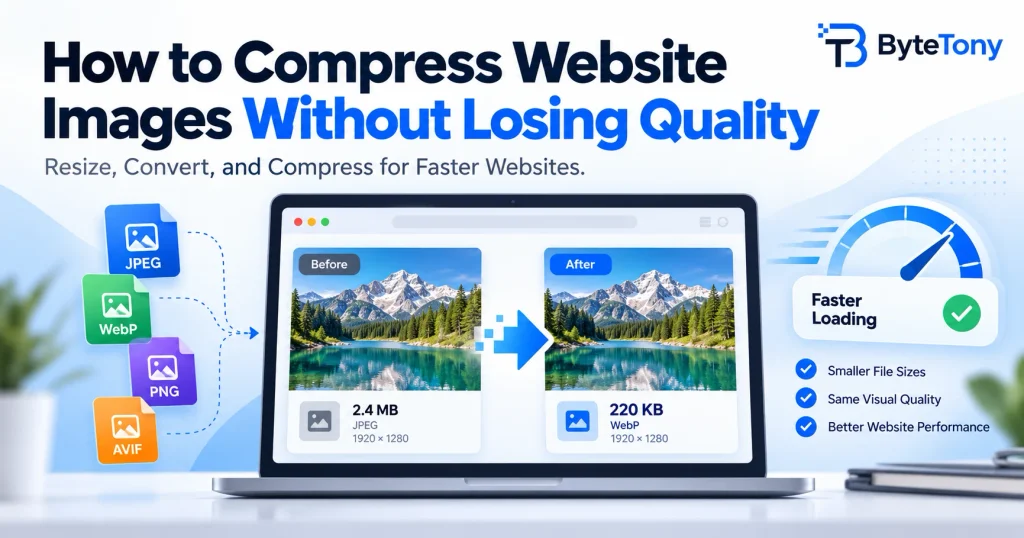
You can compress website images without losing quality by reducing unnecessary pixels and file data while keeping the result visually sharp. Smaller images use less bandwidth and can help your pages load faster.
There are two types of compression. Lossless preserves the image’s pixel data, while lossy removes some detail to achieve smaller files. With sensible lossy settings, the difference may be invisible to most visitors.
The process has three steps: resize, choose the format, then compress.
Note: This article may contain affiliate links. If you buy through them, we may earn a small commission at no extra cost to you.
Table of Contents
Step 1: Resize Images to Their Display Size
Resizing often saves more space than compression alone.
Export images close to the width they’ll actually occupy on your website. For high-density screens, you can use up to twice that width when needed. Avoid uploading full-resolution camera photos unnecessarily.
For example:
- A 4000 × 3000 photo contains 12 million pixels.
- Resizing it to 1200 × 900 reduces that to 1.08 million pixels—about 11 times fewer.
- Even at 2400 × 1800, it contains roughly 2.8 times fewer pixels than the original.
Fewer pixels don’t guarantee the same reduction in file size, but they usually make images substantially smaller.
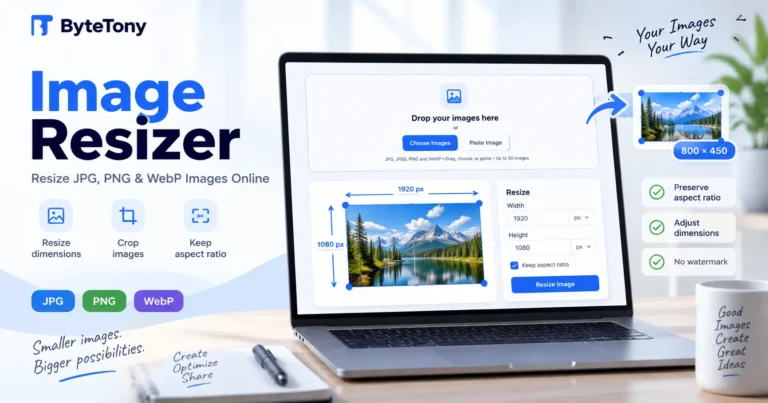
Use ByteTony’s free Image Resizer to set exact dimensions while preserving the aspect ratio.
For responsive websites, different devices may need different image widths. WordPress automatically generates multiple sizes and can use srcset and sizes to help browsers choose an appropriate version.
The same optimization applies to AI-generated visuals. If you’re creating your own graphics, see our guide on how to create AI images for free.
Step 2: Choose the Right File Format
The best format depends on the image’s content and where you’ll use it.
| Format | Best for | Compression | Transparency |
|---|---|---|---|
| JPEG | Photos and broad compatibility | Lossy | No |
| PNG | Screenshots and graphics requiring exact pixels | Lossless | Yes |
| WebP | Most website images | Both | Yes |
| AVIF | Highly compressed images where supported | Both | Yes |
WebP is a practical default for most websites. According to Google’s WebP documentation, lossy WebP files are approximately 25–34% smaller than comparable JPEGs at equivalent measured quality.
AVIF can produce even smaller files in some cases, although results vary by image and compression settings. Modern browsers support it, but some editing tools and upload services may not.
For screenshots containing small text, consider PNG or lossless WebP. For logos and icons, SVG is useful when supported, although WordPress doesn’t allow SVG uploads by default without additional configuration.
You can change image formats using ByteTony’s free Image Converter.
Step 3: Compress Website Images Without Losing Quality
To compress website images without losing quality that’s noticeable to visitors, start with a moderate compression setting and compare the result.
For photos, a lossy quality setting around 75–85 is a useful starting point, not a universal rule. The ideal value depends on the image, format, and compression tool.
Higher settings may increase file size considerably without an obvious visual improvement.
For screenshots and graphics with fine text, lossless compression can preserve crisp edges.
Before uploading:
- Compare the original and compressed images at 100% zoom.
- Check fine details, text, skies, gradients, and sharp edges.
- If you notice blurring, banding, or compression artifacts, increase the quality.
- Compare file sizes and keep the smallest version that still looks good.
A few precautions help:
- Keep the original image. You may need it for future edits.
- Avoid repeated lossy re-encoding. Start from the original whenever possible to prevent cumulative quality loss.
- Check metadata. EXIF data can include camera details and GPS coordinates. Remove unnecessary metadata where appropriate, but verify what your export tool actually removes.
ByteTony’s free Image Compressor lets you adjust quality or target a file size. Images are processed locally in your browser without being uploaded to ByteTony’s servers.
FAQ
What file size should website images be?
As a starting guideline, aim for under 200 KB for hero images and under 100 KB for smaller article images.
These aren’t official limits. Detailed images may need more space, while simple graphics can be much smaller. Prioritize appropriate dimensions, visual quality, and actual page performance over a fixed file-size target.
Does WordPress compress images automatically?
Partly. WordPress generates smaller image versions and applies compression settings when encoding supported images.
Its default encoding quality is 82 for JPEG and 86 for WebP. WordPress can also scale down very large uploads using a default 2560px threshold, depending on the image format and site configuration.
However, these features don’t mean every original upload is automatically optimized or converted to WebP. Themes, plugins, and server settings can also affect the results.
Resizing and optimizing images before uploading remains a useful practice.
Conclusion
The easiest way to compress website images without losing quality is to resize them appropriately, choose an efficient format, and use moderate compression settings.
Start with WebP for most images, compare the result visually, and keep your originals.
Try the process on one existing blog image using ByteTony’s free image tools. Compare the before-and-after file sizes to see how much space you can save without sacrificing visible quality.
Enjoyed this guide? Support ByteTony and help us create more simple, beginner-friendly tech guides.
☕ Support ByteTony