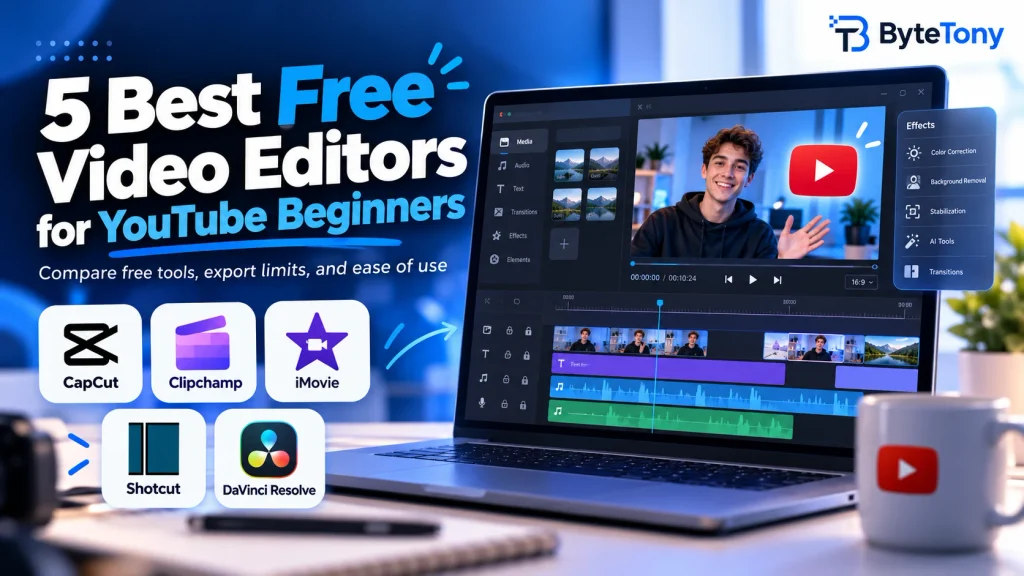
The best free video editors for YouTube beginners let you create and export YouTube-ready videos without paying. The five options below are compared on three things: watermarks, free export resolution, and learning curve.
Most free editors have limitations, such as premium features, restricted export settings, or paid assets. Here’s what you should know before choosing one.
Disclosure: This article may contain affiliate links. If you purchase through them, we may earn a small commission at no extra cost to you.
Table of Contents
Free YouTube Video Editors Compared
Here’s how the five editors compare at a glance.
| Editor | Platforms | Watermark on free plan | Free export resolution | Learning curve* |
|---|---|---|---|---|
| CapCut | Windows, Mac, web, iOS, Android | Depends on templates and premium features | Commonly 1080p; varies by platform | Easy |
| Clipchamp | Windows, web | None with free features | Up to 1080p | Easy |
| iMovie | Mac, iPhone, iPad | None | Up to 4K | Easy |
| Shotcut | Windows, Mac, Linux | None | 4K supported | Moderate |
| DaVinci Resolve | Windows, Mac, Linux | None unless using certain Studio-only effects | Up to 4K at 60fps | Steep |
Learning curve ratings are editorial judgments, not hands-on test results.
Note: Free features, export restrictions, and availability may change depending on the platform, region, and software version.
The Best Free Video Editors for YouTube Beginners
CapCut — Easiest for Fast Edits on Any Device
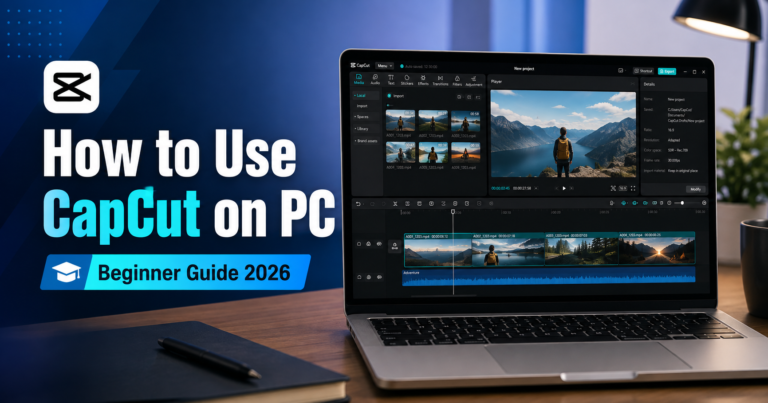
CapCut is ideal for beginners who want quick edits, ready-made templates, and an editor that works on phones and computers.
It offers free editing tools and commonly supports 1080p exports, although resolution and watermark restrictions can vary by platform and version.
The catch: Pro templates, effects, AI tools, and certain export settings may require a subscription. Using premium content can trigger an upgrade prompt or watermark restrictions.
For the best free experience, stick to free assets and test your export settings before editing a long video.
Clipchamp — Best Free Option for Windows Users
Clipchamp works on Windows and in a web browser, making it convenient for beginners who prefer a simple interface.
Its free plan includes automatic captions and watermark-free exports up to 1080p, which is enough for most beginner YouTube videos.
The catch: Premium stock media, filters, and effects require eligible paid features. You must remove them before exporting on the free plan.
Clipchamp also uses Microsoft accounts and OneDrive-backed project storage, so available cloud space is worth considering.
iMovie — Simplest Choice for Mac and iPhone
iMovie is an excellent starting point for Apple users. It’s free on Mac, iPhone, and iPad, with an easy interface for cutting clips, adding music, and creating polished videos.
It supports exports up to 4K on compatible devices and projects.
The limitation: iMovie is available only on Apple devices and offers fewer advanced editing tools than DaVinci Resolve.
For beginners who already own a Mac or iPhone, it’s one of the simplest ways to start editing without subscriptions or watermarks.
Shotcut — Best Open-Source Editor for Computers
Shotcut is a free, open-source video editor for Windows, Mac, and Linux.
It offers timeline editing, video filters, and 4K export support without watermarks or subscription fees.
Its built-in Elements library also includes a small collection of graphics, sounds, animations, and transitions.
The catch: Shotcut has fewer ready-made templates than CapCut, and its panel-based interface takes longer to learn.
It’s a good option if you want a completely free desktop editor with more control over your videos.
DaVinci Resolve — Best Free Editor to Grow Into
DaVinci Resolve is a powerful choice for beginners who want to develop professional editing skills over time.
The free version combines video editing, color correction, visual effects, and audio tools. It supports exports up to 4K at 60fps without a watermark when using free features.
The limitation: The learning curve is steep, and the software can be demanding on older computers, particularly those with weaker graphics hardware. Certain Studio-only effects can also add a watermark.
If you later need more features, DaVinci Resolve Studio is available as a one-time purchase rather than a subscription.
Not sure whether to start with CapCut or DaVinci Resolve? Read our CapCut vs DaVinci Resolve comparison for beginners to understand which editor better matches your needs.
Which Free Video Editor Should You Choose?
- Most beginners: CapCut, especially for quick edits and mobile videos. Stick to free assets.
- Windows users: Clipchamp, particularly if you want simple editing and automatic captions.
- Mac and iPhone users: iMovie for easy editing without watermarks.
- Open-source enthusiasts: Shotcut for free desktop editing without subscriptions.
- Long-term learning: DaVinci Resolve if you’re willing to learn more advanced tools.
Choose an editor based on your device and goals, then spend time learning it rather than constantly switching.
Before starting a full project, export a short test video to confirm the resolution and check for watermarks or premium restrictions.
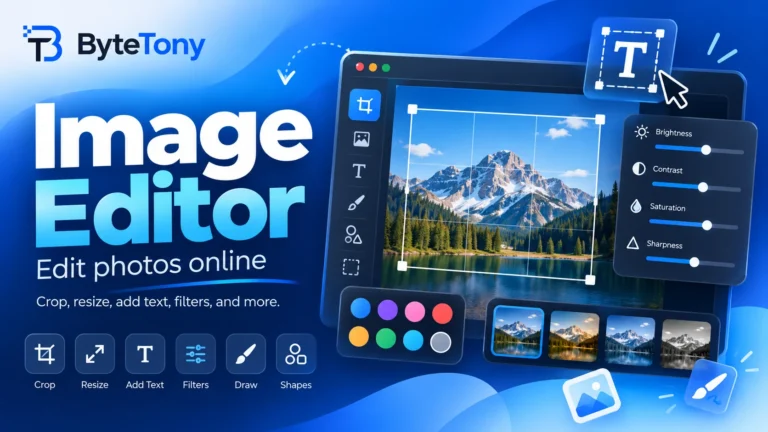
Once your video is ready, you can also create a custom YouTube thumbnail using the free ByteTony Image Editor.
FAQ
Can I edit videos directly in YouTube Studio?
Yes, but only for basic changes to videos you’ve already uploaded, such as trimming sections, blurring areas, adding music from YouTube’s audio library, and adding end screens. It’s not a replacement for a complete video editor.
When should I pay for a video editor?
Only when a specific limitation affects your work, such as export restrictions, premium assets, or advanced features you actually need. Growing your YouTube channel doesn’t automatically mean you need paid software.
Enjoyed this guide? Support ByteTony and help us create more simple, beginner-friendly tech guides.
☕ Support ByteTony